
Account
Team members and roles
Invite people to your account, choose between the Admin and Member roles, organise people into groups, and mark someone as away.
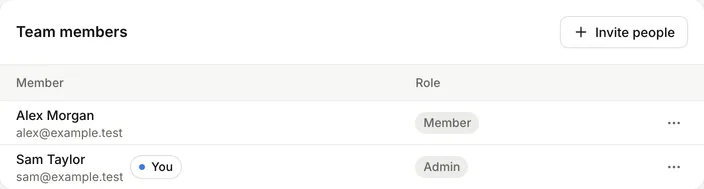
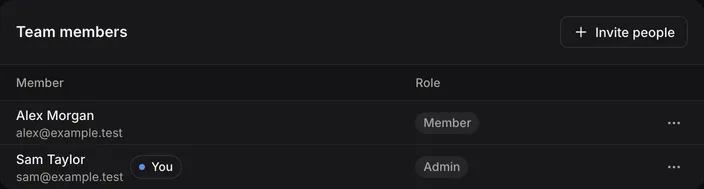
Everyone in an account has one of two roles: Admin or Member. Roles apply to the whole account, not to a single project. Manage people in Account settings > Team.
Roles
Members build forms and work with entries. Admins can do everything a member can, plus manage people, keys and billing, and override the process when work gets stuck.
| Task | Member | Admin |
|---|---|---|
| Create and edit projects | Yes | Yes |
| Delete projects | No | Yes |
| Build forms, edit the process and automations, and publish | Yes | Yes |
| Work with entries, data tables, templates and extensions | Yes | Yes |
| Use stage actions, take unassigned work and approve entries they are asked to | Yes | Yes |
| Rename the account | No | Yes |
| See team members, groups, plan and usage | Yes | Yes |
| Delete a form or a data table | No | Yes |
| Invite people, change roles and remove people | No | Yes |
| Create, edit and delete groups | No | Yes |
| Mark someone else as away | No | Yes |
| Create and revoke API keys | No | Yes |
| Set account AI access, manage its assistant connections and read its audit log | No | Yes |
| Change the account timezone | No | Yes |
| Subscribe, change plan or manage billing | No | Yes |
| Move an entry to any stage, skipping the stage’s actions | No | Yes |
| Assign or unassign an entry someone else owns | No | Yes |
| Withdraw an approval request | No | Yes |
| Use actions limited to Account admins only | No | Yes |
| Change or delete shared views they didn’t create | No | Yes |
Members can still pass on or release entries they own. Admins also receive the email when an automation fails, if the form has that notification turned on. See Notifications.
In the API, the Member role is called standard.
Process overrides
These admin tools are for when an entry can’t move on through the usual actions:
- Move to any stage… on the entry page, or Move to any stage when you move several entries at once, moves entries to any stage. It needs a comment, which is kept in the entry’s history.
- Assign to… and Unassign change the owner of an entry, whoever owns it now.
- Withdraw request on the approval panel withdraws one approver’s open request. The approval rule is then checked again without them.
See Stages, Owners and due dates and Approvals.
Invite people
- Go to Account settings > Team and select Invite people.
- Enter their Email.
- Choose a Role: Member or Admin.
- Select Send invitation.
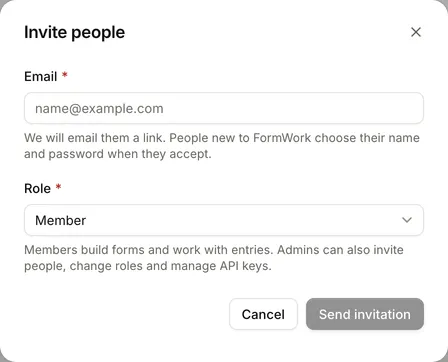
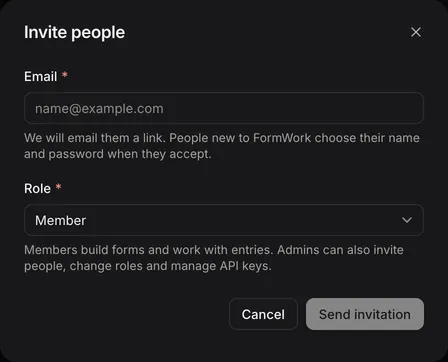
Everyone receives an invitation link and must accept before joining, including people who already use FormWork. New users choose their name and password when accepting; existing users sign in and accept. The link expires after 7 days. Inviting an existing member doesn’t change their role.
Pending invitations appear in Team members with a Pending or Expired badge. Open the menu on an invitation to Resend invitation, which sends a fresh link, or Revoke invitation, which stops the link working.
Inviting an admin needs an account on a trial or a paid plan. Members can be invited at any time, and plans count admins only.
Change a role
- In Team members, open the menu next to the person and select Edit role.
- Choose Admin or Member and select Change role.
Making someone an admin needs an account on a trial or a paid plan. You can’t change the last admin to a Member.
Remove someone
Open the menu next to the person, select Remove and confirm. They lose access to the account straight away. Their forms, entries and other work stay. Any approval requests waiting for them are withdrawn. Their API keys stop working, and the account is removed from their assistant connections.
You can’t remove the last admin. Keep at least two admins so the account is never left without one.
Groups
Groups are teams of people, such as Purchasing. A group can own a stage, be allowed to use an action and approve entries. See Owners and due dates.
To create a group:
- In Account settings > Team, select New group.
- Enter a Name and choose its members.
- Select Create group.
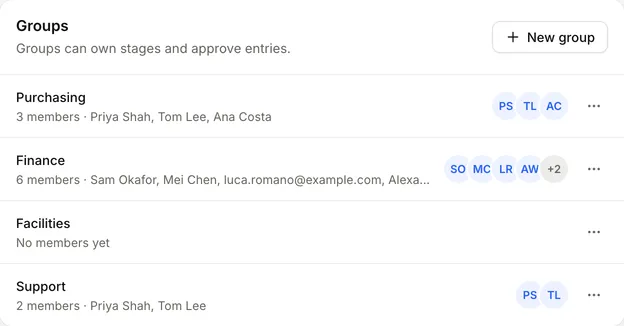
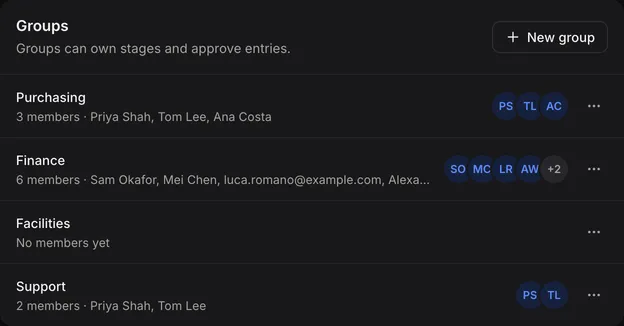
Select a group’s name to change it. To delete a group, open its menu and select Delete group. Entries owned by the group become unassigned.
Mark someone as away
Admins can mark anyone as away: in Team members, open the menu next to the person and select Mark as away…, choose an Away until date and select Mark as away. Use Mark as back to end it early. Team members shows an Away until badge for anyone who is away.
People can also mark themselves away from Your profile. What being away changes is described in Owners and due dates.
Your profile
Select your name at the bottom of the sidebar, then Your profile.
| Section | What you can do |
|---|---|
| Profile | Set Your name, which your team sees instead of your email address. Your email can’t be changed here; ask through Help and feedback in the sidebar. |
| Away | Mark yourself away until a date, or select I’m back. |
| Connections | See your connected AI assistants, remove an account from a connection or disconnect it. See Connecting an assistant. |
| Change password | Enter your current password and a new one of at least 10 characters. Changing it logs you out everywhere, including the current browser. |
| Other devices | Select Log out other devices to end every other session. You stay logged in where you are. |
If you forget your password, select Forgot your password? on the login page and follow the emailed link.