
Forms
Appearance
Set a form's colours, light and dark mode, fonts, rounding and width, starting from a preset, and check every change in a live preview.
Appearance controls how the form looks to respondents: colours, light and dark mode, fonts, rounding and width. The same look is used on the form’s link and in every embed.
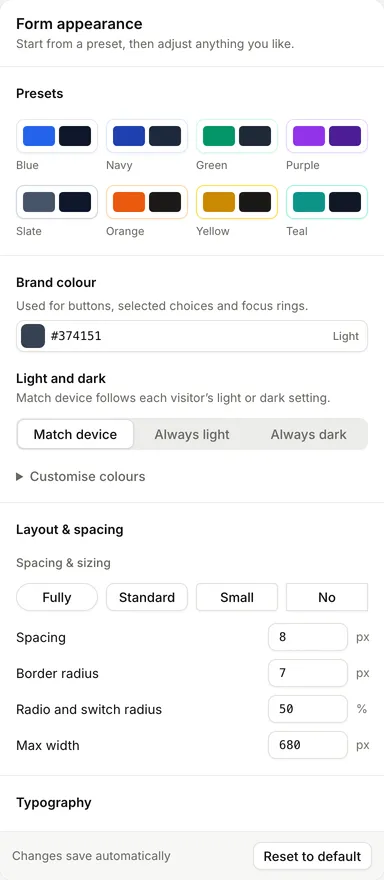
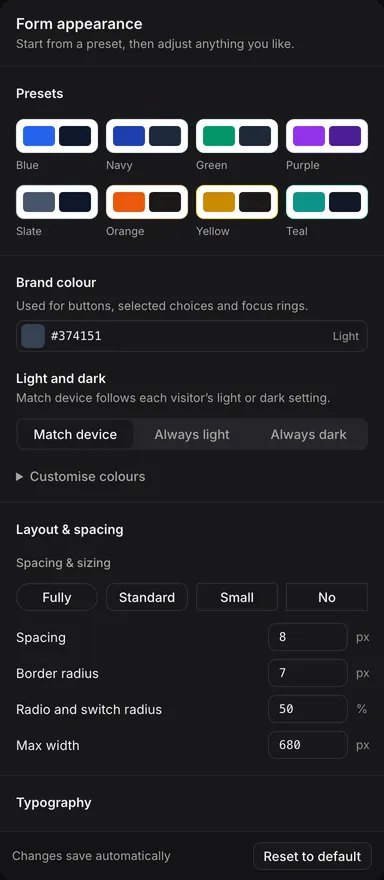
Open a form in the builder and select Appearance. The controls are on the left and a Live preview of the form is on the right. On a small screen, switch between Edit and Preview.
Changes save automatically. The bar at the bottom of the controls shows Saving…, Saved or an error.
Start from a preset
New forms use a neutral grey theme. To change it quickly:
- Under Presets, select a colour preset: Blue, Navy, Green, Purple, Slate, Orange, Yellow or Teal. A preset sets the light and dark values of every colour.
- Adjust Brand colour, which is used for buttons, selected choices and focus rings.
- Choose fonts and rounding (see below).
A preset only fills in values. You can change any of them afterwards.
Light and dark
| Option | Result |
|---|---|
| Match device | Follows each visitor’s light or dark setting. This is the default. |
| Always light | Always uses the light colours. |
| Always dark | Always uses the dark colours. |
Above the preview, Simulate device theme preference lets you test Match device as a visitor would see it: System, Prefers light or Prefers dark. This only changes the preview, not the saved setting.
Colours
Open Customise colours to set every colour. Each has a light value and a dark value, entered with a colour picker or as a hex code. Dark values are used when the form shows in dark mode.
| Group | Colours |
|---|---|
| Primary colour | Primary |
| Backgrounds | Background, Card background |
| Text | Primary, Secondary, Tertiary |
| Borders | Border, Border light |
| Status colours | Error, Error background |
Brand colour and Primary are the same setting. Brand colour edits the light value, or the dark value when the form is set to Always dark.
Check buttons, helper text, borders and error messages in both modes, not only the empty form.
Layout and spacing
The rounding buttons apply a preset to Border radius and Repeater buttons radius:
| Button | Border radius | Repeater buttons radius |
|---|---|---|
| Fully | 16 px | 50% |
| Standard | 8 px | 50% |
| Small | 4 px | 50% |
| No | 0 px | 0% |
You can also set each value yourself:
| Setting | Unit | Default |
|---|---|---|
| Spacing | px | 8 |
| Border radius | px | 7 |
| Repeater buttons radius | % | 50 |
| Max width | px | 680 |
Repeater buttons radius sets how round the circular controls are, such as radio buttons and the knob on switches. 50% is a circle and 0% is a square.
Typography
Choose a Body font and a Heading font separately. Both lists offer:
- Default (System), the visitor’s own system font
- Sans-serif: Inter, Roboto, DM Sans, Manrope, Plus Jakarta Sans, Montserrat, Poppins, Raleway, Quicksand, Open Sans, Lato, Nunito, Work Sans, Source Sans 3, Ubuntu, Arimo
- Serif: Merriweather, Lora, Playfair Display, Roboto Slab, PT Serif, Crimson Text
- Display and headings: Oswald, Bebas Neue, Anton
- Classic system fonts: Georgia, Times New Roman, Courier New (Mono)
Fonts other than the system and classic fonts load from Google Fonts when the form opens. Each adds a little to page load, so check that the font covers the languages your respondents use.
Reset to default
Select Reset to default, then Reset appearance, to clear every colour, font and spacing change on this version and go back to Match device. There is no undo for a single change.
Drafts and published forms
Appearance belongs to the form version. The preview and any draft preview link use the draft’s appearance; the form’s link and embeds use the published version’s appearance. Publishing makes the draft’s appearance live along with the rest of the draft. See Drafts and publishing.
Override the look on your website
An embed can force the mode with theme="light", theme="dark" or theme="auto", and your website’s CSS can override individual colours and sizes. The order of precedence is:
- The
themeattribute on the embed, for light or dark mode - CSS variables set by your website
- The appearance saved on the form version
- FormWork’s defaults
For the variable names, see Theming with CSS.