
Extensions
Stripe
Take payments in a form with a Payment field and Stripe Checkout, check each payment before the form can be submitted, and call Stripe from automations.
The Stripe extension adds a Payment field that sends respondents to Stripe’s hosted Checkout page, checks the payment before the form can be submitted, and adds Stripe steps to automations.
This is separate from paying for your FormWork plan, which is covered in Plans and billing.
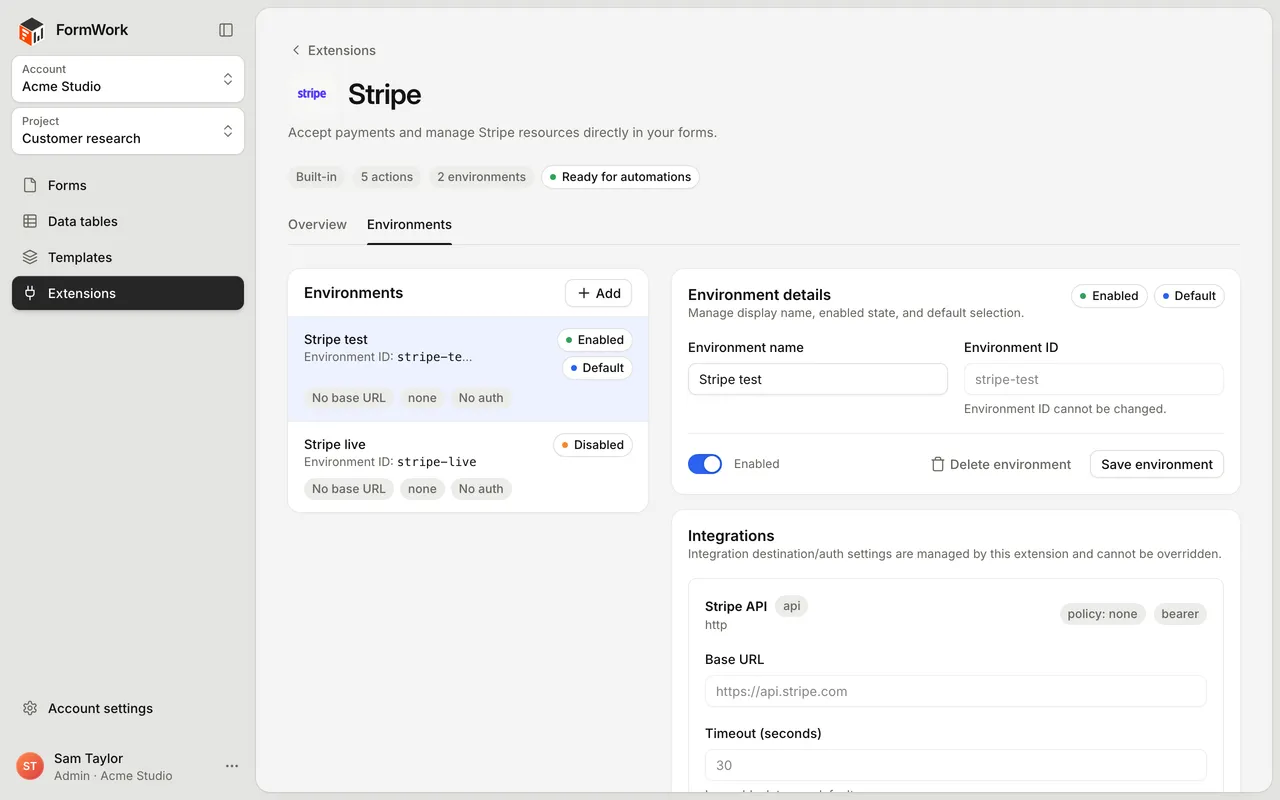
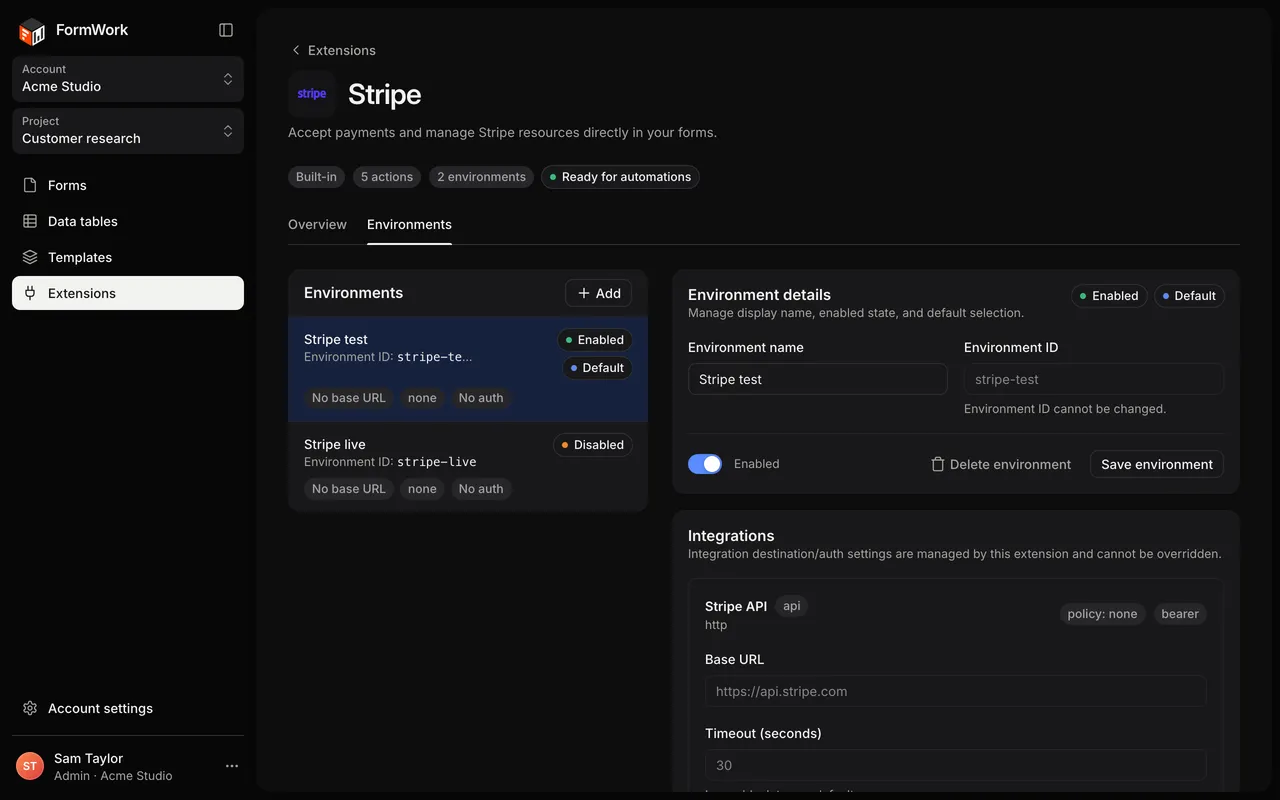
Set up Stripe
- Open the project, select Extensions and select the Stripe card.
- Select Install extension.
- Create an environment, for example “Stripe test”. See Install a built-in extension.
- Under Secrets, add the Stripe Secret Key (
sk_…) and select Update secret. It is required. - Optionally add the Webhook Signing Secret (
whsec_…). See Webhooks. - Turn the environment on.
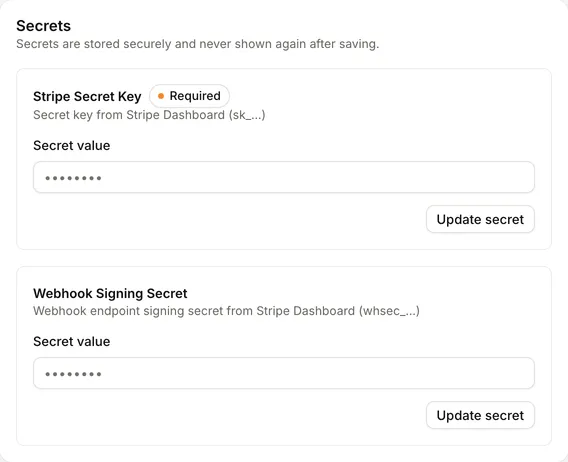
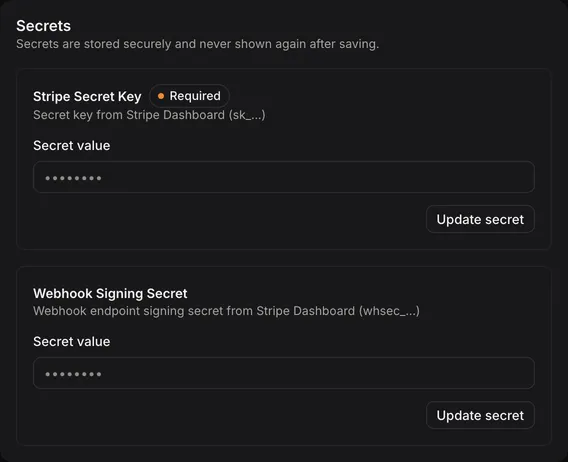
FormWork manages the connection to Stripe’s API for you; you only add the keys. Use Stripe test keys in one environment and live keys in another.
Add a Payment field
Once Stripe has an enabled environment, Payment appears in the builder’s field list. Add it to the page where people should pay.
Its settings are under Extension field settings.
Environment and line items
- Extension config: the Stripe environment this field uses. It defaults to the default environment.
- Line items: where the items on the Checkout page come from.
- Manual items: add one or more items, each with a Line item name and Line item price. Each can be fixed text or a value inserted from an answer, so the price can follow what the respondent chose.
- Reference source: choose a list, such as a repeating group, as the Line item source, then choose which of its fields gives the Line item name reference and the Line item price reference.
Amounts
- Currency:
usd,eur,gbp,audorcad. The default isusd. - Amount Unit:
minormeans prices are in the smallest unit (pence or cents, so1250is 12.50).majormeans prices are decimal amounts (12.50). The default isminor.
While a price can’t be worked out yet, for example because an answer it depends on is empty, the field shows “Payment will be available when the price has been calculated”.
Checkout options
| Setting | What it does |
|---|---|
| Capture Method | automatic takes the payment straight away. manual only authorises it; you capture it later with the Capture Payment step. |
| Payment Description | Optional. Stored on the payment in Stripe. |
| Customer Email Field | Optional. An email field whose answer is filled in on the Checkout page. |
| Billing Address Collection | auto lets Stripe decide; required always asks for it. |
| Collect Phone Number | Asks for a phone number on the Checkout page. |
| Allow Promotion Codes | Lets people enter a Stripe promotion code on the Checkout page. The field shows the amount they paid after the discount. |
| Pay Button Label | Default “Pay now”. |
| Repay Button Label | Default “Pay again”. |
| Paid State Label | Default “Payment complete”. |
What respondents see
- The respondent selects Pay now and goes to Stripe’s Checkout page.
- After paying, Stripe sends them back to the same page, and the form carries on where they left off. This works on hosted links and embedded forms.
- The field shows Payment complete, and the payment’s reference (
pi_…) is saved as the field’s answer.
If they cancel, they return to the form and can try again. If an answer that affects the price changes after they paid, the field asks them to pay again.
Checks before submission
When someone submits, FormWork asks Stripe about the payment and only accepts the submission if:
- the field has a payment, unless the field is hidden by conditional logic;
- the payment has succeeded, or is authorised and waiting to be captured;
- it was made for this entry and this field;
- its amount and currency still match the field’s current total. With a promotion code, the total before the discount must match.
Otherwise the respondent sees an error on the field and the form is not submitted.
Webhooks
Webhooks let Stripe tell FormWork about a payment even if the respondent closes the page before returning to the form.
-
In the Stripe dashboard, add a webhook endpoint for this URL:
https://app.useformwork.com/api/v1/extensions/stripe/webhooks -
Subscribe to these events:
Event What FormWork does checkout.session.completedSaves the payment reference on the entry’s Payment field. payment_intent.succeededSaves the payment reference on the entry’s Payment field. payment_intent.payment_failedChecks the event; nothing on the entry changes. -
Copy the endpoint’s signing secret (
whsec_…) into the environment’s Webhook Signing Secret.
FormWork only accepts a webhook whose signature matches the signing secret of an enabled Stripe environment in the form’s project, and it only ever changes the Payment field the payment was made for. Without a signing secret, webhooks are rejected.
Stripe steps in automations
Stripe adds these steps under Connected apps:
- Create Checkout Session
- Retrieve Checkout Session
- Create Payment Intent
- Retrieve Payment Intent
- Capture Payment
Each step uses the environment you choose (or the default) and sends the values you fill in as Stripe parameters. For example, Capture Payment needs payment_intent_id, which you can insert from the Payment field’s answer.
The steps return Stripe’s response and follow If it fails and When it fails on errors, in the same way as API connector steps. Like other connected app steps, they can’t be used in automations that run while someone fills in the form.
Before you go live
- Test with Stripe test keys and test cards first.
- Check the Amount Unit and Currency with whole and decimal prices.
- If prices come from answers or a list, change those answers after paying and confirm the form asks for payment again.
- Try cancelling, paying again, a promotion code and a required billing address if you use them.
- Send a test webhook from Stripe and confirm it is accepted.
- With manual capture, test when and how the Capture Payment step runs, and what happens if it fails.
- Switch the field and any Stripe steps to the live environment only after testing end to end.