
Getting started
Quick start
Sign up, build and publish a form, share it and see your first entry in about ten minutes. Then, if you like, add a stage and an automation.
This guide takes you from sign-up to a live form with its first entry in about ten minutes. The last two steps, adding a stage and an automation, are optional.
If you prefer to build from a conversation, you can also connect an AI assistant, describe what you need and review the draft in FormWork before publishing.
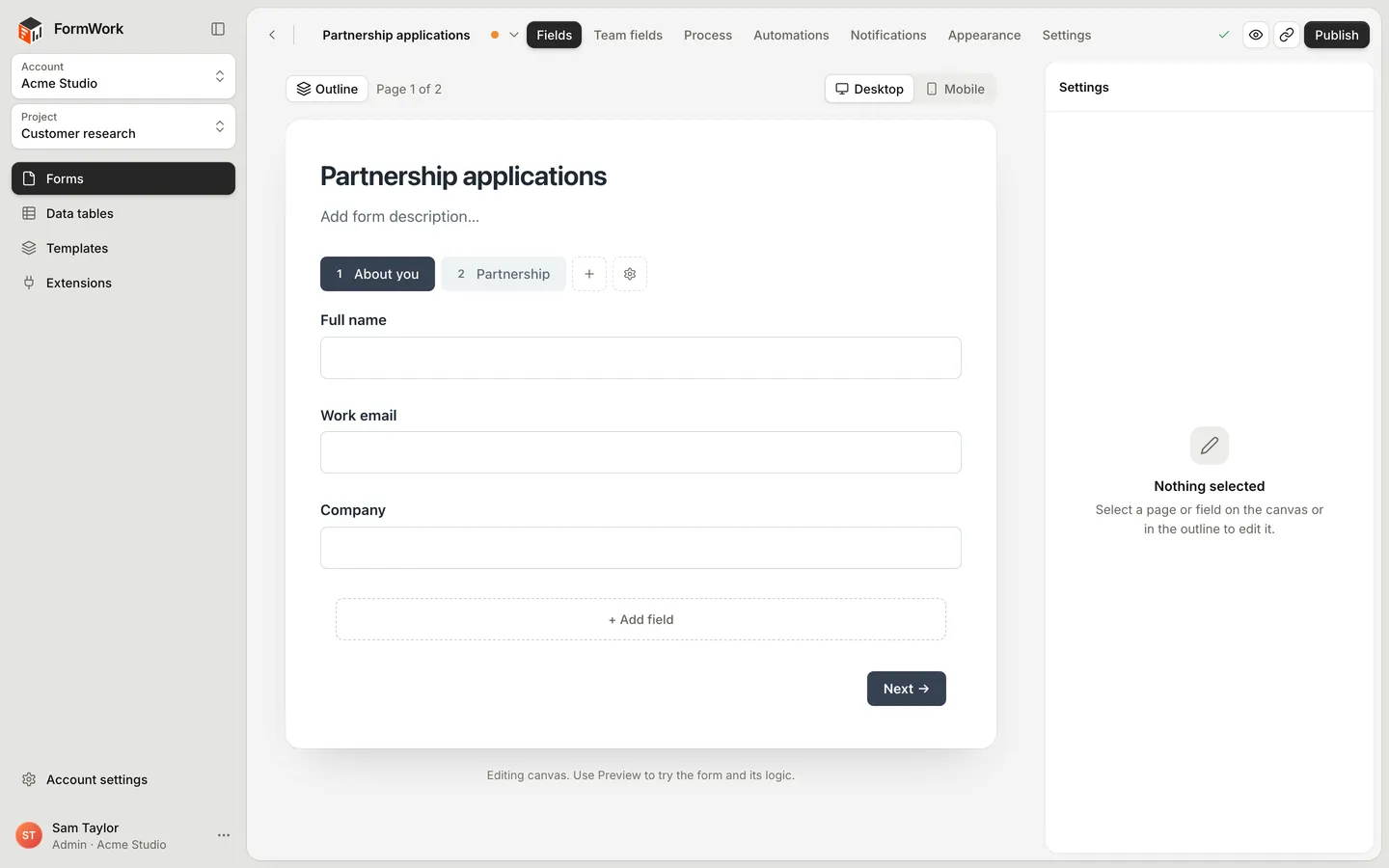
1. Sign up
- On the sign-up page, enter your Name, Work email and a Password of at least 10 characters.
- Select Start free trial.
Your account starts a 30-day free trial with no card needed. FormWork opens a project called “First project” with a Get started with FormWork checklist. You can follow the checklist or this guide; they cover the same steps.
2. Create a form
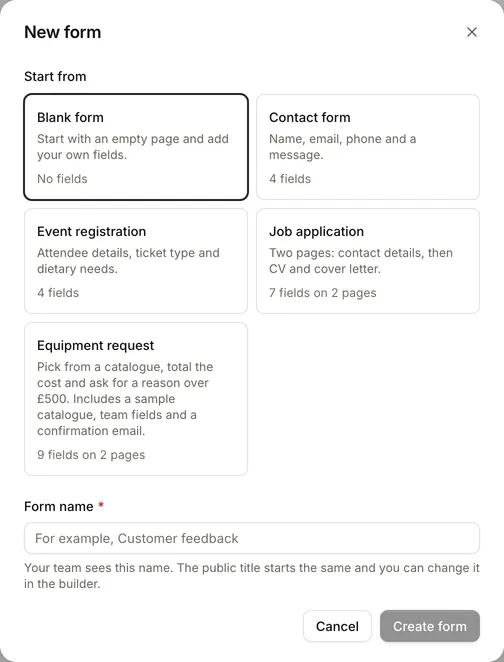
- In the project, select New form.
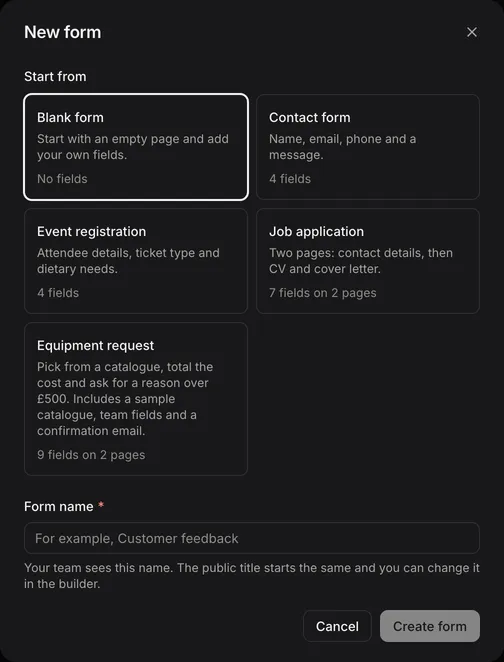
- Under Start from, choose Contact form. It comes with name, email, phone and message fields. Choose Blank form if you would rather start empty.
- Enter a Form name, such as “Website enquiries”. Your team sees this name. The title respondents see starts the same, and you can change it later in Settings.
- Select Create form.
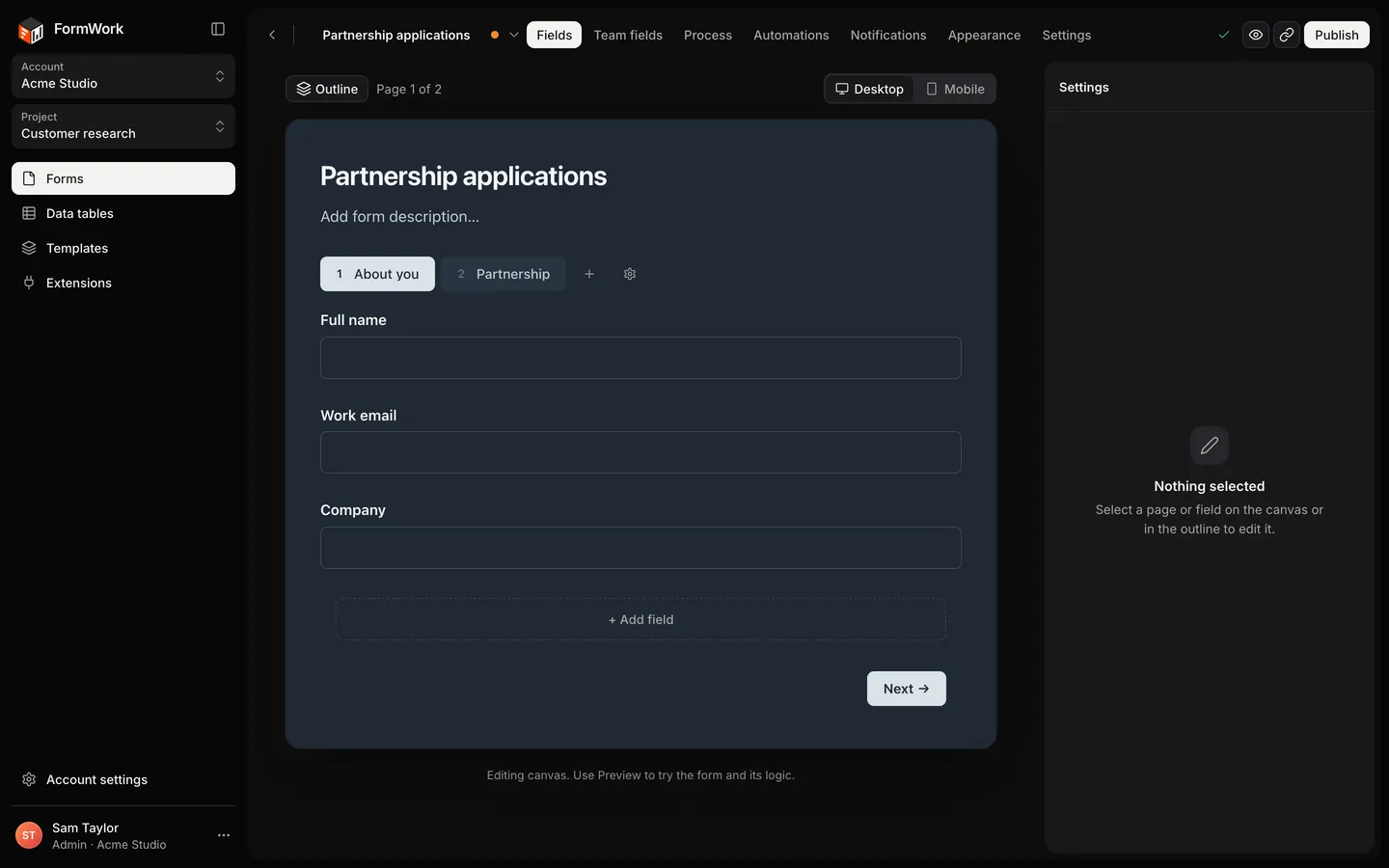
The builder opens on a draft of the form, on the Fields tab.
3. Add a field
- At the bottom of the page, select + Add field.
- Pick a field type, for example Dropdown, and type its label, for example “How did you hear about us?”.
- Select Add field.
- Select the new field to open its settings. Add the options and turn on Required if everyone must answer.
The builder saves as you go. Saved at the top shows when your changes are stored. See Field types and Field settings for everything you can add.
4. Preview
Select Preview and fill in the form as a respondent would. Check that required fields stop you submitting, and that the questions read well on a narrow screen.
5. Publish
- Select Publish. The Publish changes review lists everything that will go live.
- Select Publish all changes.
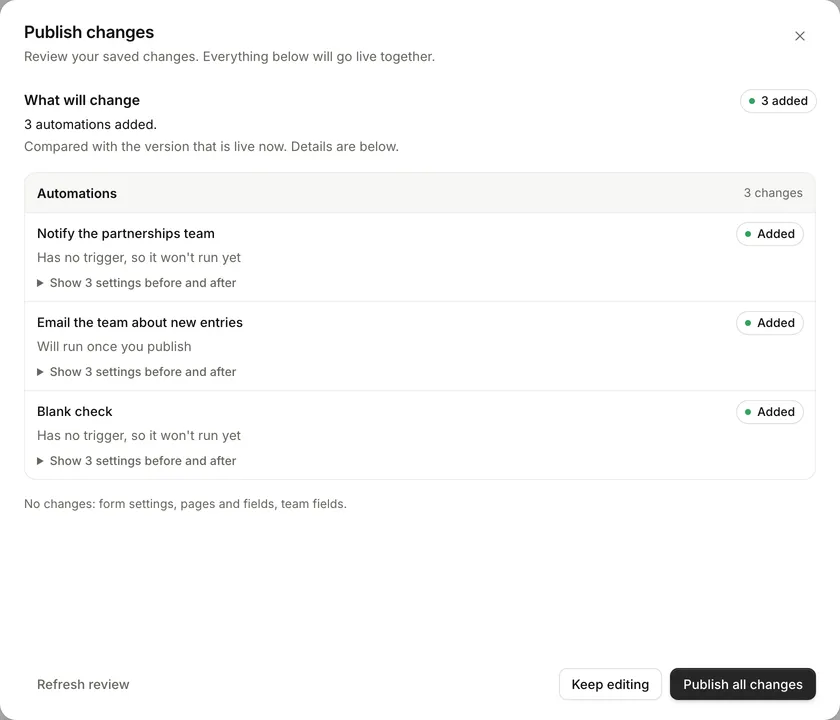
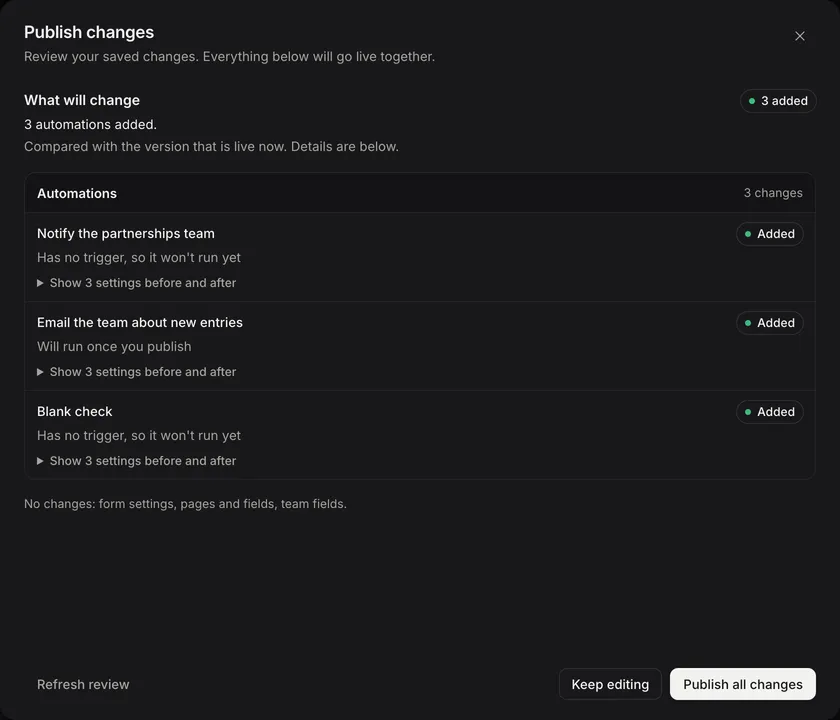
If Publish is unavailable, the builder lists the problems to fix first. Once the form is published, any further edits go into a new draft and respondents keep seeing the published version until you publish again. See Drafts and publishing.
6. Share the form
- Select Share and embed.
- On Link, select Copy link and send it by email or message.
To put the form on a website, use Embed or Popup instead and copy the code. See Share and embed.
7. See your first entry
- Open the form link in a new tab, fill it in and submit it.
- In the builder, select Exit builder (the arrow at the top left) to go to the form’s page.
- On Entries, select the new entry to open it.
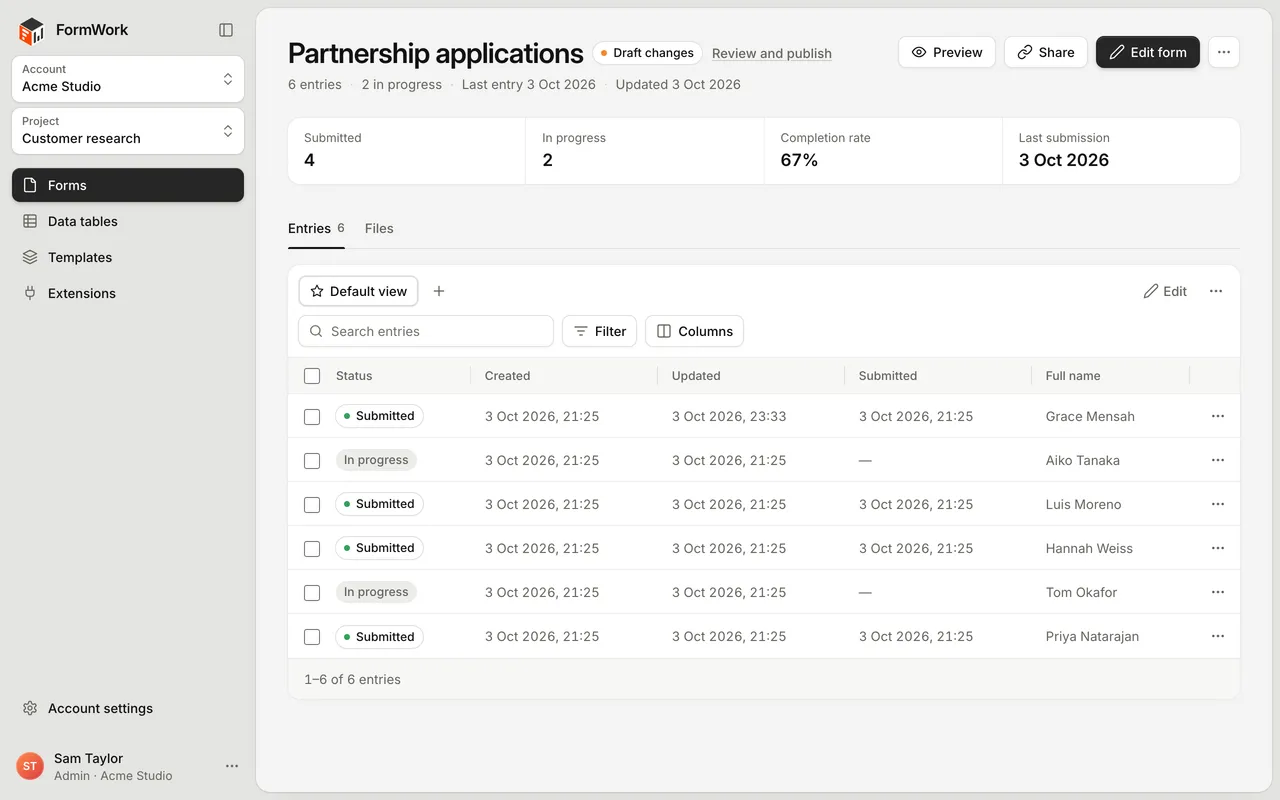
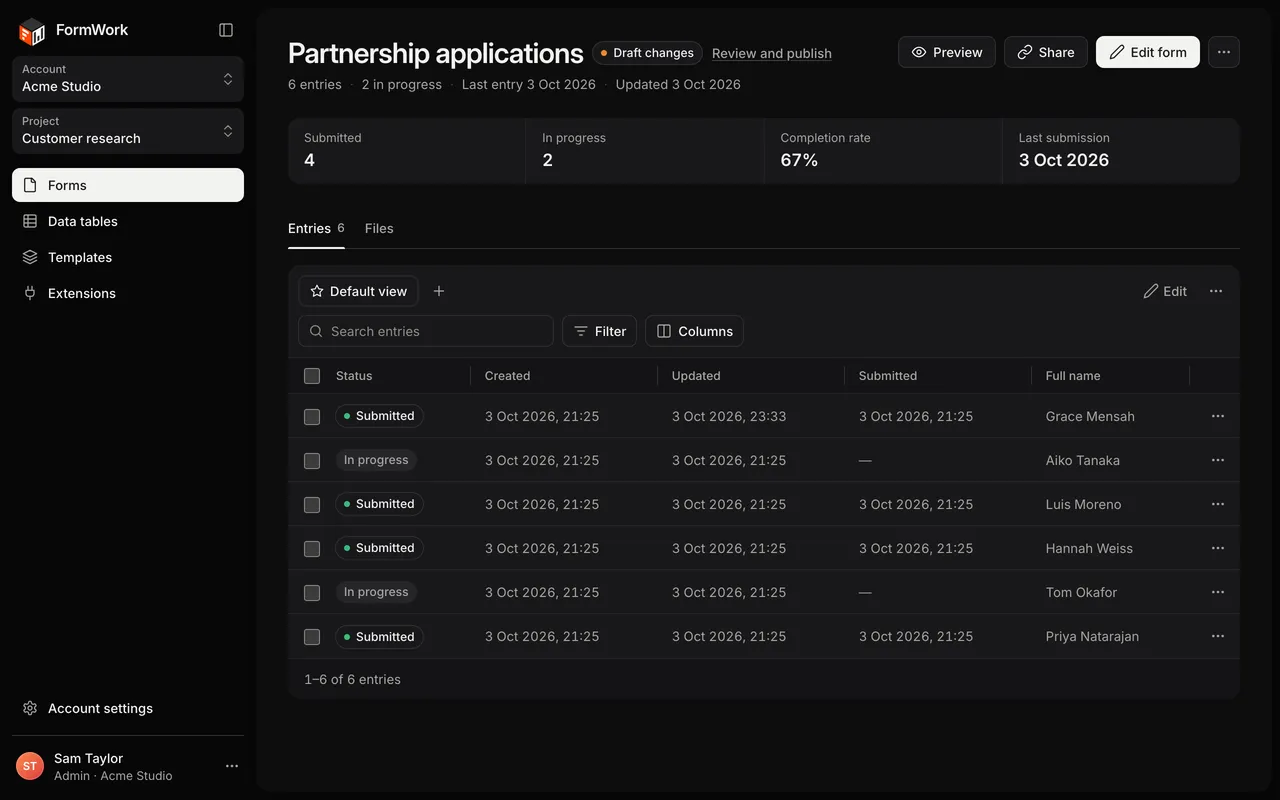
The entry page shows the answers and the entry’s history. Entries that people have started but not sent show as In progress; sent ones show as Submitted. See Entries.
8. Optional: add a stage
Stages let your team move each entry through a process, such as review and approval.
- Select Edit form on the form’s page to open the builder, then open Process.
- Under Start from a template, choose Review and approve. You can rename stages, set owners and change the actions afterwards.
- Select Publish, then Publish all changes. If the form already has entries, the review asks what should happen to them.
New entries now start in the first stage, and the entry page shows buttons to move them on. See Stages.
9. Optional: add an automation
Automations do work for you when something happens, such as sending an email when the form is submitted.
- In the builder, open Automations and select New automation.
- Choose Send a confirmation. It emails the person who filled in the form, using their email answer.
- Select Create automation, then check the email’s wording.
- Publish the form again. Automations go live with the form.
See Automations.
Next steps
- Invite your colleagues from Account settings > Team. See Team members and roles.
- Show or hide questions based on earlier answers with Conditional logic.
- Match your brand with Appearance.
- Learn the main ideas in Core concepts.