
Logic and validation
Validation
Check answers before a form can be submitted, with the checks built into each field and your own validation rules, including in repeating fields.
Validation stops a form being submitted until its answers are acceptable. Start with the checks built into each field, and add your own rules for anything they don’t cover.
Checks built into fields
Turn on Required in a field’s Field tab to make it compulsory. Respondents see “This field is required” if they leave it empty.
Each field type also checks its own answers, using the settings in its Field tab. For example:
| Field | What is checked |
|---|---|
| Text, Long text | Min length and Max length, counted in characters |
| An address like name@example.com, with a dot in the domain | |
| URL | Starts with http:// or https:// |
| Number | Minimum value, Maximum value and Decimal places |
| Slider, Rating | The answer is within the field’s range |
| Date, Time, Date and time | The minimum and maximum settings, and any days that can’t be chosen |
| Yes or no | Must be on |
| Multiple choice | Minimum selections and Maximum selections. A minimum higher than the number of options can’t be saved. |
| Password | Minimum length and the Strength requirements |
| File upload | Min files, Max files, Allowed file types and Maximum file size |
| Repeating fields | Min items and Max items |
Choice, country, phone and team member fields also check that the answer is one they can accept. See Field settings for every setting.
Lengths count characters, so an accented letter counts as one: “café” is four characters long.
Add a validation rule
Use a rule when the built-in settings can’t express the check, for example a reference number in a set format, or an amount that must not exceed another answer.
- Select the field and open the Validation tab.
- Select Add first rule, or Add validation rule to add another.
- Under Condition, choose a check, such as Must be greater or equal to.
- Under Value, type a value or pick another answer, when the condition needs one.
- Optionally, write an Error message. Leave it empty to use the default message.
Every rule must pass. Rules are a simple list: there are no all or any groups as in conditional logic. To remove a rule, select Delete rule.
Only conditions that suit the field’s type are offered. The full list is in Operators.
The Validation tab is not offered on content blocks, Hidden value fields, or groups that don’t repeat.
Compare with another value
A rule’s value can be another answer or a value from a data table, so a limit only needs to live in one place. For example:
- Requested amount must be less than or equal to the Approved limit answer.
- Confirm email must equal Email.
Check a format with a pattern
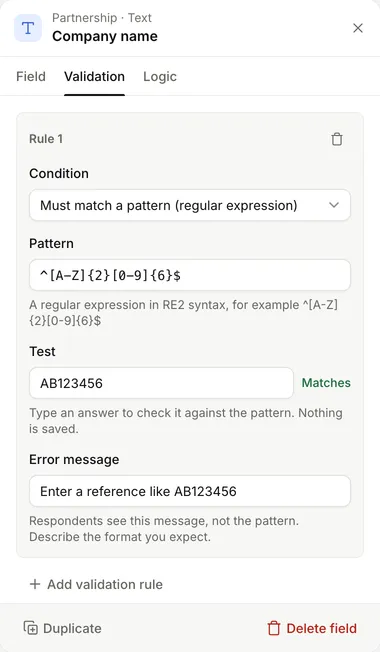
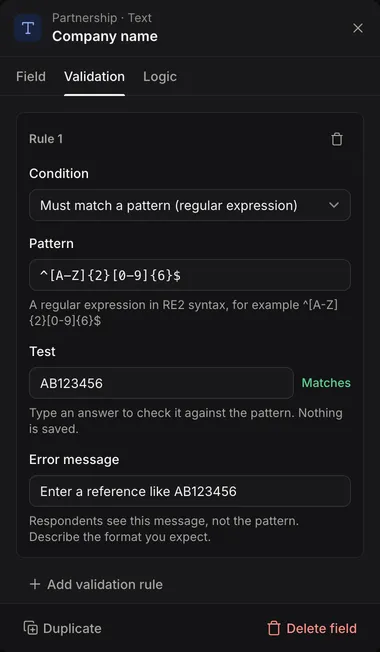
Choose Must match a pattern (regular expression) for formats such as reference numbers:
- In Pattern, enter a regular expression, for example
^[A-Z]{2}[0-9]{6}$. Without^and$, the pattern can match anywhere in the answer. - Type sample answers in Test to see whether they match. Nothing is saved.
- Write an Error message that describes the expected format, such as “Enter a reference like AB123456”. Respondents see the message, never the pattern.
Patterns use RE2 syntax. Lookarounds and backreferences are not supported. Matching is case-sensitive.
Write useful messages
Default messages are generic, such as “Value must be at least 5”. A good custom message says how to fix the answer:
Enter an amount no higher than your approved limit.
Avoid field IDs, references or regular expressions in messages.
Repeating fields
A rule on a repeating field checks the number of items, so it offers only length and empty conditions. Default messages talk about items, for example “Add at least 2 items”. For a plain minimum or maximum, Min items and Max items in the Field tab are simpler.
Rules on fields inside a repeating group are checked separately for each item.
What is checked, and when
- Only visible fields are checked. A field hidden by conditional logic, or on a hidden page, is skipped, even if it is required.
- Rules only check answers that have been given. An optional field left empty passes all its rules; use Required to make it compulsory. Rules on repeating fields are the exception: they run even when there are no items.
- Answers are checked as they are saved. A field’s error appears once the respondent leaves it.
- Next checks the current page and stays on it if anything needs fixing.
- Submitting checks the whole form again. If anything fails, the form lists the errors with links to each field, and the entry is not submitted.
An answer can be saved while it is still invalid, so a respondent’s progress is never lost. It only blocks submission.
Test before publishing
- Try the limit itself, a value just below and a value just above it.
- Try an empty answer separately from a badly formatted one.
- For rules that compare with another answer, change that answer and check again.
- For repeating groups, check more than one item.
- Read each message in context.
Use Preview to test, then publish. See Drafts and publishing.