
Logic and validation
Conditional logic
Show or hide fields and whole pages depending on earlier answers, team fields and data table values, so people only see the questions that apply.
Display logic shows or hides a field or a whole page depending on other values, such as earlier answers. Use it to ask follow-up questions only when they apply.
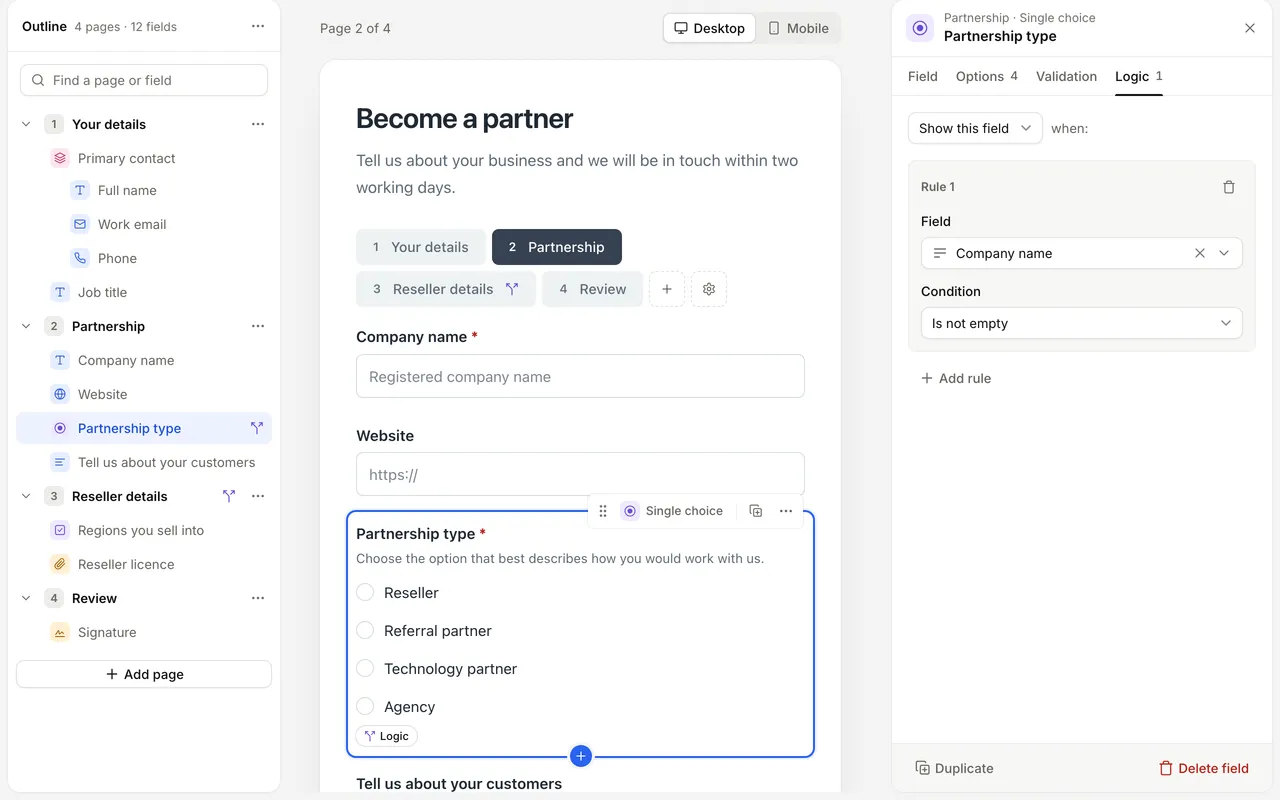
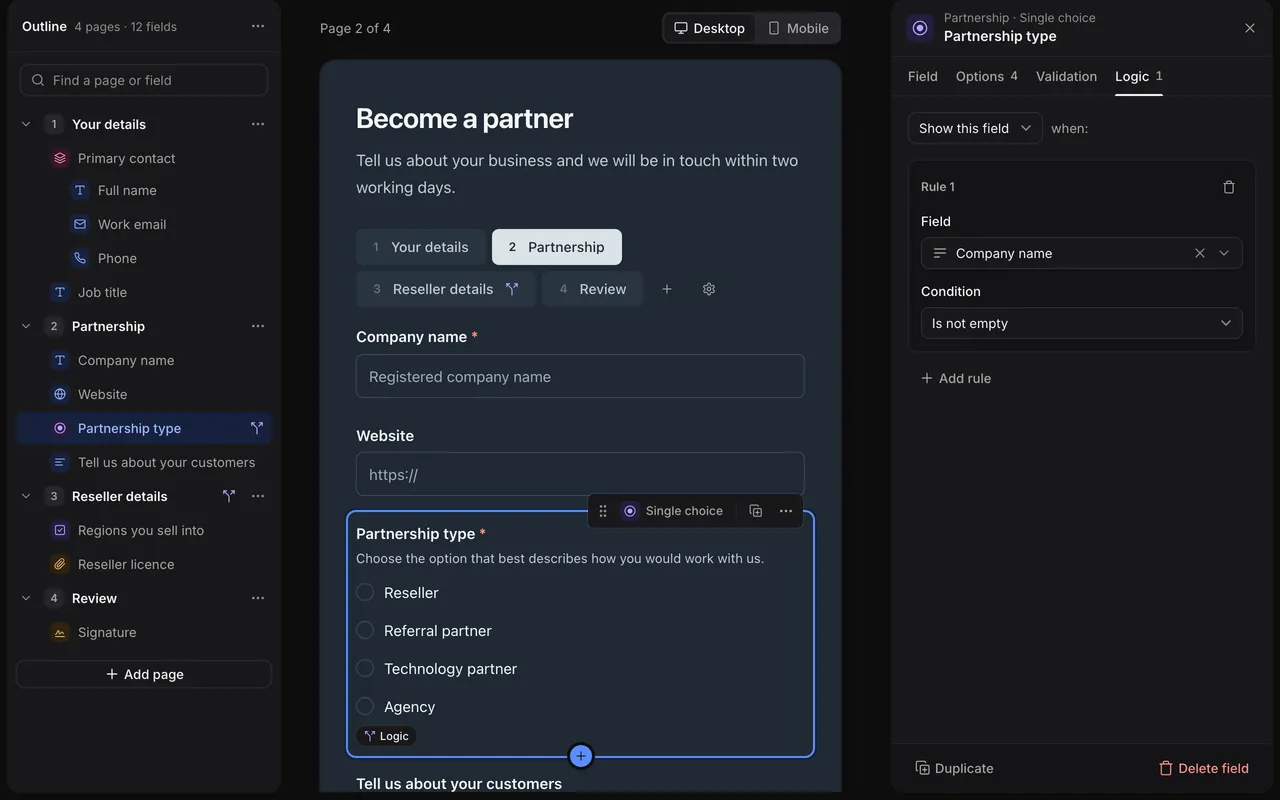
Show a field only when it applies
For example, to show Company name only when Are you applying as a business? is answered yes:
- In the builder, select Company name and open the Logic tab.
- Select Add display logic.
- Leave the first menu on Show this field.
- Under Field, pick Are you applying as a business?.
- Under Condition, choose Is true.
Changes save as you go and reach respondents when you publish. See Drafts and publishing.
Hidden value fields have no Logic tab, because respondents never see them.
Show or hide
The first menu decides what happens when the conditions match:
- Show this field keeps the field hidden until the conditions match.
- Hide this field keeps the field visible until the conditions match.
Pick whichever reads most naturally. To remove the logic, delete its last rule or select Clear logic.
Rules and groups
Each rule has three parts:
- Field: the value to check.
- Condition: the comparison, such as Is, Contains or Is more than. Only conditions that suit the field’s type are listed. See Operators.
- Value: what to compare against, when the condition needs one. Type a value or pick another answer.
Select Add rule to add rules to a group. Once a group has more than one rule, choose whether it must match all or any of them. Select Add group to add another group, then choose whether the logic needs all or any of the groups to match.
Show "Priority details" when any group matches:

  Group 1 (all rules):
    Request type  Is           incident
    Severity      Is at least  3

  Group 2 (all rules):
    VIP customer  Is true
What a rule can check
The Field and Value pickers offer:
- this entry’s answers
- this entry’s team fields and details, such as its status, or its stage if the form has a process
- values from your data tables
Respondents don’t see team fields, but logic can still use them. For more on what can be picked, see Inserting values.
When you compare with a typed value, enter what is stored rather than what is shown:
- Dropdown and Single choice answers store the option’s value, shown next to its label in the Options tab.
- Country answers are two-letter country codes, such as
GB. - For a Team member field, you pick the person from a list.
Page logic
To show or hide a whole page, open the page’s menu in the outline and select Page logic, or open Page settings and go to the Logic tab. Select Add display logic, then choose Show this page or Hide this page.
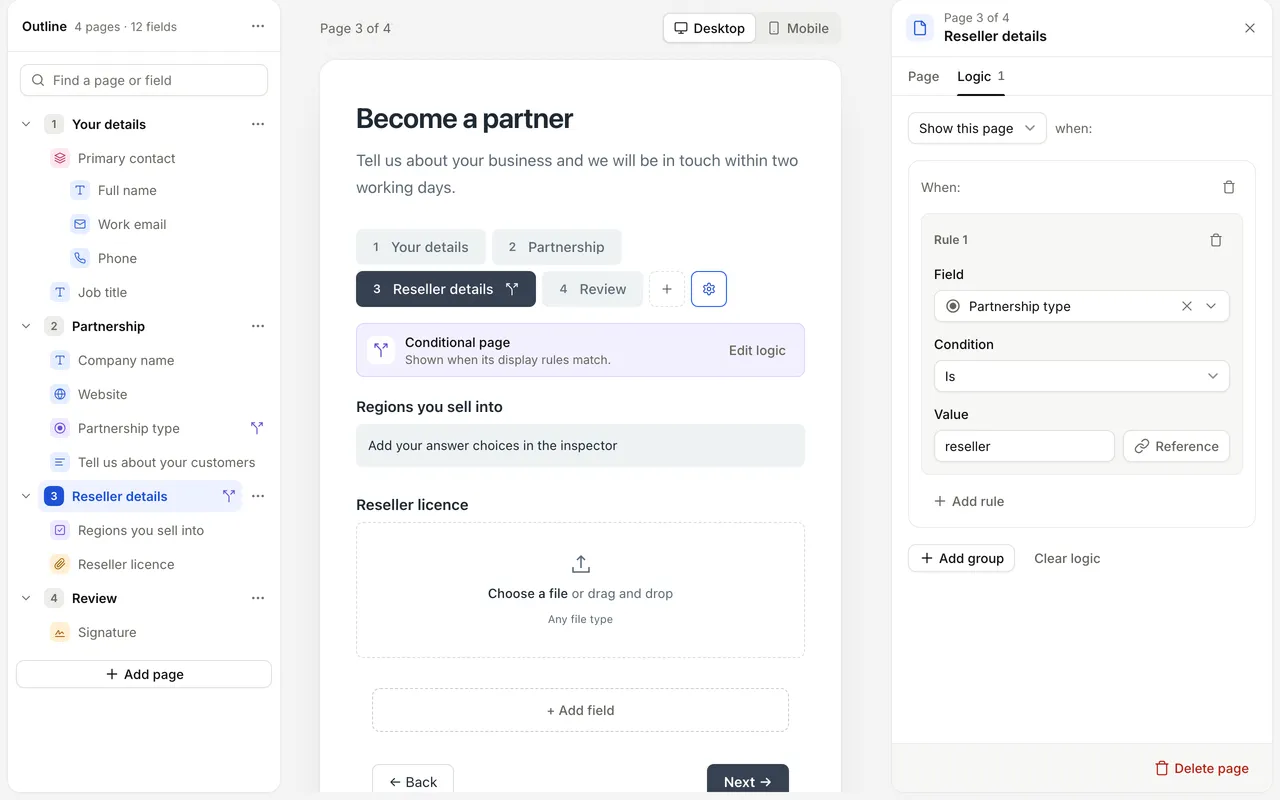
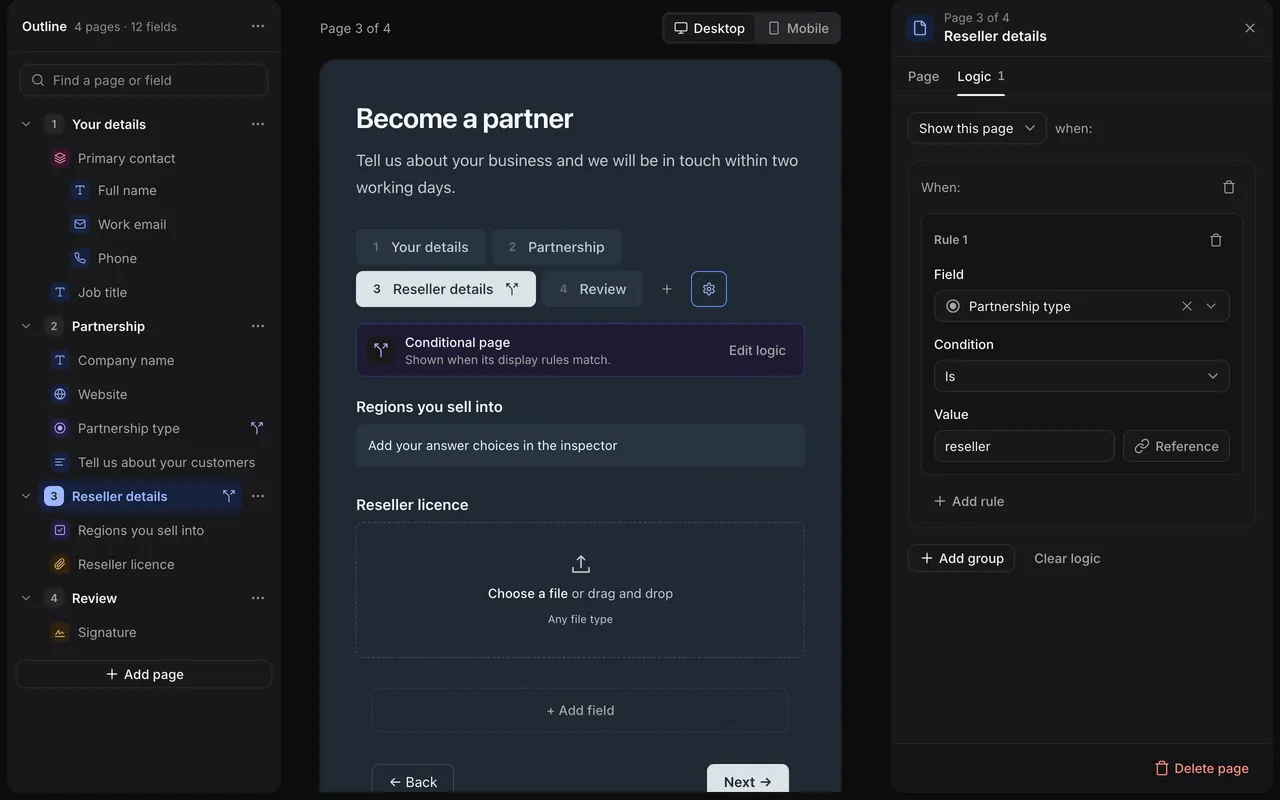
Respondents skip a hidden page, and none of its fields are shown or checked. A page with logic is marked Conditional page on the canvas, with an Edit logic link.
The canvas always shows every page. Preview follows your display logic, so use it to try each path through the form.
Repeating fields
Logic on a field inside a repeating group is worked out separately for each item. To compare with another answer in the same item, choose Current instance in the picker and then the field.
To check the repeating group as a whole, pick the group itself. You can then check how many items it has, or whether it has none.
How it behaves
- Visibility is worked out each time an answer is saved, so fields appear and disappear while the respondent fills in the form.
- Hiding a group or a page hides everything inside it.
- If a rule uses an answer from a field that is currently hidden, the whole condition counts as not matching. A Show rule then keeps its target hidden, and a Hide rule keeps it visible.
- An unanswered question matches very few conditions. See Unanswered questions.
Hidden answers
Hiding a field does not delete its answer. If a respondent answers a follow-up and then changes the answer that revealed it, the follow-up’s answer stays in the entry and comes back if the field is shown again. The answer is still sent to the respondent’s browser while the field is hidden.
While a field is hidden, its answer is not checked by Required or validation rules, and it is left out of entry views, exports and notification emails.
Tips
- Keep chains short. A field whose visibility depends on another conditional field is harder to test.
- Don’t make two fields depend on each other.
- If a rule only routes work and doesn’t change what the respondent sees, put it in an automation instead.
- Test the order people really answer in: answer a follow-up, then go back and change the answer that revealed it.
To check the answers themselves, see Validation.