
Entries
Revisions and history
See everything that happened to an entry, from submission and corrected answers to stage moves, approvals, team field changes and automation runs.
Every entry keeps a history of what happened to it. FormWork records it automatically; there is nothing to turn on. Open an entry and select the History tab.
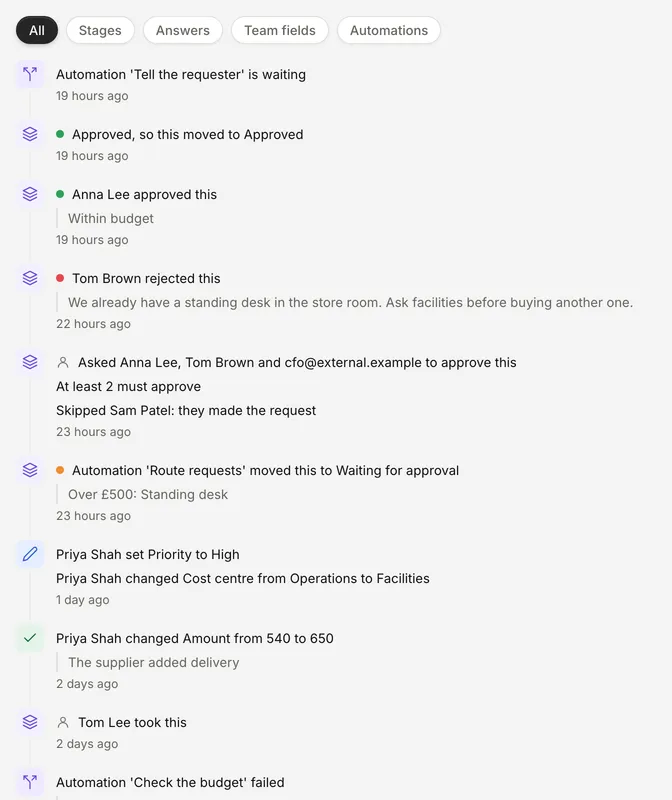
The History tab
The tab lists everything in one timeline, newest first, written as plain sentences. Each item shows how long ago it happened; hover over the time to see the exact date and time.
Filter the list with the pills at the top:
| Filter | Shows |
|---|---|
| All | Everything |
| Stages | Stage moves, owner changes, approval requests and each approver’s decision. Shown when the form has a process. |
| Answers | The submission and every saved correction to the answers |
| Team fields | Changes to the entry’s team fields |
| Automations | Each automation run and how it ended |
The tab loads 50 items at a time. Select Show … more at the bottom to load the next ones.
What gets recorded
Answers
- When the form is submitted: “The respondent submitted the form”.
- When someone saves a correction with Edit answers, one line per changed answer, such as “Priya Shah changed Amount from 120 to 150”. If they gave a reason, it is shown under the change.
Answers to password, file and signature fields show that they changed, not the old and new values. A change to a field that was later removed from the form reads “a field that was removed”.
To correct answers, see Correct answers.
Team fields
Each change to a team field, with who made it, for example “Priya Shah set Reference to INV-2041”. Changes made close together are grouped into one item. See Team fields.
Adding or removing a repeating team-field item is recorded too. Team member and country values show readable names rather than IDs or codes.
The team fields panel on the entry has its own History tab with the same changes.
Stages and approvals
Stage moves and owner changes, such as “Sam moved this to In review” or “Sam took this”, and the comment if one was given. Approval requests say who was asked and what was needed, and each approver’s decision is listed with their comment. These stay in the history after the entry leaves the stage. See Stages and Approvals.
Automations
Each run, for example “Automation ‘Notify finance’ completed” or “Automation ‘Notify finance’ is waiting”. Select the item to open the run. See Runs and testing.
Who made a change
| Shown as | Meaning |
|---|---|
| The person’s name | Someone in your team |
| The person’s name (via …) | A change through their connected AI assistant |
| The respondent | The person who filled in the form |
| Automation ’…’ | An automation, by name |
| FormWork | FormWork itself, for example when publishing new team fields cleared a value that no longer fitted |
Restoring an earlier value
There is no restore button. To put back an earlier answer, read it in the history and save it again with Edit answers. This adds a new item, so the history stays complete.
History items can’t be edited by the team. Answer and process history is kept with the entry; finished automation runs and their step details have a separate retention period, so older run details may no longer be available.
Through the API
The same timeline, with the same sentences, is available from GET /api/v1/entries/{entry_id}/history, filtered with kind (stages, answers, team_fields or automations). See REST API.