
Forms
Field settings
Every setting in the builder's field panel, from labels, help text and default values to advanced options and the settings for each field type.
Select a field on the canvas to open its settings. This page lists every setting by where it appears. To choose a type, start with Field types.
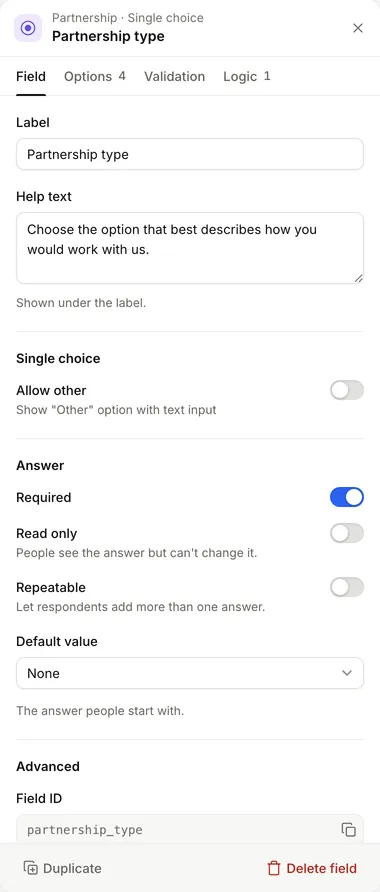
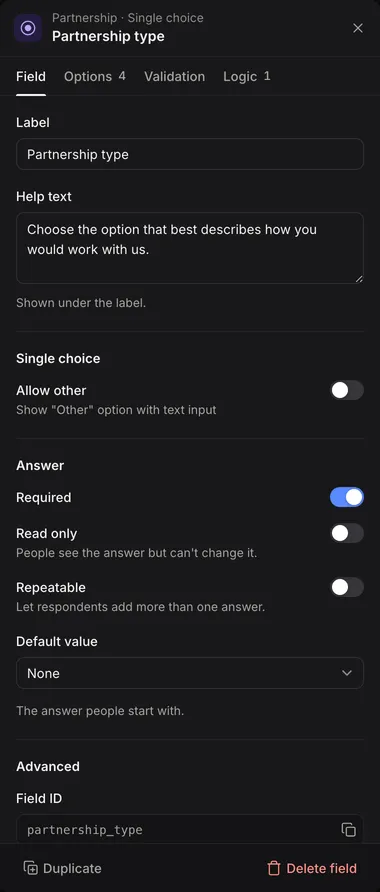
Settings save as you change them. If someone else changed the same draft in the meantime, your last change isn’t saved and the builder shows their version, so check it and make the change again. A published version is view only: to change it, open the draft. See Drafts and publishing.
The settings panel
The panel has up to four tabs:
| Tab | Contains | Shown for |
|---|---|---|
| Field | The settings on this page | Every field |
| Options | The choices people pick from | Dropdown, Single choice and Multiple choice |
| Validation | Rules the answer must meet | Fields that collect an answer, except Hidden value. Groups, Name and Address only when repeatable |
| Logic | When the field is shown | Every field except Hidden value |
For validation, see Validation. For logic, see Conditional logic.
At the bottom of the panel are Duplicate and Delete field. They aren’t shown for the parts of Name and Address.
Label and help text
| Setting | Effect |
|---|---|
| Label | The question people see. Heading, Paragraph and Button call it Heading text, Content and Button text. |
| Help text | Shown under the label. Not on content fields. |
| Placeholder | Example text inside an empty box. On Text, Email, URL, Long text, Number, Phone, Password, Dropdown, Country and Team member. |
| Content mode | On Heading, Paragraph, Button and HTML: Plain for fixed text, or Template to include answers and other values. See Template syntax. |
Answer
The Answer section appears on every field that collects an answer.
| Setting | Effect |
|---|---|
| Required | People must answer before they can submit. |
| Read only | People see the answer but can’t change it, even with code on your page. Your team and automations still can. Turning it on turns Required off. |
| Repeatable | People can give more than one answer. See Pages, groups and repeaters. |
| Show first item | For repeatable fields: show one empty item to start with. |
| Min items, Max items | For repeatable fields: how few and how many items people can add. |
| Default value | The answer people start with. |
Required isn’t offered on Group, Name or Address: set it on the fields or parts inside them. Hidden value fields can’t be required because respondents never see them, and read-only fields can’t be required because respondents can’t change them. Sliders are always required, because they always have a value.
On a Yes or no field shown as a switch or checkbox, off counts as an answer. To make people switch it on, use Must be on instead of Required.
Default value
Choose where the starting answer comes from. Only the sources that suit the field are listed.
| Source | Starts the answer with |
|---|---|
| Fixed value | A value you choose or type |
| Look up from a dropdown | A column from the data table row picked in a dropdown on the form. Listed only when the form has a dropdown with data table options |
| Another answer | An answer from earlier in the form, or another value you can insert |
| Template | Text built from fixed words and inserted values |
| Calculation | The result of a formula |
| Items from a list | One item for each entry in a list. Repeatable groups only |
Every source except Fixed value keeps the answer up to date as other answers change, until the respondent changes it themselves. See Calculated values and defaults.
A fixed value is checked against the field’s own rules when you save it, so a rating outside its range or an option that no longer exists is refused. Password, Signature and content fields have no default value. Neither do Group, Name and Address unless they’re repeatable. Making a field repeatable removes a fixed default.
Advanced
Field ID shows the field’s ID with a button to copy it. The ID can’t change.
Fill from the page address
Text, Long text, Email, URL, Phone, Number, Date, Dropdown, Single choice and Multiple choice fields can take their starting answer from the address of the page the form is opened on. In Advanced, enter a parameter name in Fill from the page address. For example, with email, a link ending ?email=sam@example.com fills in that email address.
- People see the value as their answer and can change it. It’s saved with the first answer they save, and checked like any other answer.
- A number must be a number and a date must be written
YYYY-MM-DD. A choice must be one of the field’s option values; separate several with commas for Multiple choice. Values that don’t fit are ignored. - It isn’t used for read-only fields, fields inside repeating groups, or when someone returns to a saved draft.
On an embedded form, the parameter is read from the address of your page.
Text and Email fields, including the parts of Name and Address, also have settings that help phones and browsers:
| Setting | Options |
|---|---|
| Autocomplete | What browsers may fill in: None, Name, First name, Last name, Email, Telephone, Address line 1, Address line 2, Postcode, Country, Organisation |
| Input mode | Which keyboard phones show: Default, Text, Numeric, Telephone, Email, URL, Search |
| Autocapitalize | How phones capitalise typing: Default, Off, Sentences, Words, Characters |
| Spellcheck | Whether the browser checks spelling. On by default |
Options
On Dropdown, Single choice and Multiple choice, the Options tab offers two sources.
- Manual options: select Add option, then type a label. The value is made from the label unless you type one. Drag options to reorder them, and delete the ones you don’t need. The entry keeps the option’s value, so avoid changing values once people have answered.
- Data source: list rows from a data table or entries from another form, choose the Option label field, and optionally show only rows that match earlier answers. See Options from a data table.
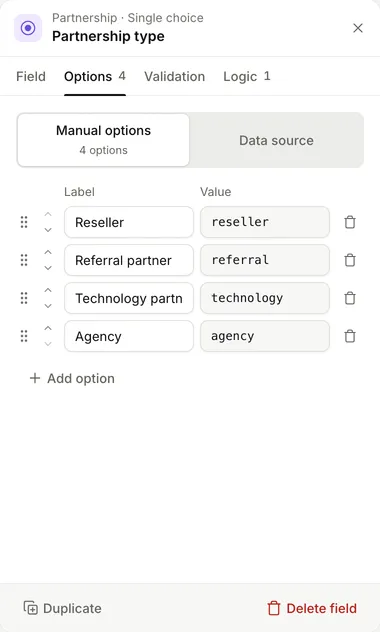
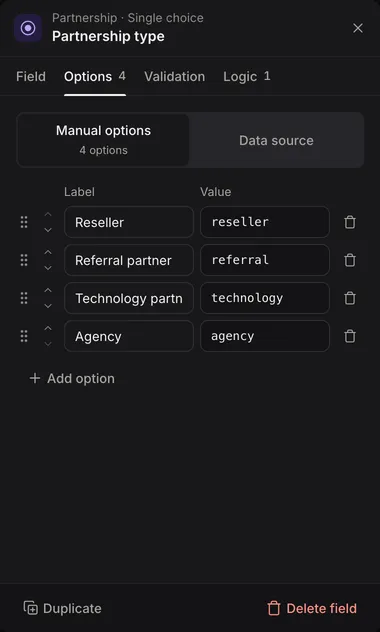
Switching from one source to the other asks you to confirm, because the options from the first source are removed.
Settings for each field type
Email and URL have no settings beyond the ones above.
Text and Long text
| Setting | Options |
|---|---|
| Min length, Max length | The fewest and most characters allowed |
| Rows | Long text only. The height of the box, 1 to 20 lines. 4 by default |
| Resize | Long text only. None, Vertical, Horizontal or Both. Vertical by default |
Number
| Setting | Options |
|---|---|
| Prefix, Suffix | Shown before and after the box, such as £ or kg. Not saved with the answer |
| Decimal places | 0 to 10. Empty for no limit |
| Minimum value, Maximum value | The range allowed |
| Step | The amount the arrows change the number by |
| Input mode | Numeric (integers) or Decimal, which decides the keyboard phones show. Decimal by default |
Phone
| Setting | Options |
|---|---|
| Show country code selector | Let people pick their country’s calling code. On by default |
| Default country code | The country selected to start with |
Password
| Setting | Options |
|---|---|
| Minimum length | 8 for new fields |
| Require confirmation | Ask people to type it twice. On for new fields |
| Strength requirements | Require uppercase letter, Require lowercase letter, Require number, Require special character |
Date, Time, and Date and time
| Field | Settings |
|---|---|
| Date | Minimum date, Maximum date |
| Time | Show seconds, Minimum time, Maximum time, Step (seconds) |
| Date and time | Minimum date and time, Maximum date and time |
On Time fields, Step (seconds) sets how far the picker moves each step: 900 is 15 minutes. Without seconds, the step must be whole minutes, a multiple of 60, and turning seconds off changes any other step to 60. Times are saved with or without seconds to match Show seconds.
Yes or no
| Setting | Options |
|---|---|
| Display style | Checkbox, Switch or Yes and No buttons. Switch by default |
| No label, Yes label | For Yes and No buttons. No and Yes unless you change them |
| Checkbox text | For Checkbox. Shown next to the box. Yes unless you change it |
| Must be on | People must switch it on to submit, for example to accept terms |
Dropdown and Single choice
| Setting | Options |
|---|---|
| Allow other | Add an Other option with a box for people to type their own answer |
| Other label | The name of that option. Other by default |
Multiple choice
| Setting | Options |
|---|---|
| Display style | Checkboxes or Selectable pills |
| Layout | Column, or Row with Phone columns and Desktop columns (1 to 4) |
| Minimum selections, Maximum selections | How few and how many options people must pick. A minimum above the number of options is refused |
| Allow other, Other label, Other placeholder | An Other option with a box for people to type their own answer |
Country
| Setting | Options |
|---|---|
| Countries on offer | The countries people can choose from. Empty offers every country |
| Shown first | Countries listed at the top. Only countries on offer can be chosen |
The default value picker also lists only the countries on offer. Narrowing Countries on offer removes a default or shown-first country that’s no longer on offer.
Slider
| Setting | Options |
|---|---|
| Minimum value, Maximum value | 0 and 100 for new fields |
| Step | 1 for new fields |
| Show value | Show the number picked. On by default |
| Prefix, Suffix | Shown with the value, such as £ or % |
Rating
| Setting | Options |
|---|---|
| Style | Stars, Hearts, Numbers or Emotions |
| Minimum value, Maximum value | Minimum 0 to 100, maximum 1 to 100. 1 to 5 for new fields |
| Show labels | Show words at each end of the scale |
| Low label, High label | The words, such as Poor and Excellent |
Team member
Team member fields are only in Team fields. They have a Placeholder, and their default value is chosen from a list of your team. They can’t be repeatable.
Signature
Canvas size sets the drawing area: Compact (400×120), Standard (500×160) or Large (600×200).
File upload
| Setting | Options |
|---|---|
| Maximum file size | Per file, in MB, up to 100. 10 for new fields |
| Allowed file types | MIME types or extensions separated by commas, such as image/*, application/pdf, .docx. Empty allows every type |
| Allow multiple files | Let people upload more than one file. Off by default, so the field takes one file |
| Min files, Max files | With multiple files on. Max files is 20 at most, and 20 when empty |
Turning Allow multiple files off clears Min files and Max files. See Files and uploads.
Name
Show title, Show middle name and Show suffix add those parts. First name and Last name are always there. Layout is Column or Row.
Address
| Setting | Options |
|---|---|
| Show street address, Show street line 2, Show city, Show state, Show postcode, Show country | Which parts appear. All on by default |
| Enable address lookup | Suggest addresses as people type |
| Minimum characters | Letters typed before suggestions show, 1 to 10. 3 by default |
| Lookup countries | Limit suggestions to these countries. Empty searches every country |
| Layout | Column or Row |
To choose the countries on offer in the Country part, select that part on the canvas.
Group
Layout is Column or Row. With Row, choose Phone columns and Desktop columns, 1 to 4 each.
Hidden value
Under Attribution, Fill from the page address names the URL parameter the field takes its value from, such as utm_campaign. Common URL parameters offers the usual campaign and click ID parameters: utm_source, utm_medium, utm_campaign, utm_term, utm_content, gclid, gbraid, wbraid, fbclid, msclkid and ref.
The value is kept until the entry is created. Someone returning to a saved draft keeps the value their entry started with. Don’t use parameters that carry private information.
Hidden value fields can’t be required and have no Logic tab. Their Validation tab only appears while they still have rules, so you can remove them.
Heading and Paragraph
A heading has a Level from H1 (largest) to H6 (smallest), H2 by default. A paragraph’s text goes in Content.
Button
| Setting | Options |
|---|---|
| Type | Button or Link. Either one starts automations triggered by it being clicked |
| URL | For Link. Where the button goes |
| Open in new tab | For Link |
HTML
HTML content is the markup to show. Scripts and other unsafe HTML are removed.
Image
| Setting | Options |
|---|---|
| Image URL | The address of the image |
| Alt text | A description for people who can’t see the image |
| Width | Such as 100% or 240px |
| Alignment | Left, Centre or Right. Centre by default |
Video
Video URL takes a YouTube, Vimeo or direct video address. Autoplay starts it on its own, and Show controls, on by default, shows the player’s controls.
Extension fields
Fields from extensions show Extension field settings. Extension config picks which of the extension’s saved configurations the field uses, and the extension adds its own settings below. See Extensions.