
Entries
Import and export
Export the entries in a view as a CSV file, create or update entries by importing a CSV file, and find both files on the form's Files tab.
Export a form’s entries to a CSV file for a spreadsheet or another system, or import a CSV file to add or update entries. Both run in the background, and their files stay on the form’s Files tab.
Export entries
The export follows what the entries table shows, so set that up first.
- On the form’s Entries tab, choose the view you want. Narrow it if you need to with a filter, a stage, a quick filter or a search. See Views and filters.
- Open the form’s menu and select Export entries.
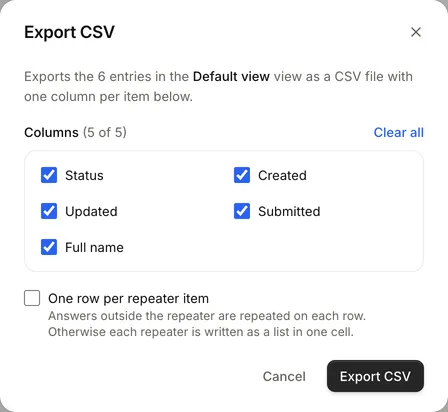
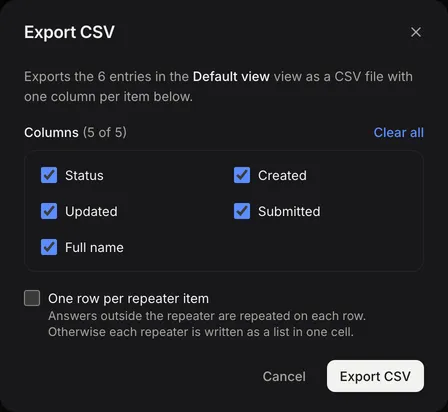
- Under Columns, untick any columns you don’t want. Select all and Clear all change them all at once.
- If the form has repeating groups, tick One row per repeater item to give each item its own row. Answers outside the repeater are repeated on each row. Otherwise each repeater is written as a list in one cell.
- Select Export CSV.
- When the export finishes, select Download CSV. You can close the dialog while it runs; the file appears on the Files tab.
What the file contains
- One column per view column, in the view’s order, with the column names as headers. A view with no columns exports every field in the form.
- Entries in the view’s sort order, including unsaved changes to the view.
- Choices as their labels, yes-or-no answers as Yes or No, and countries as their names.
- Uploaded files as links. A link opens the file for anyone signed in to your FormWork account.
To include entry IDs, for example to update the entries later with an import, add the Entry ID column to the view before exporting.
Cells that a spreadsheet could run as a formula are escaped so they open as text. Importing the file again removes the escaping.
Import entries
- Open the form’s menu and select Import entries.
- Select Choose CSV file. To start from a blank file with the right headers, select Download a template first.
- Check where each column goes. For every column in your file, Goes into offers the form’s fields, Entry ID (update an existing entry), or Don’t import. Columns whose header matches a field’s label are matched for you, so headers can be anything.
- Select Import with the number of rows, for example Import 120 rows.
- When the import finishes, you see how many entries were imported and how many failed. If any failed, select Download error report to see which rows and why.
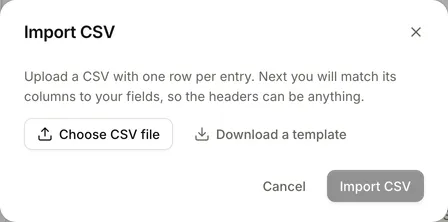
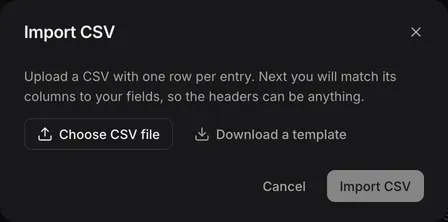
Lines with more or fewer cells than the header row are flagged before you import, and they fail.
Values
Each value is checked against its field. A row with a value that doesn’t fit fails, and nothing is saved for it.
| Field | Accepted values |
|---|---|
| Number | Numbers, with or without thousands separators, such as 1,250.50 |
| Yes or no | Yes, No, Y, N, True, False, 1 or 0 |
| Dropdown, Single choice | The option’s label or its stored value |
| Multiple choice | Labels or values separated by commas |
| Country | The country’s name or its two-letter code |
| Repeating group | A JSON list |
| Other fields | The cell’s text |
Team fields can’t be imported.
Update existing entries
Match a column to Entry ID (update an existing entry) to update entries instead of creating them:
| Entry ID cell | Result |
|---|---|
| Empty | A new entry is created |
| The ID of an entry in this form | That entry is updated |
| The ID of an entry in another form | The row fails |
| An ID that doesn’t exist | A new entry is created with a new ID |
Only the columns you import change, and empty cells leave the answer as it is.
What an import does not do
- New entries are not submitted. They show as In progress and count towards that figure.
- Automations don’t run for imported rows. Start any follow-up work separately.
- Imported answers are not checked the way a submission is, so required questions can be left empty.
- Imported changes don’t appear in the entry’s history.
The Files tab
The form’s Files tab lists its exports and imports, newest first, with their status: Pending, Processing…, Completed or Failed. Completed exports have Download. Imports show how many rows succeeded and failed, with View errors when there is an error report.
Good practice
- Export the entries before a large update import, so you can go back.
- Try a few rows first.
- After a failed import, fix and re-import only the failed rows, so you don’t create duplicates.
Through the API
Imports and exports can be started with an API key:
POST /api/v1/exports       { "view_id": "…", "format": "csv" }
POST /api/v1/imports       { "form_id": "…", "file_id": "…", "column_fields": ["first_name", "email"] }
GET  /api/v1/jobs/{job_id}
Upload the CSV file first with the file endpoints, then pass its file_id. In column_fields, use "id" for the entry ID column and "" to skip a column; without column_fields, the headers must be field IDs. The API also accepts key_field, a field whose value identifies an existing entry, such as an order number, so a matching row updates that entry. See REST API.