
Entries
Views and filters
Save which entries to show, which columns and in what order, share views with your team, and filter by stage, owner or due time.
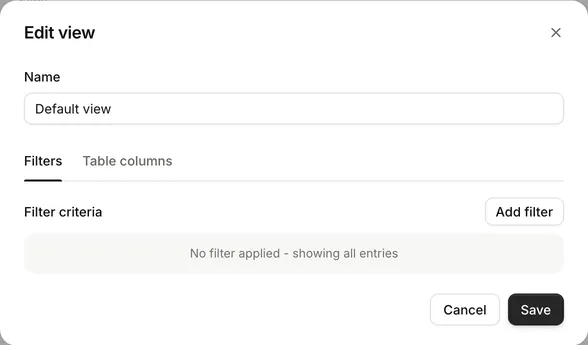
A view is a saved way of looking at a form’s entries: a filter, a set of columns and a sort order. The entries table always shows one view, and exports use it too. Every form starts with a Default view.
Switch views
The views are listed above the entries table. Select one to show it.
- A star marks the view that opens first for you.
- A lock marks a view only you can see.
Create a view
- Select New view (the plus button beside the views).
- Give it a name.
- On Filters, select Add filter and build the condition, for example entries whose Country is United Kingdom.
- On Table columns, select Add column for each answer, team field or entry detail you want, and drag them into order.
- Select Save.
New views are private. To let your team use it, select Edit, turn on Shared with team and select Save.
You can also start from the view you are looking at: change its filter, columns or sort in the table, then select Save as new view.
Change a view
Change the current view straight from the table:
- Filter shows the current filter. Select Add filter or Change filter, or Clear to show every entry.
- Columns lists the columns. Drag to reorder, remove a column, or select Add column.
- Select a column heading to sort by it: once for ascending, again for descending, a third time to stop sorting by it. Hold Shift as you select another heading to sort by more than one column, up to three.
- Drag the edge of a column heading to resize it. Double-click the edge to reset it.
Changes show at once and are marked Unsaved view changes. Select Save view to keep them, Save as new view to keep them as a separate view, or Reset to go back.
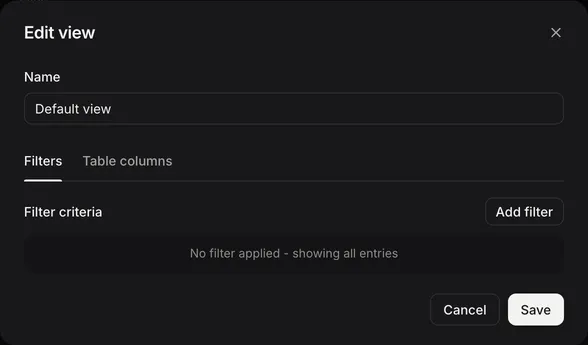
Edit opens the view’s settings: its name, Shared with team, and the Filters and Table columns tabs.
What you can filter and show
The filter and column pickers offer:
- The entry’s answers
- Team fields
- Entry details such as Entry ID, Status, and the created, updated and submitted times
- Stage, Owner, Due and Overdue, when the form has a process
You can filter on whether a value is, isn’t, contains, is more or less than, is one of a list, or is empty. These are the same filters you can use when looking up data tables and entries; see Filters. Conditions in form logic use a different set, listed in Operators.
Choices sort by their label. Empty values sort last. Files, signatures and groups can’t be sorted.
Stages and quick filters
When the form has a process, a row of stage pills sits above the table: All, then each stage with the number of entries in it. If the process has more than two closed stages, they are grouped under Closed, with All closed at the top of that menu.
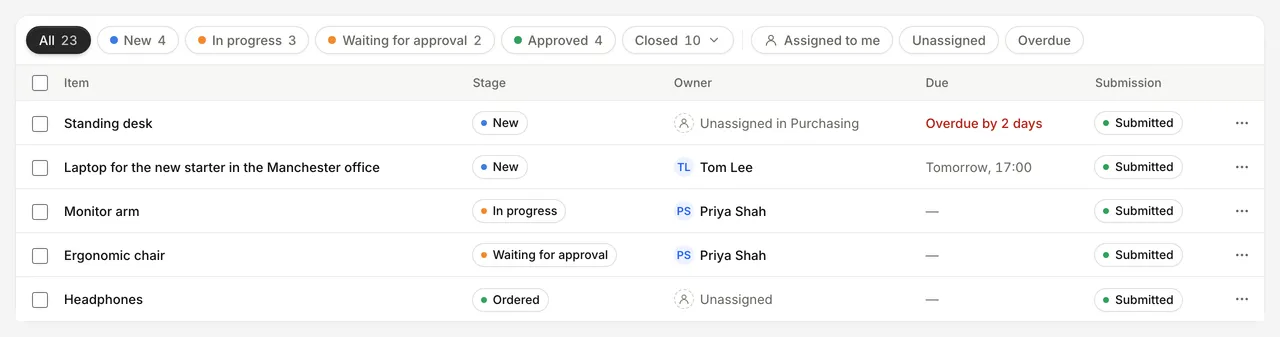
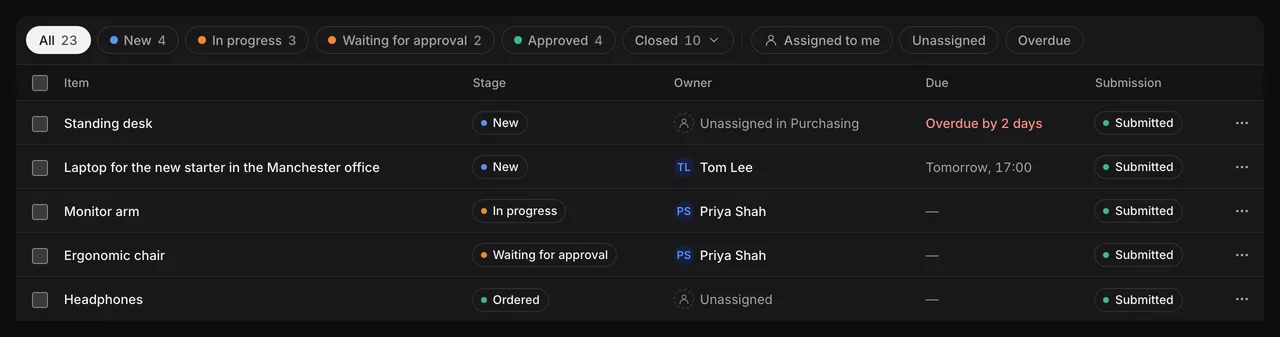
Beside the stages are quick filters:
| Quick filter | Shows | Appears |
|---|---|---|
| Assigned to me | Entries you own | Always |
| Unassigned | Entries nobody owns | Always |
| Overdue | Entries past their due time | When a stage has a due time |
| Waiting for my approval | Entries waiting for your decision | When a stage needs approval |
Quick filters and the selected stage add to the view’s own filter. A stage you select counts as an unsaved change, so you can save it into the view. Quick filters are not saved.
See Stages.
Forms without a process
If the form has no process but has a Team member team field, an Assigned to me button shows entries where that field is you.
Search
Search entries narrows the current view to entries whose answers contain every word you type. It does not search team fields. Search applies to exports and batch actions too.
Default view
Each form has a team default view, marked with a star until you choose your own. To open a different view first, select it, then choose Set as my default from the view’s menu. This only changes what you see.
The team default view can’t be deleted or made private.
Who can change a view
You can change and delete views you created. Account admins can change and delete any view shared with the team. For other views, your changes can only be kept with Save as new view.
To delete a view, select it and choose Delete view from its menu.
When team fields or a process are added
When you publish new team fields, they are added as columns to the default view, and to any view that already shows every team field. When a form’s first process is published, the Stage, Owner and Due columns are added to the default view. Other views stay as they are.
Views and exports
Export entries uses the current view: its filter, columns and order, plus any unsaved changes, selected stage, quick filters and search. Build a view for a report you run often. See Import and export.