
Extensions
API connectors
Describe an external HTTP API once as an API connector, import it from OpenAPI, test its actions, then call them as steps in your automations.
An API connector turns the endpoints of an external API into steps you can use in automations. You describe each endpoint once as an action, add an environment for each account or mode (such as test and live), and then pick the action in any automation in the project.
A connector only sends requests. It cannot run your own code, add form fields or receive webhooks from the other service.
Create a connector
- Open the project and select Extensions.
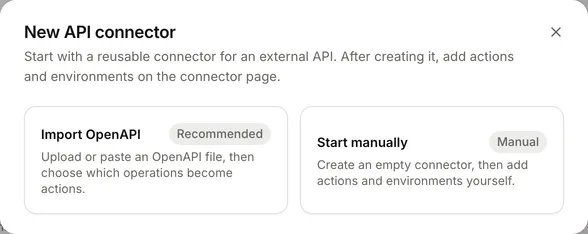
- Select New API connector.
- Choose how to start:
- Import OpenAPI (recommended): create the connector from an OpenAPI file. See Import from OpenAPI.
- Start manually: enter a Connector name and Connector ID, then select Create connector.
The connector ID is a lowercase slug, such as crm. It cannot be changed after you save.
The connector page has three tabs: Overview, Actions and Environments.
Import from OpenAPI
You can import actions when you create a connector, or later with Import OpenAPI on the Actions tab.
- Provide the specification as YAML or JSON: Paste spec, Upload file or Use link.
- Select Preview operations.
- Choose the operations to import. You can search, filter by status (Supported or Unsupported) and method, and use Select visible or Clear visible. The panel shows how many you have selected and the most you can import at once.
- When creating a connector, check the Connector name, Connector ID and Base URL, which are filled in from the specification.
- Select Create connector (or Import actions for an existing connector).
Creating a connector this way also adds an environment called “Default” with that base URL. It starts switched off: add authentication and turn it on on the Environments tab.
Review the imported actions afterwards. Descriptions and schemas from the specification are a starting point and may need tidying so that the fields are clear when someone fills them in an automation.
Add or edit an action
An action describes one HTTP request. On the Actions tab, select Add (or Add action when there are none), or select an existing action to edit it. Select Save action when you are done.
Actions belong to the connector, not to an environment. Changing an action changes it everywhere it is used.
Basics
| Setting | What it does |
|---|---|
| Action name | The step name people see in the automation step chooser. |
| Description | Optional. Shown under the name in the step chooser. |
| Method | GET, POST, PUT, PATCH or DELETE. |
| Encoding | json or form. How the request body is sent. |
| Path | Starts with / and is added to the environment’s base URL. Use {name} for values in the path, for example /contacts/{id}. Each one becomes a required path parameter. |
| Bypass auth for this endpoint | Sends this action without the environment’s authentication. Off by default. |
Request
- Path params are detected from the path.
- Query params and Header params each have a name, a type (
string,number,booleanorobject), a Required switch and a description shown to the person filling in the step. - For methods other than GET, a request schema describes the body fields the automation can fill in.
Response
A response schema describes the JSON the API returns. With one, the fields of the response can be picked individually in later steps. Without one, later steps can only use the whole response.
Building a schema
For the request or response schema, select Update request schema… or Update response schema… and choose a Schema source:
- JSON example: paste an example body.
- OpenAPI spec: paste or upload a specification and enter the operation ID. You can also choose to update the action’s method, path and parameters from it.
Select Validate and preview request schema (or response schema) to check the result as a Visual tree or the raw Spec. Select Apply request to draft (or Apply response to draft), then Save action. You can also clear a schema.
Automation output and duplicates
The Automation output tab summarises the inputs an automation can fill in and the response fields it gets back.
Duplicate copies an action as a new draft. Delete removes it permanently, and automations that use it will fail until someone chooses another action.
Add an environment
An environment holds the connection details. On the Environments tab, select Add, fill in the settings and select Save environment.
| Setting | What it does |
|---|---|
| Enabled | Only enabled environments can be tested or used in automations. New environments start switched off. |
| Environment name | For example “Live” or “Sandbox”. |
| Environment ID | A lowercase slug. It cannot be changed after you save. |
| Base URL | Required when the environment is enabled. Requests go to the base URL plus the action’s path. |
| Default encoding | Used for actions that don’t set their own encoding. |
| Timeout | In seconds. Leave blank for the default of 30 seconds. |
| Auth type | How requests are authenticated. See below. |
| Default headers | Sent with every action in this environment. Header params mapped in a step can override them. |
The first environment becomes the default. Select Make default to change it. Delete environment removes the environment’s details; automations that use it need another environment.
Authentication
| Auth type | What to enter |
|---|---|
| No auth | Nothing. |
| Bearer token | The token, sent as Authorization: Bearer …. |
| API key | The key, plus either an API key header name (such as X-API-Key) or an API key query parameter (such as api_key). |
| Basic auth | The already-encoded credentials (Base64 of username:password), sent as Authorization: Basic …. |
The secret is saved as a project secret and never shown again. When one is already saved, the field reads Replace secret value: leave it empty to keep the current one. See Secrets.
Test an action
Open a saved action and select the Test tab.
- Choose an Environment. Only enabled environments are listed.
- Enter Path params, Query params, Headers and Body as JSON.
- Select Preview request to see the request FormWork would send, without sending it.
- Select Send test to send it.
The result shows the request and the response: status, headers, body and how long it took. Credentials are hidden.
Tests of saved actions are kept under History. Select a run to look at it again, or delete it.
Use an action in an automation
- In the automation editor, add a step and look under Connected apps. Each action is listed by its name.
- Check the Environment. New steps use the connector’s default environment; you can choose any enabled one.
- Fill in the path, query, header and body inputs with fixed values or inserted values, then select Save mapping.
- Choose Retries: Don’t retry, Retry once, Retry twice or Retry 3 times. Timeouts, network errors and 5xx responses are tried again after a short wait.
- Optionally add steps under If it fails, and choose what happens after them under When it fails.
Test action opens the action’s Test tab, and Manage environments opens the connector’s environments.
An action whose connector has no enabled environment is shown but cannot be added: turn an environment on first. Connected app steps are not available in automations that run while someone fills in the form.
What happens when it runs
| Result | What happens next |
|---|---|
| A 2xx response | The automation carries on with the next step. |
| Any other response, or no response after the last retry (timeout, network error, blocked address, response over 1 MB) | The steps under If it fails run, if there are any. Then When it fails decides: by default the run stops and is marked as failed. See When a step fails. |
| The request can’t be built (for example a missing environment or secret, or an input that can’t be filled in) | The run stops with an error. |
Each run records the request and response, with credentials hidden. See Runs and testing.
What the step returns
Later steps can insert these values from the step:
| Output | Meaning |
|---|---|
status_code | The HTTP status, or 0 if there was no response. |
headers | The response headers. |
body, raw_body | The response body as text. |
parsed_body | The response as JSON, when it can be read as JSON. With a response schema, its fields can be picked one by one. |
error | What went wrong, when the request failed. |
Network rules
Connectors can call public web addresses only. Private, local and other internal network addresses are blocked, and redirects follow the same rule.
Troubleshooting
- The action isn’t in the step chooser. Check the automation’s trigger: connected apps aren’t available while someone fills in the form. Check that the connector has an enabled environment.
- The request goes to the wrong URL. Check that the action’s path doesn’t repeat part of the base URL. Use Preview request to see the final URL.
- 401 or 403 responses. Check the Auth type, the header or query parameter name, and replace the secret.
- Response fields can’t be picked in later steps. Add or correct the response schema.
- The step works in a test but fails in the automation. Compare the values in the run’s request with those you used on the Test tab.