
Forms
Drafts and publishing
Change a live form in a draft while people keep using the published version, review what changed, publish, and see which version each entry follows.
You change a form in a draft while respondents keep using the published version. When the draft is ready, you review everything that changed and publish it in one step.
Draft, published and archived
| Version | What it is | Can you edit it? | Can you preview it? |
|---|---|---|---|
| Draft | Your working copy. A form has at most one | Yes | Yes |
| Published | The version the form’s link and embed show. A form has at most one | No, it’s view only | Yes |
| Archived | An earlier published version, or a discarded draft | No | No |
A new form starts as a draft and isn’t available to respondents until it’s published for the first time.
On the forms list and the form’s page, a badge shows the form’s state: Draft (never published), Published, or Draft changes when a published form also has unpublished changes. On the form’s page, Review and publish next to Draft changes opens the draft with its review.
Edit a form
Select Edit form on the form’s page. The builder opens the draft, or makes a new draft from the published version if there isn’t one.
In the builder, the form’s name and version badge at the top left open the version menu:
- Draft, editable opens the draft.
- Published, view only shows the live version.
- Create draft appears instead of the draft when there isn’t one.
While you look at the published version or an archived one, a bar under the top bar says which version is open, with an Edit draft link that opens the same page of the draft. Every section of the builder opens, so you can look through fields, settings, appearance and automations, including each automation’s trigger, steps and email preview. Controls that would change the version are dimmed; using one shows a hint with Edit draft.
Some things aren’t part of a version, so they still work from here: notifications, an automation’s on and off switch, the form’s internal name and run actions.
Changes to the draft save as you make them. The top bar shows Saved or Saving…, and the number of issues that would stop the draft being published. Select the issues to see them; select one to go to where it can be fixed.
When someone changes the draft elsewhere
The builder checks for changes made by another person, through the API or by an assistant. It reloads a changed draft and names who changed it where available. If the draft was published elsewhere, it offers the published version or a new draft rather than continuing to edit a version that is no longer a draft.
If a save is refused because its revision is stale, check the refreshed version before applying the change again. The publish review checks the reviewed revision too, so it can’t silently publish someone else’s later edits.
What the draft holds
Most of a form goes live only when you publish. A few settings belong to the form itself and apply as soon as you save them.
| Changes when you publish | Changes as soon as you save |
|---|---|
| Pages and fields | The form’s Internal name |
| Team fields | Notifications |
| The process: stages, owners, due dates and actions | Views |
| Automations | |
| Appearance | |
| Form settings: title, introduction, submit button, success message, saving progress and protection |
Preview
Select Preview in the top bar to fill in the version you’re looking at as a respondent would. It opens at the width chosen above the canvas, desktop or mobile. Archived versions can’t be previewed.
Preview entries are isolated test entries, whether opened in the builder, from a preview link, through test embed code or from an AI assistant. They run the version’s automations with external effects stubbed: no notifications, emails, webhooks, Slack messages, app calls or PDFs are sent or generated, and other real entries aren’t changed. A Wait step ends a preview run instead of waiting.
Test entries are excluded from normal entry lists, counts and exports, and removed a day after their last change. To test real delivery or an external integration, use the published form and a deliberate test submission.
A shareable preview link works without a FormWork login for an hour, and stops working when its draft is published or discarded.
To share a preview link with someone, see Share and embed.
Publish
- Select Publish. If the draft has issues, the list of issues opens instead. Fix them and select Publish again.
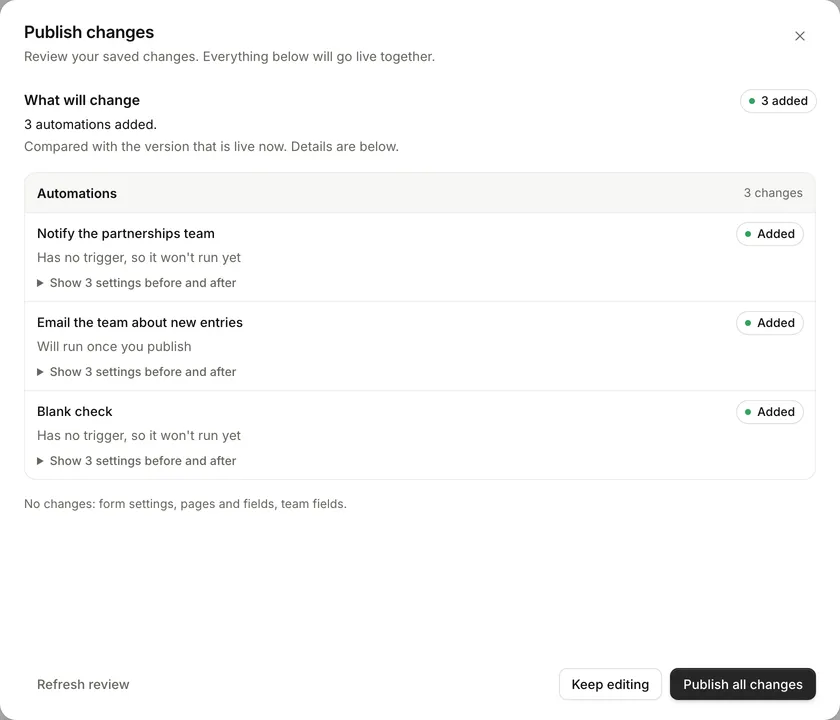
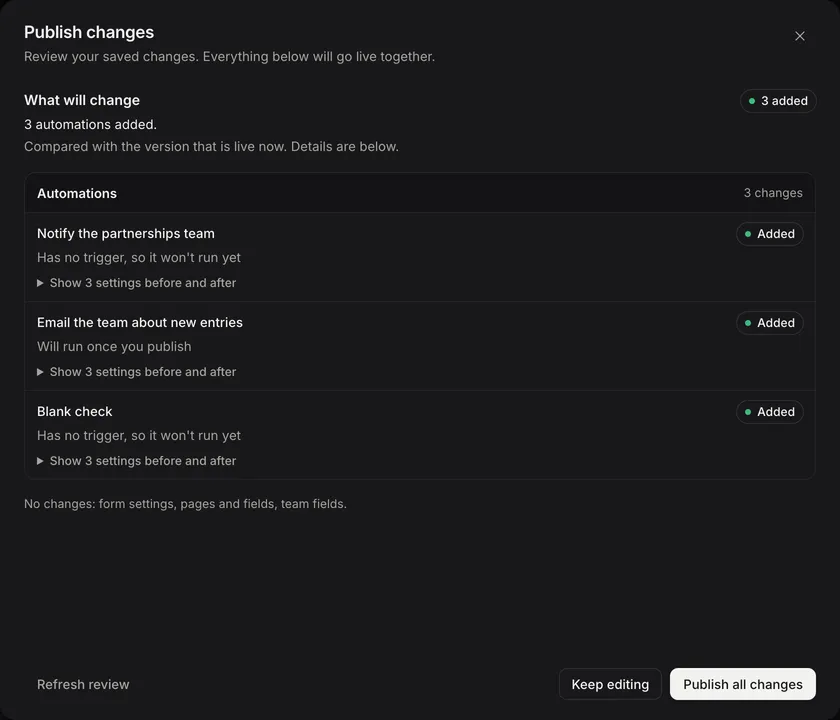
- In Publish changes, review what will go live. Changes are grouped under Form settings, Pages and fields, Process, Automations and Team fields, with before and after values where they help.
- Read anything under Worth checking. These don’t stop you publishing.
- Answer any questions about existing entries. See below.
- Select Publish all changes.
When you publish:
- the draft, with its team fields, becomes the published version
- the version it replaces is archived
- the form’s link and embed show the new version, and new entries start on it
Publish all changes is unavailable when nothing has changed since the last publish. If the draft changes while the review is open, for example because someone else edits it, nothing is published: select Refresh review to see the latest changes. Select Keep editing to close the review without publishing.
Questions about existing entries
Some changes affect entries that already exist, so the review asks what should happen before you can publish.
| When you | The review asks or tells you |
|---|---|
| Change team fields on a form with entries | How many entries will be converted to the new team fields. If some values can’t be converted, such as text in a field that’s now a number, they’re cleared. Select Download values to keep a copy first |
| Add a process to a form that already has entries | Which stage those entries start in, or whether to leave them without a stage |
| Remove a stage that has entries in it | Which stage to move them to |
| Change a stage’s owner or due time | Whether to Apply to entries already in that stage. If you don’t tick it, those entries keep their current owner and due time |
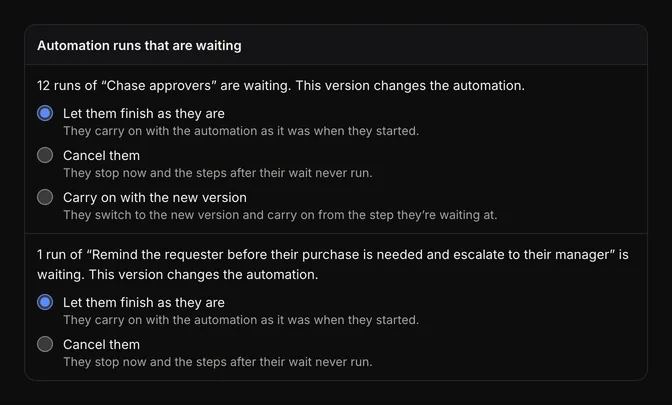
| Change an automation that has runs waiting at a Wait step | Let them finish as they are, Cancel them, or, when the step they’re waiting at still exists, Carry on with the new version |
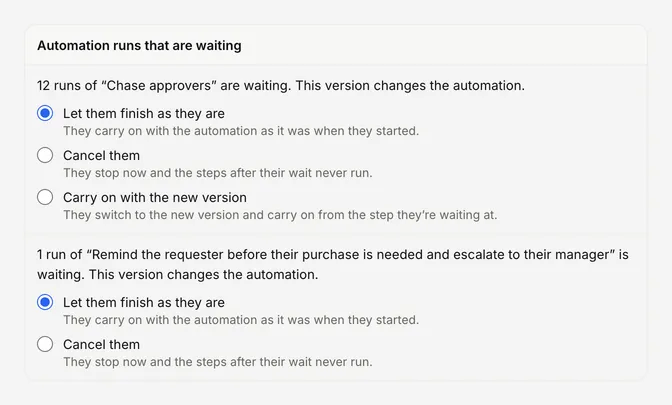
For more on stages, see Stages and Owners and due dates. For waiting runs, see Runs and testing.
Which version an entry follows
An entry’s answers stay with the version the respondent was given. Everything your team uses to work on the entry follows the latest published version.
| Part | Follows |
|---|---|
| The respondent’s answers, and the pages, fields, validation and content they see | The version they started on |
| Team fields | The latest published version |
| The process: stages, owners, due dates and actions | The latest published version |
| Automations | The latest published version |
| Notifications and views | The form’s current settings, which aren’t versioned |
| Exports | The fields of the latest published version, with your view’s columns |
This means:
- Someone halfway through the form when you publish keeps the form they started, and can finish it.
- The entry page shows each entry’s answers with the fields of its own version. Removing a field in a later version doesn’t remove answers already given.
- A fixed automation applies to the next event on every entry, old or new. When an automation uses an answer that an older entry’s version doesn’t have, the value is empty and the run’s details say Not in this entry’s version.
- New team fields appear on every entry, including older ones.
Entries created in a draft’s preview follow the draft until it’s published.
Discard draft changes
To throw away a draft, open the version menu and select Discard draft changes, then Discard changes. This can’t be undone. The builder returns to the published version, which isn’t affected, and any preview automation runs waiting on the draft are cancelled. A form that has never been published can’t discard its draft.
What isn’t available
FormWork doesn’t list archived versions, compare versions side by side, or restore an earlier version. To undo a published change, make the change again in a draft and publish it.
Before you publish
- Preview each route through the form, including pages and fields that only show sometimes.
- Submit answers that should pass and answers that should fail validation.
- Check what the review says about existing entries and waiting automation runs.
- Remember that previews run the draft’s automations.