
Forms
Pages, groups and repeaters
Lay out a form in the builder with pages, fields, groups and repeating sections, adding structure only when it helps respondents or your data.
A form is a list of pages, each page holds fields, and a group can hold more fields. Start with one page of fields and add structure only when it helps the people filling in the form or the shape of the data you collect.
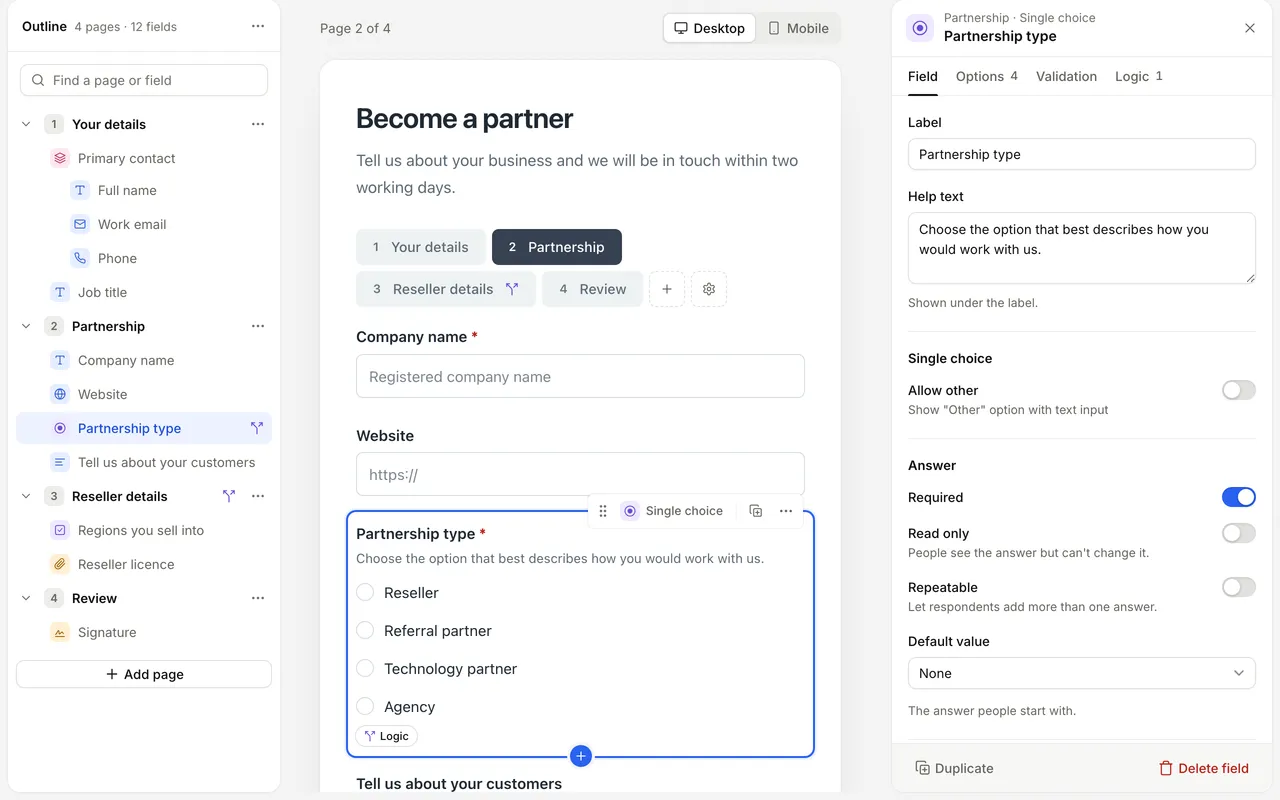
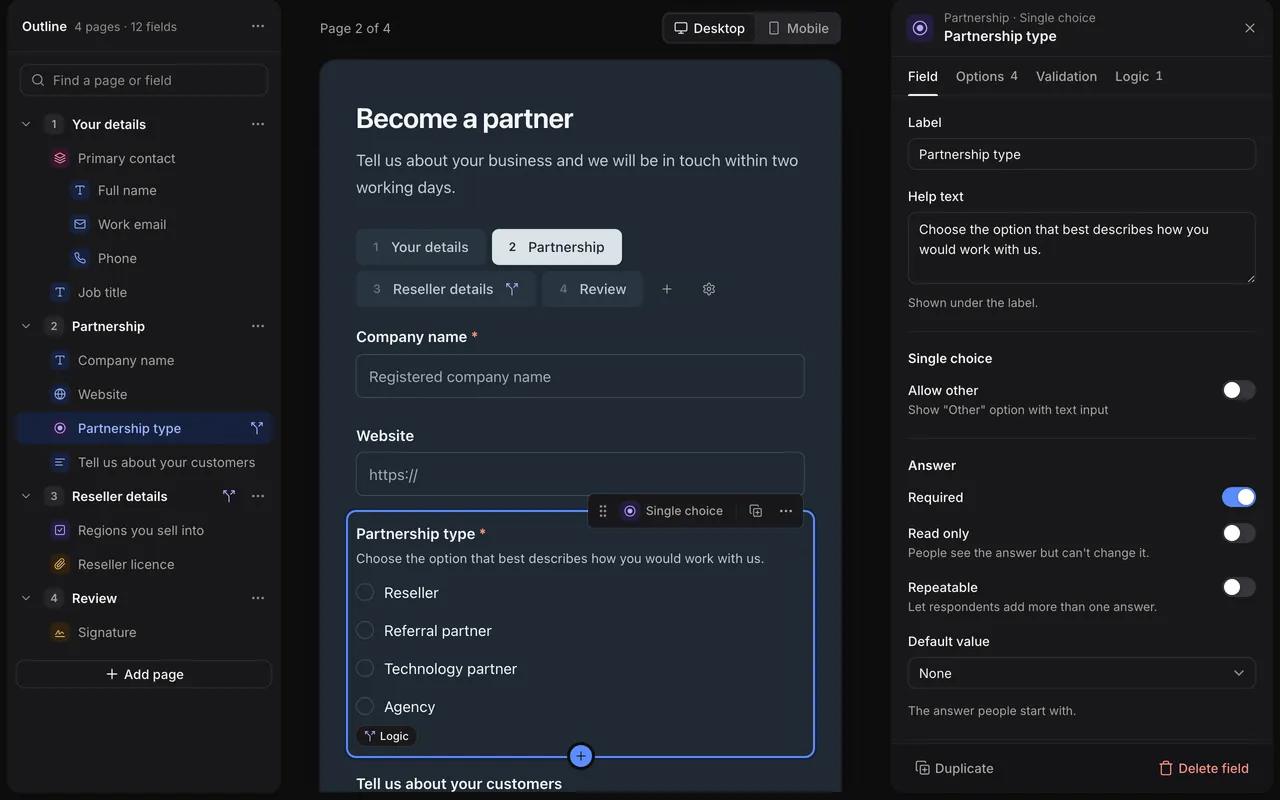
Open the builder
On the form’s page, select Edit form. The builder opens the form’s draft, and creates one from the published version if there isn’t one yet. Changes save as you make them, and nothing reaches respondents until you publish. See Drafts and publishing.
The builder’s sections are along the top:
| Section | What you do there |
|---|---|
| Fields | Pages and fields, with each field’s settings, options, validation and logic |
| Team fields | Fields your team fills in on each entry. See Team fields |
| Process | Stages, owners and due dates. See Stages |
| Automations | What happens when entries are created or change. See Automations |
| Notifications | Emails about each new entry. See Notifications |
| Appearance | Colours, type and spacing. See Appearance |
| Settings | Title, introduction, submit button and success message. See Form settings |
| Share and embed | The form’s link and embed code. See Share and embed |
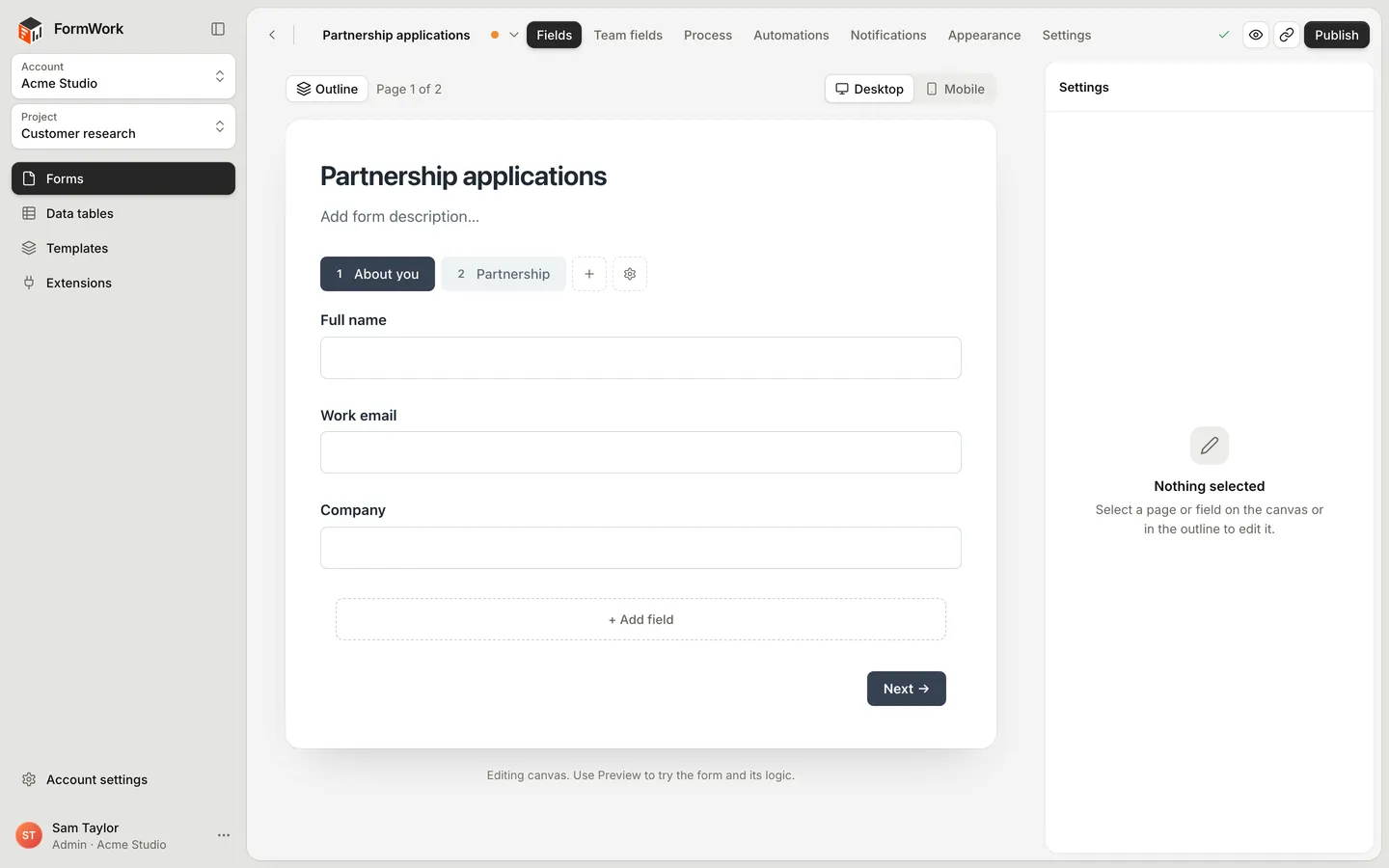
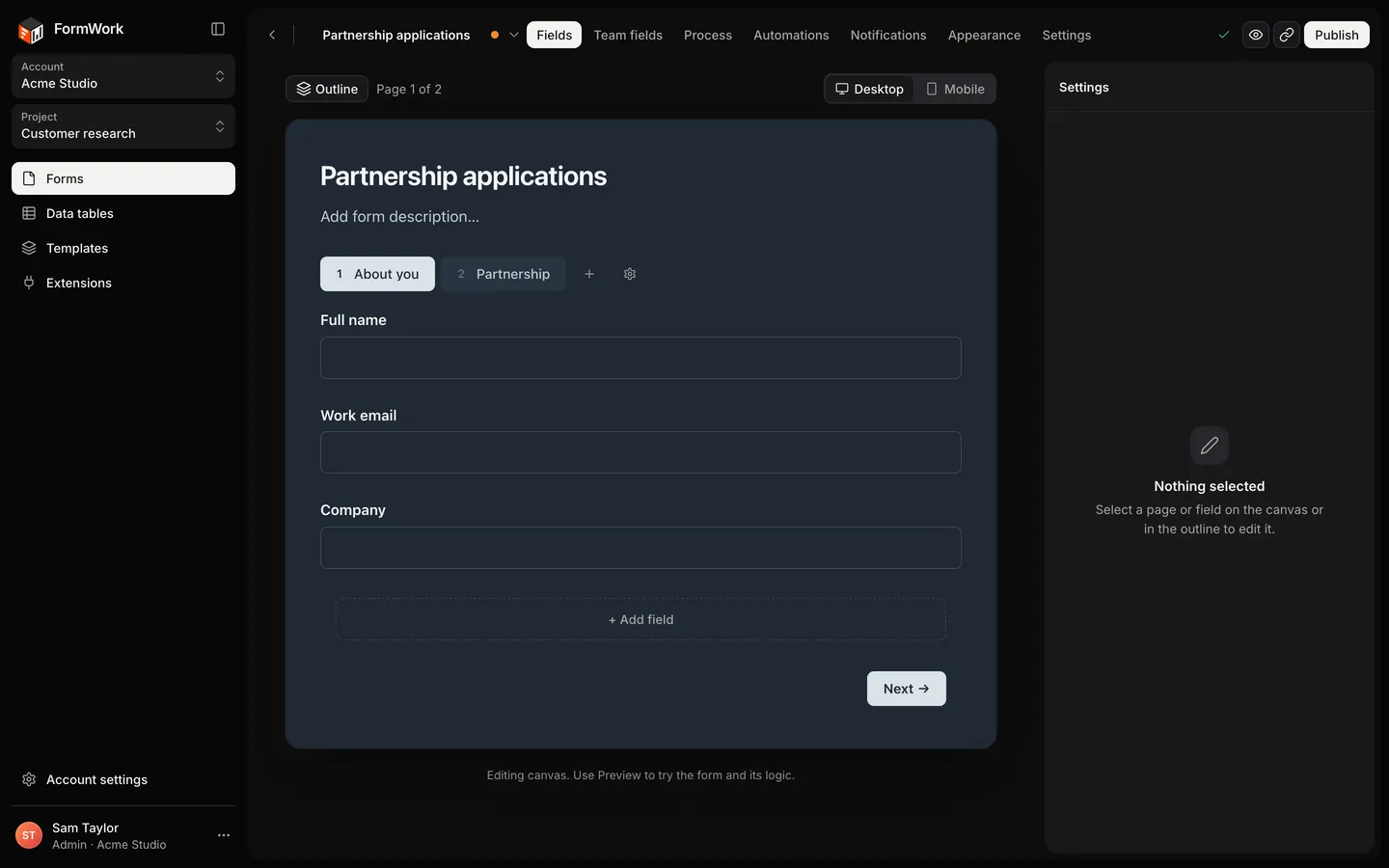
The canvas shows the form as respondents will see it. Switch between Desktop and Mobile above the canvas to check both widths, and select Preview in the top bar to fill the form in.
Pages
Each page is one step for the respondent. A new form starts with one page, Page 1.
- Add a page: select Add page next to the page tabs, or open a page’s actions in the outline and select Add page above or Add page below.
- Rename a page: select the page to open its settings and change Page title, or select Rename page in the outline.
- Reorder pages: select Move up or Move down in the page’s settings or in the outline.
- Show a page only sometimes: open the page’s Logic tab, or select Page logic in the outline. A hidden page is skipped. See Conditional logic.
- Delete a page: select Delete page. A form always keeps at least one page. If the page has fields, FormWork asks you to confirm, because its fields are deleted with it.
Use more than one page when a form has distinct parts, or when one screen would be long enough to put people off.
Add fields
- Select + Add field on the canvas, or press / while the canvas has focus.
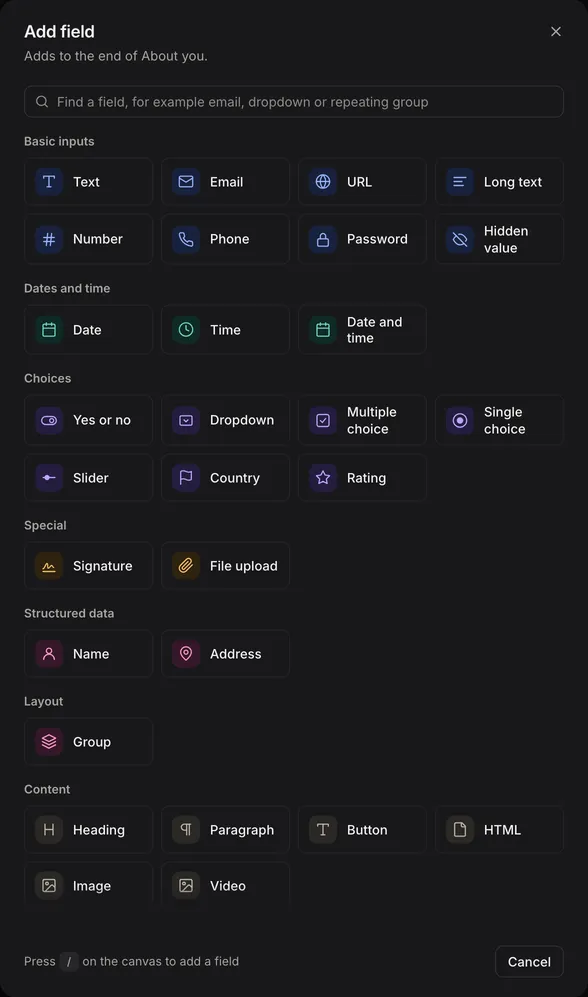
- Choose a field type. You can search, for example for “email”, “dropdown” or “repeating group”. See Field types.
- Type a label. FormWork suggests a field ID from the label.
- Select Add field. To add another straight away, press Ctrl+Enter (⌘+Enter on a Mac) instead.
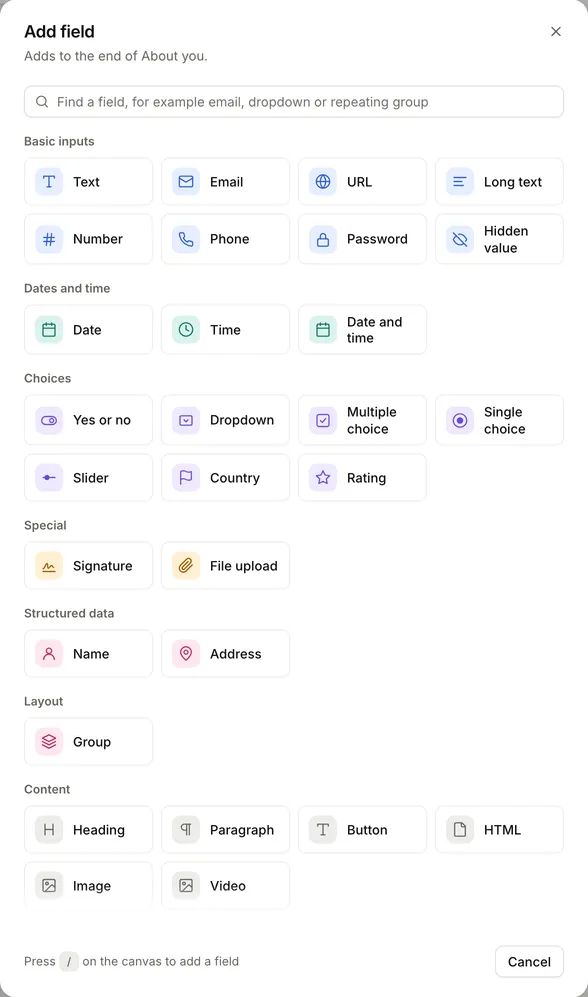
To place a field exactly, select an existing field and choose Add field above, Add field below or, for a group, Add field inside from its actions menu.
A field’s type and ID can’t change once it’s added. Its label and every other setting can. To change a type, add a new field and delete the old one.
Field IDs
Automations, templates, the API, imports and exports refer to a field by its ID. To choose your own, select Customise before adding the field. An ID:
- starts with a lowercase letter
- contains only lowercase letters, numbers and underscores
- is unique in the form
Prefer names that describe the data, such as email, billing_address or line_items, rather than its position, such as question_3. You can copy a field’s ID from Advanced in its settings.
Arrange fields
- Drag a field to move it on the page, or into and out of groups. While dragging, drop it on another page’s tab to move it to that page.
- Move field up, Move field down and Move to page or group… in the field’s actions menu do the same without dragging.
- Duplicate field copies a field and its settings with a new ID ending in
_copy. Fields that contain other fields can’t be duplicated yet. - Delete field removes the field, and any fields inside it, from the draft.
You can edit a field’s label and help text directly on the canvas. Everything else is in the settings panel that opens when you select the field. See Field settings.
Groups
A Group keeps related fields together, such as a person’s contact details or one line of an order. Add fields to it with Add field inside, or drag fields into it.
In the group’s settings, choose a Layout:
- Column stacks the fields.
- Row places them side by side, with Phone columns and Desktop columns (1 to 4) for each screen size.
Groups are most useful when they repeat. A group also becomes part of how its fields are referred to in automations and templates, so avoid nesting fields only for looks.
Name and Address
Name and Address are ready-made groups. FormWork adds and removes their parts as you switch them on or off, such as Show middle name or Show postcode. Select a part, such as First name or City, to change its label, help text, whether it’s required and its other settings. Parts can’t be deleted or duplicated. See Field types.
Repeating fields and groups
Switch on Repeatable in a field’s settings when people need to give a list: several email addresses, the people attending, or the lines of an order. A repeatable group repeats all of its fields together.
| Setting | Effect |
|---|---|
| Show first item | Shows one empty item before anything is added. When it’s off, respondents start with an + Add button. |
| Min items | The fewest items people must add. |
| Max items | The most items people can add. Once it’s reached, the add button is replaced by a note. |
Respondents add items with + Add another and remove them with the remove button, which they can undo. Each item keeps its own answers.
Repeatable is available on every answer field except the parts of Name and Address, and Team member fields. To use a repeating item’s answers in automations or templates, see Inserting values.
A reliable order to build in
- Sketch the pages and any groups.
- Add fields with IDs you won’t want to change.
- Set up each field in Field settings.
- Add defaults and calculations, validation and conditional logic.
- Fill in Form settings and Appearance.
- Preview every route through the form.
- Publish.