
Developers
Embedding and the JavaScript API
Developer reference for the formwork-form web component: its attributes, JavaScript API and events, answer paths, submitting, and resuming a session.
The <formwork-form> web component runs a FormWork form inside any web page. It loads the published form, saves answers as people type, applies your display rules and validation, and submits the entry.
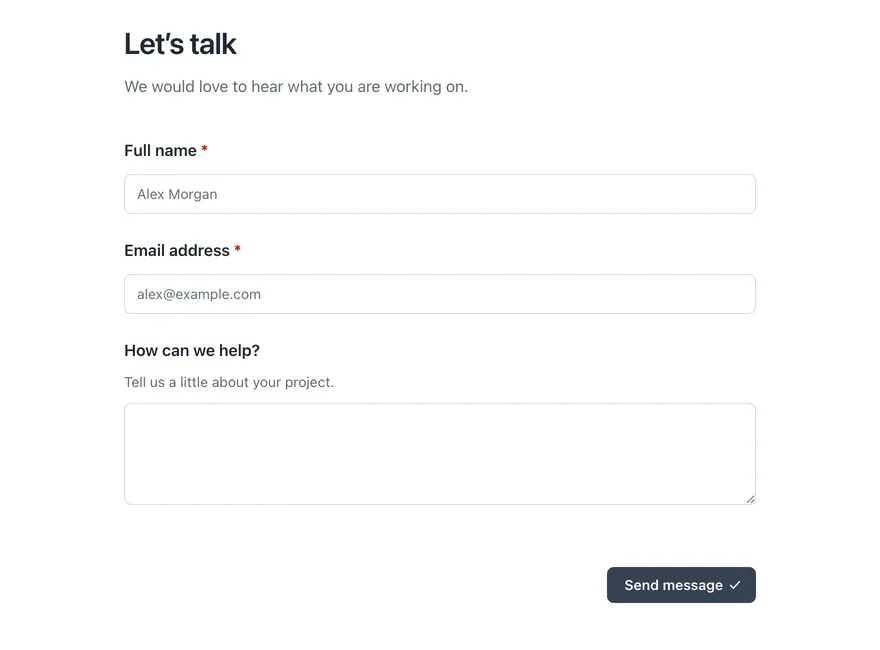
Most sites only need the embed code from Share and embed. This page is for developers who want to pass data into the form, react to what happens in it, or coordinate it with their own interface.
Choose an approach
| You want to | Use |
|---|---|
| Put a form on a page | The embed code only |
| Match your site’s look | Appearance, or CSS variables |
| Do something after an entry is saved or submitted | Events |
| Add context such as a user ID or the page URL | setAnswers() with field IDs |
| Make sure the latest typing is saved before your page moves on | flush() |
| Build your own form interface from scratch | The REST API |
The attributes, methods and events on this page are the supported browser interface. There is no separate npm package. Reaching into the component’s shadow DOM or loading FormWork’s internal scripts is not supported.
Basic embed
Copy the code from the Embed tab of Share and embed:
<formwork-form form-id="FORM_ID"></formwork-form>
<script src="https://app.useformwork.com/static/client.js" type="module"></script>
One script tag serves any number of <formwork-form> elements on the page. The embed always shows the latest published version. An entry that has already been started stays on the version it began with.
The Popup tab gives the same element inside a <dialog> opened by a button. Both work in any site or CMS that allows custom HTML and JavaScript modules.
Attributes
| Attribute | Required | Meaning |
|---|---|---|
form-id | Yes | The form to show. |
hide-title | No | true hides the form title, for pages that already show it. |
hide-submit | No | true hides the built-in submit button. See Submitting. |
theme | No | auto, light or dark. Overrides the mode saved in Appearance. Any other value is treated as auto. |
render-mode | No | light renders into the page’s light DOM. The default is a shadow root. See Theming with CSS. |
preview-version-id | No | Shows a specific draft or published version for testing while signed in to its account. |
preview-token | No | Opens a draft without signing in, using the hour-long token in Share and embed → Test embed code. |
entry-id | No | Opens an existing entry. Needs the matching entry-key. |
entry-key | No | The access key for entry-id. |
api-base-url | No | Points the form at a different FormWork address. Leave it out for normal embeds. |
analytics | No | on lets FormWork collect this visit for its own Analytics. Set it only after the visitor agrees. See Analytics. |
analytics-events | No | on sends lifecycle events to the Google Analytics, Google Tag Manager or Meta tags already on your page. Set it only after the visitor agrees to those tags. See Analytics. |
The component reads theme, analytics and analytics-events whenever they change. The others are read when the element is added to the page: to change the form, entry or render mode, replace the element.
Remove preview-version-id and preview-token from live pages. Preview entries are isolated tests: external effects are suppressed, they stay out of normal lists and exports, and they are removed a day after their last change. A preview token expires after an hour and stops working when the draft is published or discarded.
Open an existing entry
An application that holds an entry’s ID and access key can open that entry directly:
<formwork-form form-id="FORM_ID" entry-id="ENTRY_ID" entry-key="ENTRY_KEY"></formwork-form>The entry keeps the form version it was created with. Treat entry-key like a password: don’t put it in public HTML, logs or analytics.
How a form session works
Loading the form does not create an entry. FormWork creates the entry the first time the respondent does something that needs saving, so visitors who never interact leave no empty entries.
Once loaded, the component:
- saves answers automatically, with a short delay while someone is typing;
- applies changes in order, even when several fields change quickly;
- treats the server as the source of truth for validation, visibility, calculated values and the form version;
- resumes an unfinished entry when the same person comes back in the same browser (see Resume);
- forgets the resume access once the entry is submitted.
This is why formwork:ready can fire before an entry exists, and why your code should call flush() rather than guess whether a save is still pending.
JavaScript API
The element has four methods:
const form = document.querySelector("formwork-form");

const answers = form.getAnswers();
const state = form.getState();
const saved = await form.setAnswers({ external_reference: "customer_123" });
const persisted = await form.flush();
Wait until the session is ready before calling setAnswers(). Add listeners before the script loads, or straight after you add the element, so you don’t miss early events:
<formwork-form id="contact-form" form-id="FORM_ID"></formwork-form>

<script type="module">
  const form = document.querySelector("#contact-form");
  form.addEventListener("formwork:ready", (event) => {
    console.log("Form ready", event.detail);
  }, { once: true });
</script>

<script src="https://app.useformwork.com/static/client.js" type="module"></script>
If your code might run after the form is ready, check getState() first:
await customElements.whenDefined("formwork-form");
const form = document.querySelector("formwork-form");

if (!form.getState()) {
  await new Promise((resolve) => {
    form.addEventListener("formwork:ready", resolve, { once: true });
  });
}
getAnswers()
Returns the current answers as a flat object, including changes that may still be waiting to save. Use it to update your own interface, not as proof that something was saved. Returns {} before the session is ready.
getState()
Returns the current session state, or null before the session is ready. Treat it as read-only; new properties may be added.
| Property | Meaning |
|---|---|
phase | loading, ready, submitting, submitted or error |
schema | The form as loaded for this session |
entry | The current entry. Before the entry is saved it may have an empty id, so check entry?.id. |
answers | Current answers, including unsaved changes |
serverAnswers | Answers the server has confirmed |
pendingAnswers | Changes not yet confirmed |
validationErrors | Errors from the server, keyed by answer path |
fieldVisibility, pageVisibility | Whether each field and page is shown, keyed by answer path or page ID |
dirty, saving, submitting | Status flags for your interface |
lastSavedAt | When answers were last confirmed, or null |
error | The latest error, or null |
While changes are pending, serverStateStale, visibilityStale and validationStale are true: the server-derived values may still describe the previous answers.
setAnswers(answers)
Saves the given answers straight away and resolves with all current answers once the server confirms. It creates the entry if there isn’t one yet.
await form.setAnswers({
  external_reference: "customer_123",
  "contact.email": "alex@example.com",
});
Use it for context from your page and for your own controls. It does not bypass the form’s logic: the server still works out defaults, visibility, calculated values and validation. Check getState().validationErrors afterwards if you need to react to them.
It can’t change read-only fields. The server keeps their current answers, so a read-only total or price can’t be overwritten from the page.
It rejects if the session isn’t ready or the save can’t be confirmed.
flush()
Saves any pending changes and waits for saves in progress to finish. Resolves with the current answers once everything is confirmed.
flush() does not submit the entry and does not mean the answers are valid. Validation errors returned from a save are normal saved state.
If saving can’t be confirmed, it rejects with a FormClientFlushError:
| Property | Meaning |
|---|---|
code | create_failed, save_failed or pending_answers_unsaved |
pendingAnswers | The values that couldn’t be confirmed |
cause | The original error, when there is one |
Before the session is ready, flush() resolves with {}.
Events
All events bubble and cross the shadow DOM boundary, so you can listen on the element or any ancestor.
| Event | event.detail | When |
|---|---|---|
formwork:ready | Session state | The session is ready. An entry may not exist yet. |
formwork:entry-created | { entry, state } | A new entry was saved for the first time. |
formwork:entry-resumed | { entry, state } | An existing entry was opened, from stored resume access or entry-id and entry-key. |
formwork:state-change | Session state | Anything in the state changed: answers, validation, save flags or phase. |
formwork:saved | Session state | The server confirmed an answer save. |
formwork:submitted | { entry } | The entry was submitted. Cancelable: event.preventDefault() stops the form’s redirect after submitting. |
formwork:error | { message, error } | Loading, saving, submitting or an extension failed. |
formwork:entry-resumed can fire while the form is loading, before formwork:ready.
formwork:state-change fires often. Filter for what you need and debounce anything that sends network requests. Prefer the more specific events when they fit.
Recipes
Add context to a new entry
Use formwork:entry-created so the values are only added to new entries, not to resumed ones:
form.addEventListener("formwork:entry-created", async () => {
  try {
    await form.setAnswers({
      reporter_email: currentUser.email,
      source_page: window.location.href,
    });
  } catch (error) {
    console.error("Could not add context to the form", error);
  }
}, { once: true });
Listen to formwork:entry-resumed as well only if resumed entries need the same update.
Write to fields that aren’t read-only. Use a Hidden value field if respondents don’t need to see the value. Respondents can still change anything your page writes, so don’t rely on it for prices or permissions. For information only your team should see, use a team field instead.
Save before your page moves on
Before your own button saves, redirects, closes a modal or starts another action, wait for FormWork to save the latest typing:
async function continueHostFlow() {
  try {
    const answers = await form.flush();
    await saveHostApplication(answers);
  } catch (error) {
    showRetryMessage("The latest form changes could not be saved.");
  }
}
Keep your action available if flush() fails so the person can try again.
Track submissions
form.addEventListener("formwork:submitted", (event) => {
  analytics.track("Form submitted", { entryId: event.detail.entry.id });
});
Use this event rather than watching clicks on the submit button: a click can still be stopped by validation.
Stay on the page after submitting
When the form has a redirect after submitting, cancel formwork:submitted to keep people on your page instead, for example to show your own next step:
form.addEventListener("formwork:submitted", (event) => {
  event.preventDefault();
  showNextStep(event.detail.entry.id);
});
Previews never redirect, whether or not you cancel the event.
Analytics
Two attributes control analytics on an embedded form. They need separate permission, so connect each to the matching choice in your consent tool.
| Attribute | Controls |
|---|---|
analytics | FormWork’s own visit collection, shown on the form’s Analytics tab. Collection also needs to be turned on for the account and the form, and is skipped when the browser sends Global Privacy Control. |
analytics-events | Sending events to the Google Analytics, Google Tag Manager or Meta tags already on your page, for the configurations chosen on the form. FormWork never loads those tags itself. |
const form = document.querySelector("formwork-form");
form.setAttribute("analytics", collectionAllowed ? "on" : "off");
form.setAttribute("analytics-events", tagsAllowed ? "on" : "off");
Changing analytics to off after it was on removes the visit in progress.
Lifecycle events
The element also fires lifecycle events you can pass to any analytics tool yourself. They bubble and cross the shadow DOM boundary like the other events, and fire whatever the attributes are set to. They aren’t fired in previews.
| Event | When |
|---|---|
formwork:analytics-view | The form came into view in a new session: at least a quarter of it, or 200 pixels of its height, is on screen. |
formwork:analytics-resume | As view, when an unfinished entry is resumed. |
formwork:analytics-page | A page was shown for the first time in the session, including the first page. |
formwork:analytics-start | The person first answered a question or changed page. |
formwork:analytics-submit | The entry was submitted. |
Each event fires at most once per session, except page, which fires once for each page. event.detail is read-only and has:
| Property | Meaning |
|---|---|
form_id | The form’s ID |
form_title | The form’s title, up to 100 characters |
form_version_id | The version being filled in |
surface | embed on your site, hosted on FormWork’s hosted page |
page_id, page_title | The current page |
page_index, page_count | The current page’s position, from 0, and the number of pages shown |
submission_id | The entry ID on formwork:analytics-submit, otherwise null |
The details never include answers or access keys, so they are safe to send on. Don’t send the whole detail of formwork:submitted or the other entry events to analytics tools: they include the entry.
form.addEventListener("formwork:analytics-submit", (event) => {
  analytics.track("Form submitted", {
    formId: event.detail.form_id,
    entryId: event.detail.submission_id,
  });
});
Answer paths
Answers are a flat object keyed by field ID, not a nested object. Fields inside groups use dots, and items in a repeating field include the item’s ID in brackets:
{
  "email": "alex@example.com",
  "address.city": "Leeds",
  "line_items[item_a].quantity": 2
}
Use the field IDs from the builder, not the labels: labels can change, IDs don’t. See Pages, groups and repeaters.
setAnswers() can change an existing repeating item when its path is already in getAnswers(). It can’t add or remove items; leave that to the form.
Submitting
The component has no submit() method. Submission happens through the form’s own submit button.
hide-submit="true" is for pages where your own interface handles what happens next, for example saving a draft into your application with flush(). If you need to run navigation, repeaters, uploads and submission yourself, use the REST API instead of the component.
Resume and access keys
Unfinished entries are resumed automatically. The component keeps resume access for each form in the browser’s local storage, so a person who comes back in the same browser, even after closing the tab, continues where they left off. Resume access lasts two hours from their last visit by default. If the form lets people save and continue later, it lasts the number of days set in Form settings. Expired or submitted entries start a fresh form.
Links sent by “Save and continue later” open the form’s hosted page, not your site, and resume the entry there.
A resume link or entry-key gives access to an unfinished entry. Keep them out of logs, analytics and screenshots. Never put an account API key in browser code.
Styling
By default the form renders in a shadow root, so your site’s CSS doesn’t leak into it. CSS variables set on <formwork-form> still reach it. Use Appearance for saved styling, and Theming with CSS for variables, modes and light DOM rendering.
If your page has a sticky header, set --formwork-scroll-offset on the element so the form scrolls into view below it when someone changes page:
<formwork-form form-id="FORM_ID" style="--formwork-scroll-offset: 72px"></formwork-form>Troubleshooting
| Problem | Check |
|---|---|
| Nothing appears | The script tag is present, form-id is right, your Content Security Policy allows the script, and the browser supports JavaScript modules and custom elements. |
| A method is missing | Wait for customElements.whenDefined("formwork-form") and check the script loaded. |
getState() returns null | Wait for formwork:ready. The element exists before its session has loaded. |
| A draft shows on the live site | Remove preview-version-id and preview-token and copy the code from the Embed tab again. |
| Returning visitors start again | Browser storage may be blocked or cleared, or the resume access expired or the entry was submitted. |
| An existing entry won’t open | entry-id and entry-key must match and still be valid. |
| Your page moves on before the last answer is saved | Wait for flush() first. |
| Saved answers still have errors | Saving and validation are separate. Read validationErrors and let the person fix the answers. |
| Your CSS can’t reach the form’s controls | Use the CSS variables, or render-mode="light" on purpose. |