
Entries
Entries
Find, search, select and delete a form's entries, edit team fields in the table, and act on many entries at once from the entries page.
An entry is one person’s answers to a form. It is created when someone starts the form and is submitted when they finish. Open a form from its project to see its entries.
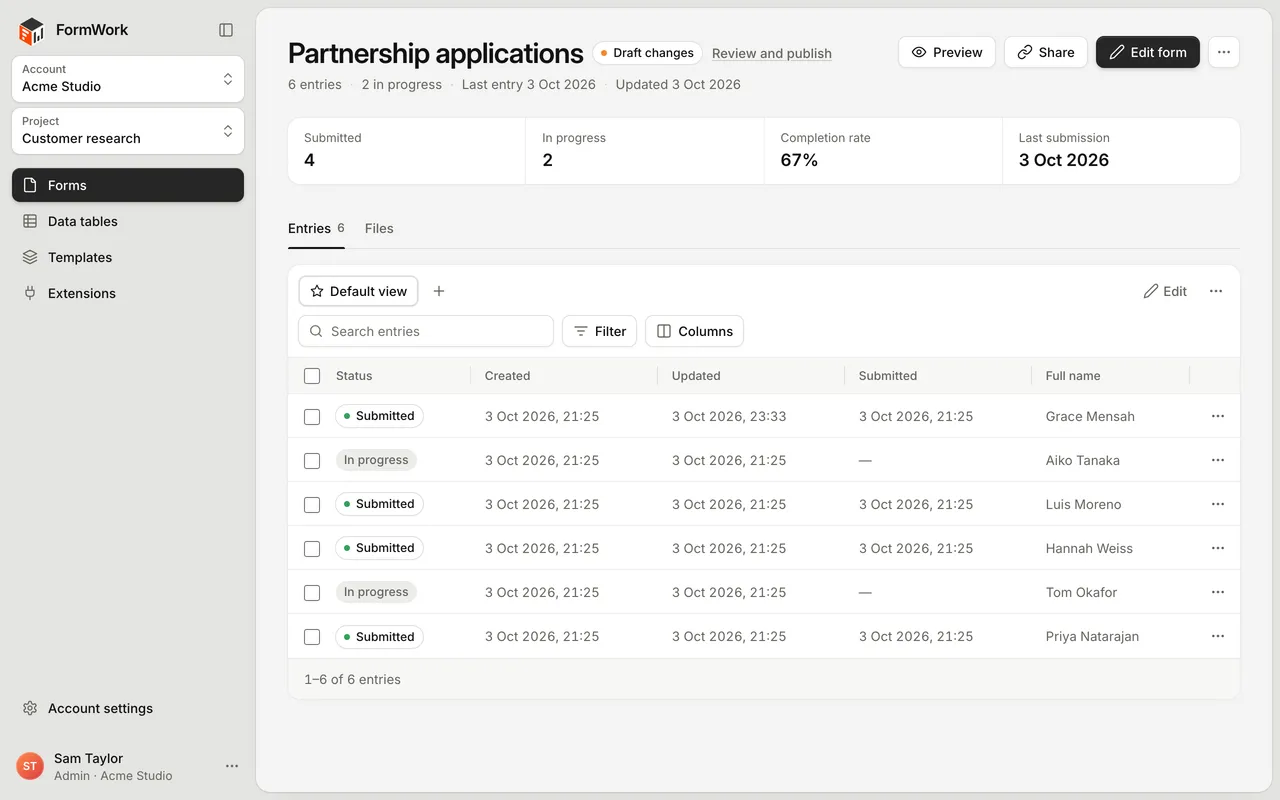
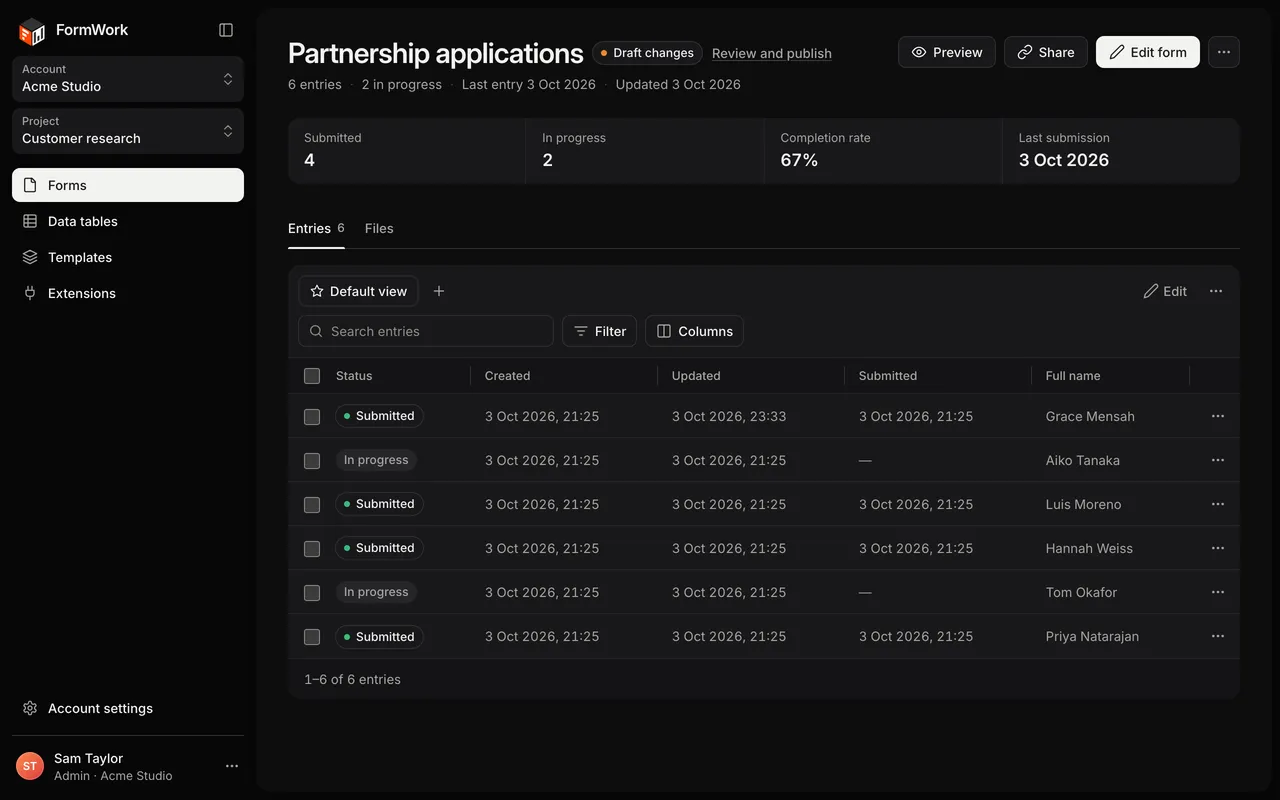
The entries page
The top of the page shows four figures for the form:
| Figure | What it counts |
|---|---|
| Submitted | Entries that were submitted |
| In progress | Entries that were started but not submitted |
| Completion rate | Submitted entries as a share of all entries |
| Last submission | The date of the latest submission |
Below them are two tabs: Entries, the table of entries, and Files, the form’s exports and imports (see Import and export).
The header has Preview, Share (with Copy form link and Share and embed), Edit form, and a menu with Export entries, Import entries, Email notifications, Copy form ID and, for account admins, Delete form.
Status
Every entry has a status:
| Status | Meaning |
|---|---|
| In progress | Started but not submitted yet |
| Submitted | The respondent finished and submitted the form |
Status only says whether the form was submitted. If the form has a process, each entry also has a stage, an owner and perhaps a due time, shown in the Stage, Owner and Due columns. See Stages.
Find entries
The table shows the current view, 20 entries per page. A view decides which entries appear, which columns are shown and how they are sorted. Switch views with the buttons above the table. See Views and filters.
To narrow the list:
- Type in Search entries. An entry matches when every word you type appears in its answers. Search does not look in team fields.
- If the form has a process, select a stage or a quick filter such as Assigned to me or Overdue. See Stages and quick filters.
- Select a column heading to sort by it.
Select a row to open the entry. When you open an entry from the table, Previous entry and Next entry on the entry page step through the same view. See The entry page.
Edit team fields in the table
When a view shows a team field column, you can change a value without opening the entry. Select the value, change it, then press Enter or pick an option. Escape cancels.
This works for team fields that hold a single value and are not read-only, of these types: Text, Email, URL, Phone, Number, Dropdown, Single choice, Yes or no, Date, Country and Team member. Change other team fields on the entry page. See Team fields.
Act on several entries
Tick the box beside each entry, or the box in the header to select every entry on the page. With a whole page selected, select Select all … matching entries to include every entry the view and search match, across all pages.
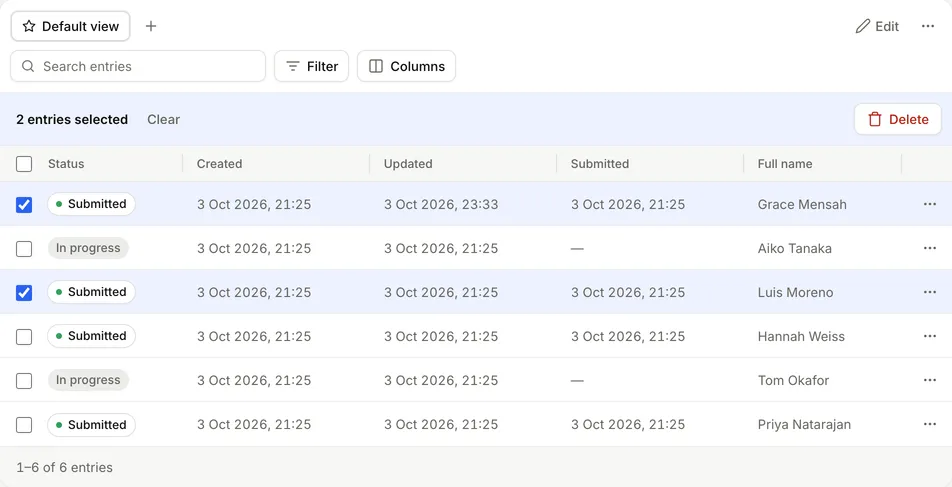
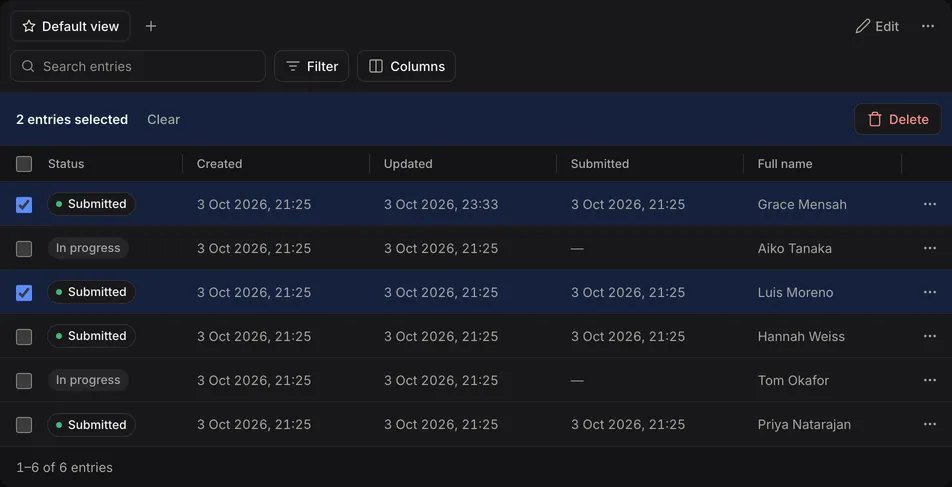
With entries selected, you can:
| Action | What it does |
|---|---|
| Move to… | Moves the entries with an action that every selected entry offers. Account admins can also choose Move to any stage, with a comment. Shown when the form has a process. |
| Set team field | Sets one team field to the same value on every selected entry. Each entry’s history records the change, and its automations run as if you had edited it. |
| Delete | Deletes the selected entries. |
One batch action changes up to 1,000 entries. If more match, narrow the filter or search first. Entries that can’t be changed are listed with the reason, and nothing changes for them.
Delete entries
Delete one entry with Delete entry, from the menu at the end of its row or on the entry page. Delete several with Delete after selecting them.
Deleting an entry also deletes its uploaded and generated files and its team fields, and stops any automation run that is waiting on it. There is no way to restore a deleted entry in the app, so export anything you need to keep first.
When there are no entries
A form with no entries offers Copy form link and Open form once it is published, or Open the form editor if it has not been published yet. See Share and embed.