
Forms
Form settings
Name a form, set the text people see before and after they submit, redirect people or close the form, let them save and continue later, and turn on a security check.
Form settings control what respondents see before and after they submit, whether they can save their answers and finish later, and how the form is protected from spam.
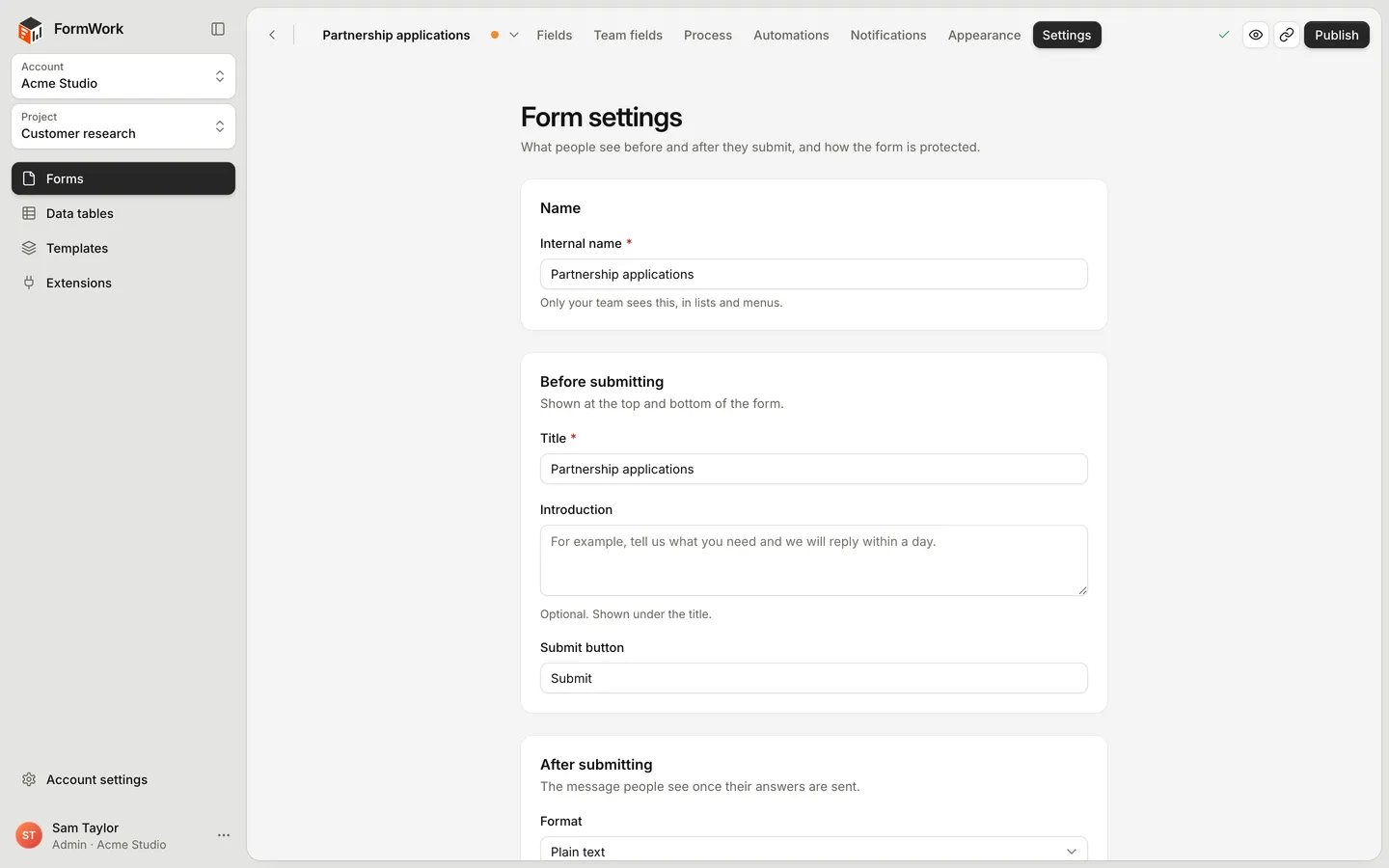
Open a form in the builder and select Settings. Changes save automatically as you type.
| Setting | Belongs to | Goes live |
|---|---|---|
| Internal name | The form | Straight away |
| Everything else on this page | The form version | When you publish the draft |
For how drafts and publishing work, see Drafts and publishing.
Name
Internal name is the name your team sees in lists and menus. Respondents never see it. Use it to tell similar forms apart, for example “Website enquiries – UK” and “Website enquiries – US”.
Before submitting
| Setting | What it does |
|---|---|
| Title | Shown at the top of the form. Required. |
| Introduction | Optional text shown under the title. Use it to say what the form is for and what people need to have ready. |
| Submit button | The label on the final button. Leave it blank to use “Submit”. |
Choose submit text that matches what the person is doing, such as “Send request” or “Apply”. On forms with several pages, earlier pages show Next and Back, and the submit button appears on the last page.
An embed can hide the title and introduction with hide-title="true". See Embedding and the JavaScript API.
After submitting
This is the message people see once their answers are sent. Choose a Format:
- Plain text: type a Message. The form shows a tick, the heading “Thank you” and your message. If you leave it blank, people see “Your response has been sent.” A preview next to the box shows the result.
- HTML template: write your own heading and message in Success template, using HTML, inserted answers and logic. It replaces the whole confirmation, including the “Thank you” heading. HTML is sanitised, so scripts and custom styles are removed. Any answer you insert is shown to the respondent. See Template syntax.
After changing a template, open Preview and submit the form to check the result. Problems with the template are listed under the editor.
Links to other pages in an HTML template open in a new tab, so following one, such as a status link, doesn’t take people away from the page the form is embedded on.
Redirect after submitting
To send people to your own page after they submit, such as a thank-you page on your website, enter its address in Send people to this page. It must start with https:// or http://. People go there instead of seeing the success message. On an embedded form, the whole browser tab goes to the page where the browser allows it.
Preview and draft preview links always show the success message, so you can still check it. Leave the box empty to keep the success message.
On a form embedded with the web component, your page can keep people where they are by cancelling the formwork:submitted event. See Embedding and the JavaScript API.
Closing the form
Stop accepting entries on a date, after a number of entries, or both.
| Setting | What it does |
|---|---|
| Close on | The date and time the form closes, in your time zone. Once it has passed, the builder says the form is closed. |
| Entry limit | The number of submitted entries the form accepts, from 1 to 1,000,000. Unfinished entries, previews and deleted entries don’t count. |
| Closed message | Shown under “This form is closed” instead of the form. If you leave it blank, people see “This form is no longer accepting responses.” |
Once the form closes, new visitors see the closed message, and someone who opened the form earlier sees it when they try to submit. Entries already submitted aren’t affected.
Closing only stops respondents. Previews keep working, and your team can still add entries through imports, the API and automations.
Like the other settings on this page, a close date or limit applies once you publish the draft. To reopen a closed form, clear or change the setting and publish again.
Saving progress
Turn on Let people save and continue later to add a Save and continue later link under the form.
When a respondent selects it, they can:
- enter an email address and select Email me the link, or
- select Show the link instead and copy the link themselves.
The email address box is filled in from the first email answer on the form, if there is one. The link opens the form on its FormWork page with their answers in place, even if they started in an embed.
Link lifetime (days) sets how long a saved link keeps working: a whole number from 1 to 365. The default is 30.
Anyone with the link can see and change the answers. Respondents are told this when they save.
Protection
Turn on Security check (CAPTCHA) to stop automated spam. FormWork uses Cloudflare Turnstile, so there are no keys to set up. Most people pass the check without seeing anything; a challenge appears only when one is needed.
Under When to verify visitors, choose:
| Option | When the check runs |
|---|---|
| Before submission | At the end, before the submission is accepted. |
| Before entry creation | Silently, when the person first interacts with the form. If a challenge is needed, a small popup appears before the entry is created. |
Choose Before entry creation if you want to check people before any entry exists, for example to keep automated drafts out of your entries list. Before submission checks only at the end.
Other settings
Some form behaviour is set elsewhere in the builder:
- Appearance: colours, fonts and spacing. See Appearance.
- Notifications: emails to your team and to respondents. See Notifications.
- Share and embed: links, embed code and a QR code. See Share and embed.
- Fields: default values, validation and conditional logic. See Field settings.
Delete a form
Account admins can delete a form from the project’s form list or from the form’s menu. Select Delete form, then Delete. This removes the form, its entries, files, versions and team fields from active use. There is no restore action, so export any entries you need first. See Import and export and Team members and roles.