
Forms
Field types
The 29 built-in field types for forms, grouped as they are in the Add field dialog, with what each one collects and when to use it.
Choose a field type by the answer you need and the control that suits the person giving it. FormWork has 29 built-in field types for forms, plus Team member for team fields, and installed extensions can add more. This page is the catalogue; Field settings lists the options for each type.
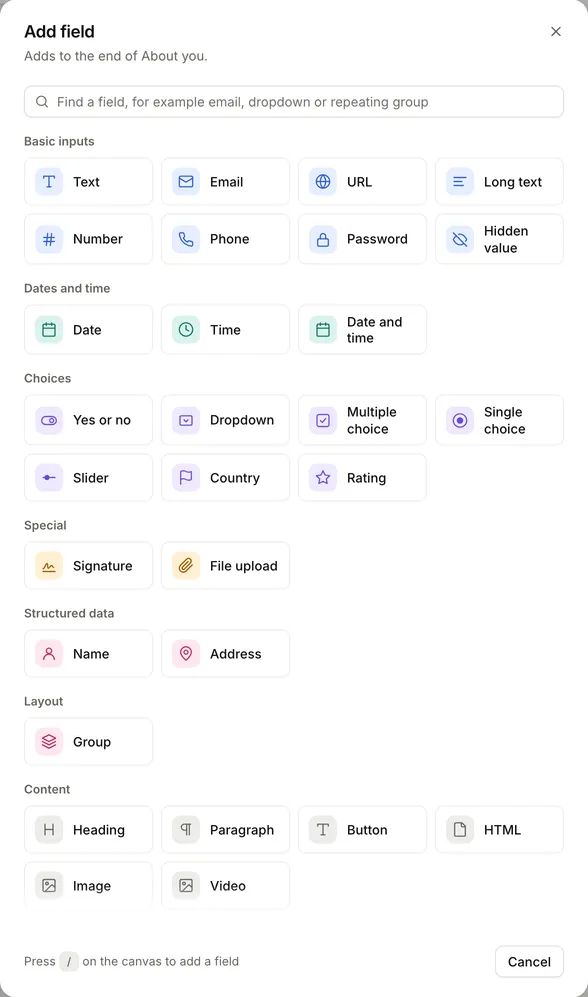
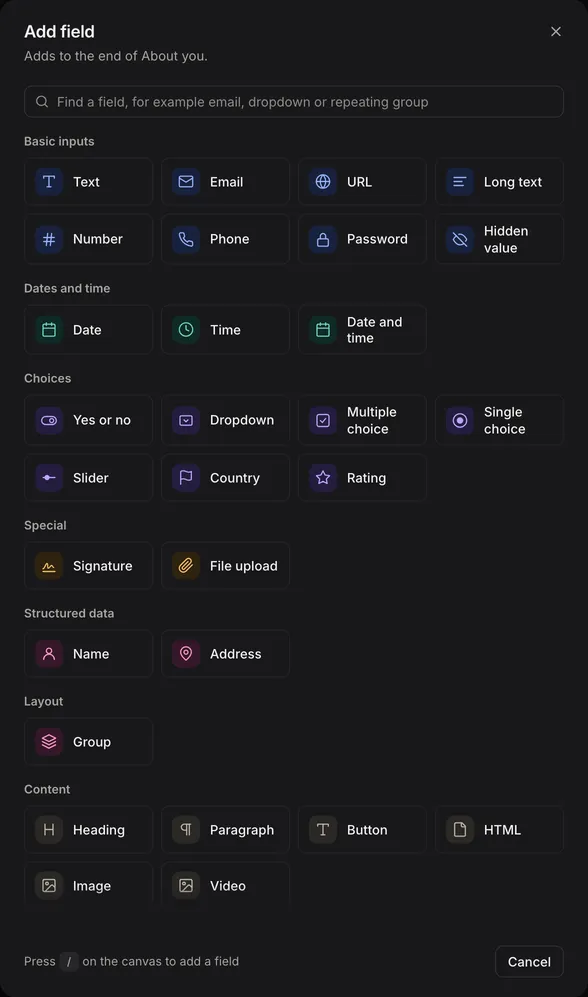
The types are grouped as they are in the Add field dialog.
Basic inputs
| Type | Collects | Use it for |
|---|---|---|
| Text | One line of text | Names, references, short answers |
| An email address | Contact addresses. Answers need an @ and a domain with a dot | |
| URL | A web address | Websites and links. Answers must start with http:// or https:// |
| Long text | Several lines of text | Comments, descriptions, notes |
| Number | A number | Quantities, prices, measurements |
| Phone | A phone number with its country code | Phone numbers, saved with the calling code, such as +44 |
| Password | Text hidden as it’s typed | Access codes. See below |
| Hidden value | A value not shown on the form | Campaign sources, IDs from other systems, calculated values |
Password answers are withheld from team-facing entry results, history, exports, notification emails and MCP results, but they are stored with the entry. Don’t use this field to collect passwords for other systems.
Hidden value fields are never shown to respondents, so they can’t be required and have no validation rules or conditional logic. Fill them from the page address, with a default value, an automation or the API. See Fill from the page address.
Hidden value answers are still sent to the respondent’s browser with the rest of the entry, and code on the page can change them. Don’t put anything respondents mustn’t see in them; use a team field instead. For a price or total respondents mustn’t change, use a field with Read only turned on.
Dates and time
| Type | Collects | Use it for |
|---|---|---|
| Date | A calendar date | Birthdays, start dates, deadlines |
| Time | A time of day, with or without seconds | Arrival times, appointment slots |
| Date and time | A date and a time together | A specific moment, such as an appointment |
Each can limit the earliest and latest value people can choose.
Choices
| Type | Collects | Use it for |
|---|---|---|
| Yes or no | Yes or no | Consent, confirmations, simple questions |
| Dropdown | One option from a list | Longer lists where space matters |
| Single choice | One option, with every option on show | Short lists people should read in full |
| Multiple choice | Any number of options | Interests, features, days of the week |
| Country | A country from a searchable list | Nationality, country of residence |
| Slider | A number picked on a scale | Budgets, percentages, rough amounts |
| Rating | A score shown as stars, hearts, numbers or emotions | Satisfaction and feedback |
| Team member | Someone in your team | Who an entry is assigned to. Team fields only |
Dropdown, Single choice and Multiple choice take their options from a list you type or from a data table or another form’s entries. See Options from a data table. A dropdown with more than 15 options lets people search it. Each can offer an Other option with a box for people to type their own answer.
Yes or no can show as a switch, a checkbox or Yes and No buttons.
Country saves the country’s code and shows its name everywhere your team reads it: on the entry, in views, exports and emails. You can limit the countries on offer and put the most likely ones first.
Slider always has a value, so it’s always required.
Team member is only available in Team fields, not on the form respondents fill in. It lists the people in your account, and keeps the name of someone who has left on the entries they were chosen for.
Special
| Type | Collects | Use it for |
|---|---|---|
| Signature | A signature drawn with a finger or mouse, saved as an image | Agreements and consent |
| File upload | One or more files | CVs, photos, documents |
File upload takes one file unless you allow multiple files, then up to 20. Files can be up to 100 MB each, and you can limit the types allowed. See Files and uploads.
Structured data
| Type | Collects | Use it for |
|---|---|---|
| Name | A person’s name in parts | First and last name, with optional title, middle name and suffix |
| Address | An address in parts | Street, city, state, postcode and country, with optional address lookup |
Name and Address are groups whose parts FormWork manages. Switch parts on or off in the field’s settings, then select a part to change its own label, help text or whether it’s required.
- Name always has First name and Last name. You can add Title, Middle name and Suffix.
- Address can show Street address, Street address line 2, City, State/Province/Region, Postcode/ZIP and Country. The Country part is a Country field, so you choose the countries on offer by selecting it. With Enable address lookup on, people get address suggestions as they type.
Layout
| Type | Collects | Use it for |
|---|---|---|
| Group | The answers of the fields inside it | Keeping related fields together, and repeating them as a set |
Make a group repeatable to collect a list of records, such as attendees or order lines. See Pages, groups and repeaters.
Content
Content fields show something to respondents and don’t collect an answer.
| Type | Shows | Use it for |
|---|---|---|
| Heading | A heading, from level 1 to 6 | Titles between sections |
| Paragraph | Text | Instructions and explanations |
| Button | A button or a link | Running an automation, or sending people to another page |
| HTML | Your own markup | Custom content. Scripts and other unsafe HTML are removed |
| Image | An image from a URL | Logos and illustrations |
| Video | A YouTube, Vimeo or direct video | Introductions and guidance |
Heading, Paragraph, Button and HTML can use a template instead of fixed text, so they can show earlier answers or other values. See Template syntax.
A Button, whether shown as a button or a link, starts any automations triggered by it being clicked. See Triggers.
Extension fields
Installed extensions add their own field types, which appear under Extensions in the Add field dialog. For example, the Stripe extension adds a payment field. See Extensions and Stripe.
What most fields share
Most fields that collect an answer have a label, help text, Required, Read only, a default value, validation and conditional logic, and most can be made repeatable. See Field settings for the full list.