
Account
Accounts and projects
Create your FormWork account, organise forms and data into projects, use more than one account, and change settings such as the name and timezone.
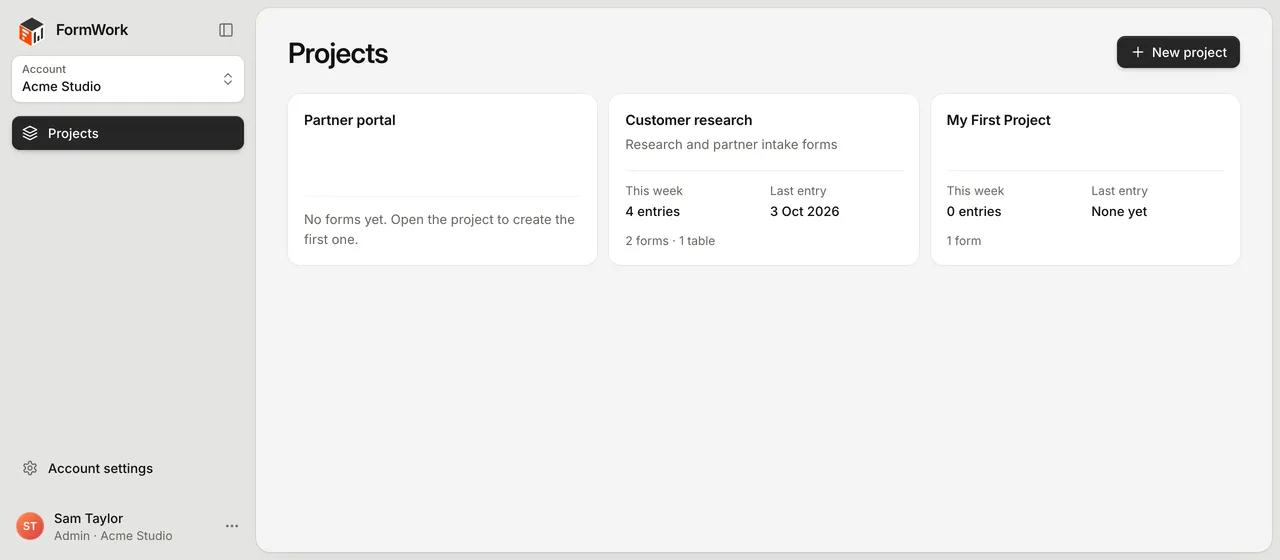
Your account holds your team, billing and API keys. Projects sit inside the account and group related forms, data tables, templates and extensions.
| Level | Holds | Decides |
|---|---|---|
| Account | Team members, groups, billing, API keys, projects | Who can sign in, their role, the plan, the timezone |
| Project | Forms, data tables, templates, extensions, secrets | How work is organised |
Everyone in an account can open every project in it. There is no separate membership or role per project for team members. API keys and assistant connections can be limited to chosen projects without changing what the person can access directly.
Create your account
- Go to the sign-up page and enter your Name, Work email and a Password of at least 10 characters.
- Select Start free trial.
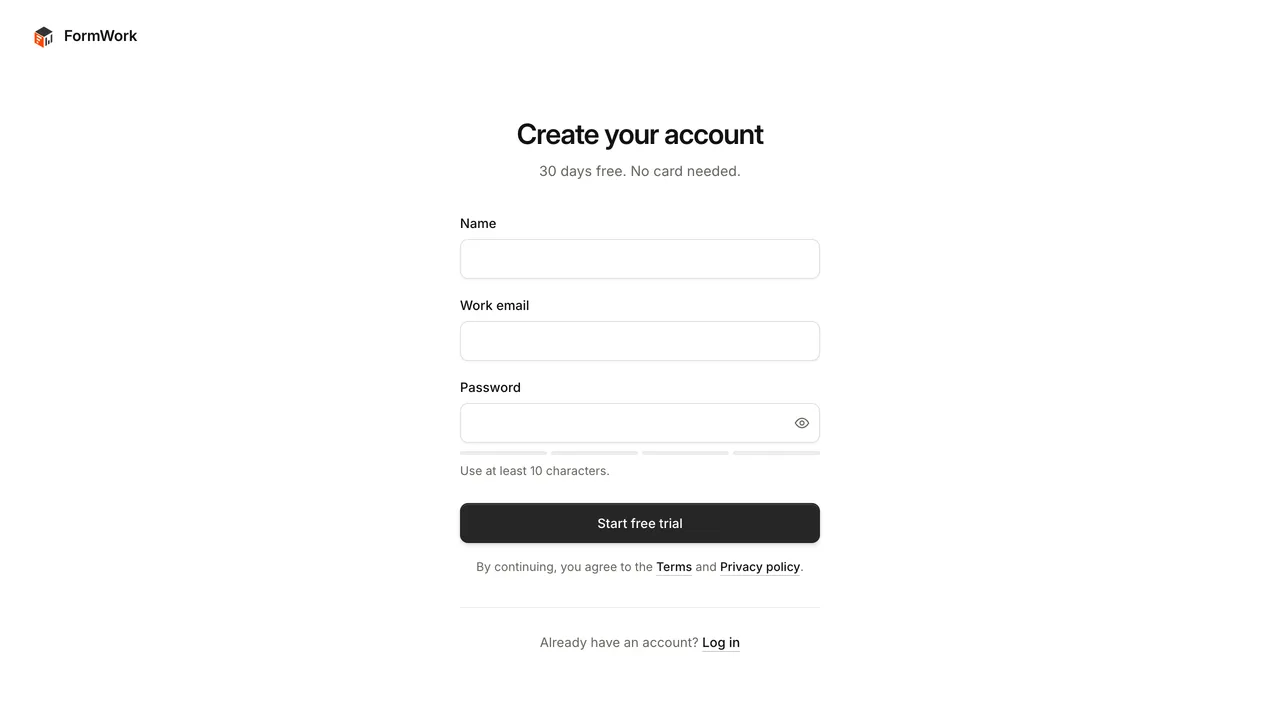
There is no team name to choose and no card to enter. Your account starts a 30-day free trial and you become its first admin. FormWork names the account after you, for example “Sam’s team”, and opens a project called “First project”.
The first time you open the project, a Get started with FormWork checklist walks you through naming your team, creating and publishing a form, collecting an entry and inviting people. Select Hide to dismiss it.
Start from an example
If you sign up from an example on the FormWork website, FormWork creates a copy of that example project in your new account instead of an empty “First project”. If you already have an account, log in from the same link and choose which account to add the example to.
Account settings
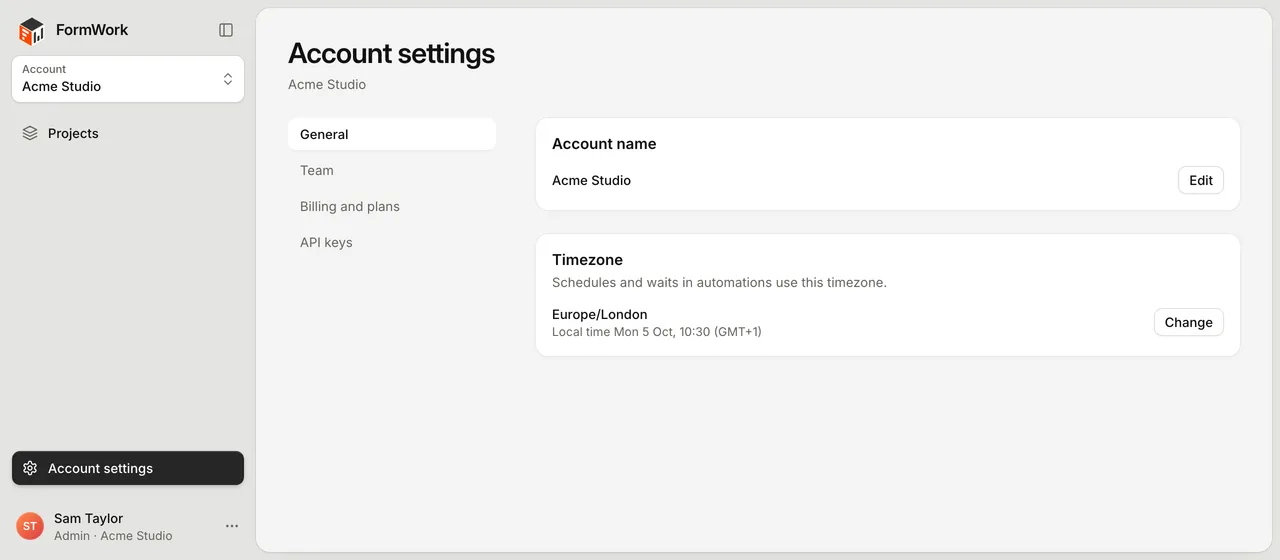
Select Account settings at the bottom of the sidebar. The page has these sections:
| Section | What it holds | Who sees it |
|---|---|---|
| General | Account name and Timezone | Everyone |
| Team | Team members and Groups | Everyone; only admins can change them |
| Billing and plans | Plan, trial, usage and subscription | Everyone; only admins can subscribe or manage billing |
| API keys | Keys for the FormWork API, with chosen permissions and projects | Admins only |
| AI assistants | MCP server address, account AI setting and connections reaching the account | Admins manage account access; everyone can manage their own connections in Profile |
See Team members and roles, Plans and billing and API keys.
Rename the account
- In General, select Edit next to the account name.
- Enter the New account name and select Save changes.
Only admins can rename the account. People you invite see this name in their invitation and in the account switcher.
Set the timezone
Schedules and waits in automations use the account’s timezone. FormWork sets it from your browser when you sign up, and shows admins a Check your account’s timezone notice until someone confirms it.
- In General, select Change next to Timezone.
- Choose a timezone. The local time is shown underneath so you can check it.
- Select Save changes.
Only admins can change the timezone.
Use more than one account
One login can belong to several accounts, for example your own and a client’s. Each account has its own team, billing and projects.
- Switch account: select the account name at the top of the sidebar, then choose an account under Accounts.
- Create an account: open the same menu and select Create account. Enter an Account name and select Create account. You become its admin and it starts its own 30-day trial.
Use a separate account when a group of people must not see each other’s work, because projects do not restrict access.
Projects
Create a project
- Go to Projects in the sidebar and select New project. You can also open the project menu at the top of the sidebar and select New project.
- Enter a Project name and, optionally, a Description. The description is shown under the project name.
- Select Create project.
Creating a project needs an account on a trial or a paid plan. See what stops when billing is inactive.
Inside a project, the sidebar shows Forms, Data tables, Templates and Extensions, plus My work once your account uses stages. To go back to the list of projects, open the project menu and select All projects.
Change or delete a project
Open the project and select Project settings.
- On Details, change the Project name or Description and select Save changes.
- On Secrets, add the values that automations use for Slack webhooks and webhook headers. Values are stored encrypted and can’t be seen after you save them.
- Only admins can delete a project. Select Delete project on Details and confirm. Its forms, entries, data tables and templates are deleted. This cannot be undone, so export anything you need first.
Organise your projects
Start a new project for a separate body of work, such as a client, a department or a process like supplier onboarding. Keep forms in the same project when they share:
- Data tables used for options or lookups
- Email and PDF templates
- Extensions, API connectors and secrets
Forms, tables and templates can’t be moved between projects, so choose the project before you create them. A connected AI assistant can copy a solution’s setup into another project without moving its entries.