
Data tables
Data tables
Keep products, prices, locations and other reference data in a data table, and use its rows as choices, lookups and records in forms and automations.
A data table holds reference data that several forms and automations share, such as a product catalogue, a price list or a list of offices. Each table belongs to one project. Forms can offer its rows as choices, and automations can look rows up, add them and change them.
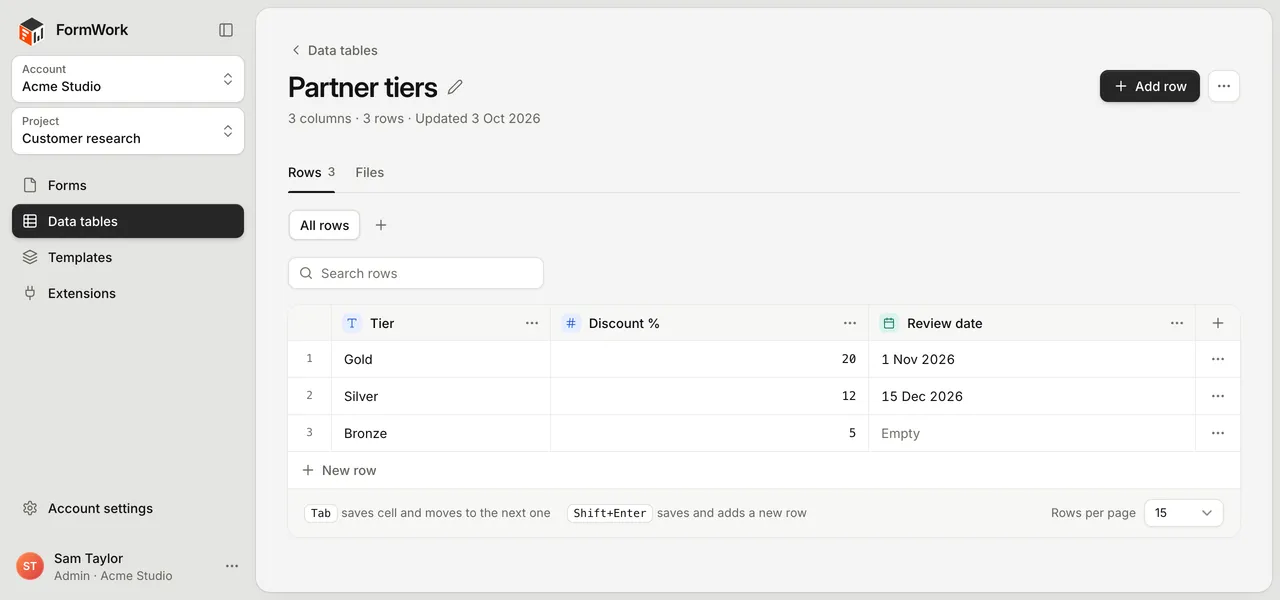
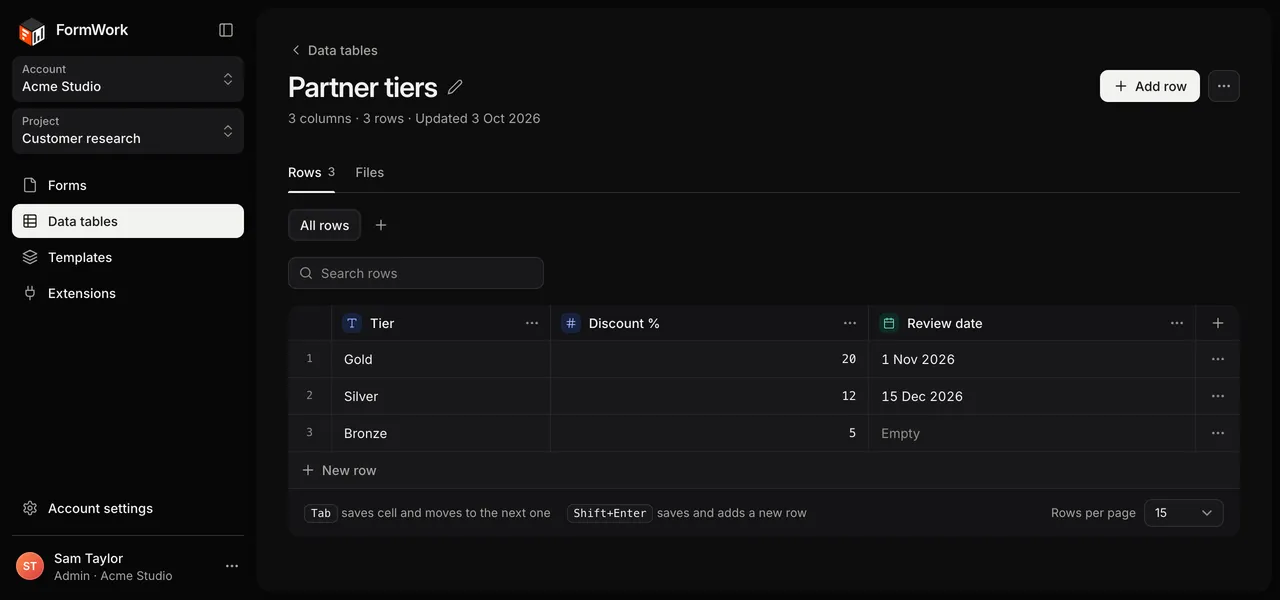
Create a table
- Open a project and select Data tables.
- Select New table.
- Enter a Table name and select Create table.
The table opens empty. Add a column before you add rows.
To rename the table, select the pencil next to its name.
Columns
Select Add column and choose a type. Most columns are added straight away, ready for you to type a name. Currency, choice and link columns ask for their settings first.
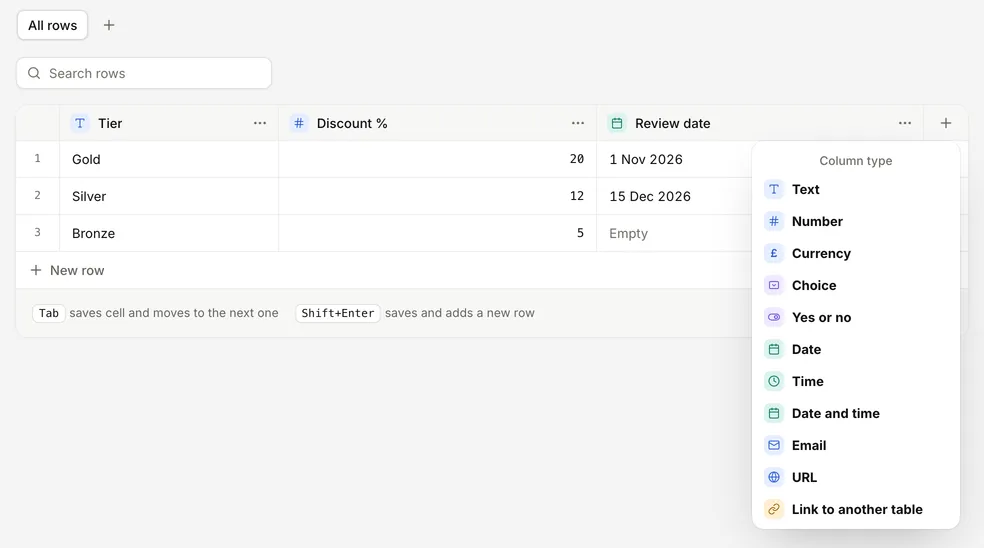
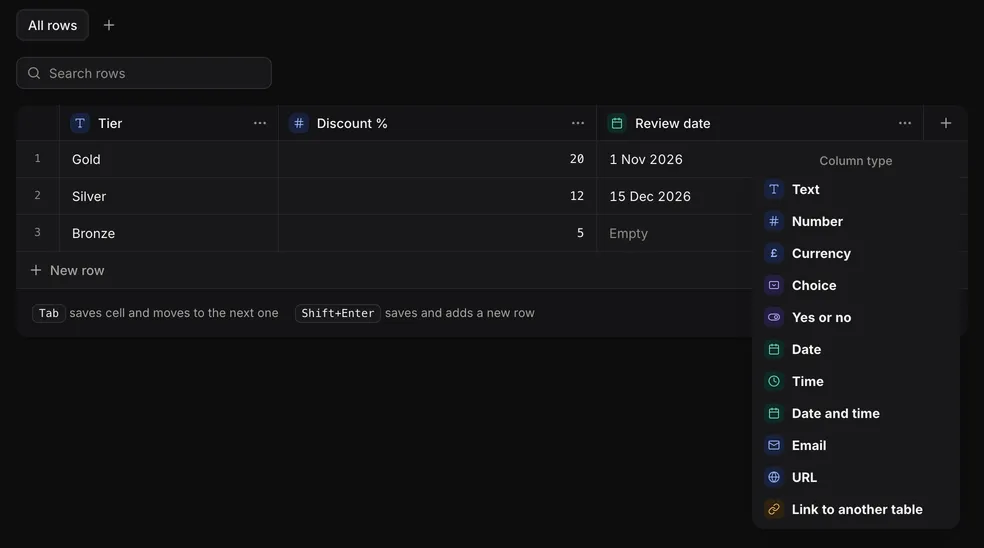
| Type | Holds |
|---|---|
| Text | Names, codes and other short text |
| Number | Quantities, rates and scores |
| Currency | Amounts shown with a symbol, such as £, $ or EUR, and two decimal places |
| Choice | One option from a list you set |
| Yes or no | A tick box |
| Date | A calendar date |
| Time | A time of day |
| Date and time | A date with a time |
| An email address | |
| URL | A web address starting with https:// or http:// |
| Link to another table | A row from another table, shown by one of its columns |
Each column’s menu has:
- Rename.
- Edit options for a choice column. Renaming an option keeps the rows that use it. Removing one leaves those cells showing the old value.
- Currency symbol for a currency column.
- Edit link for a link column, to change Show rows by: the column that names each linked row. To link a different table, change the column’s type.
- Sort ascending, Sort descending and Clear sort. You can also select the column name to sort. Link columns can’t be sorted.
- Change type. Choose the New type and select Check values to see how many values will be kept or converted and how many will be cleared, with examples. Then select Change type to confirm. Values that can’t be converted are cleared.
- Required, which marks the column with an asterisk.
- Move left and Move right. You can also drag a column by its header.
- Delete column, which removes the column and its data. This can’t be undone.
A column keeps its internal ID when you rename it or change its type, so forms and automations that use it keep working.
Rows
Select Add row, or New row under the last row. Select a cell to edit it. Changes save as you type. If a save fails, the cell shows Retry.
| Key | What it does |
|---|---|
| Tab or Enter | Saves the cell and moves to the next one |
| Shift+Tab | Saves the cell and moves to the previous one |
| Shift+Enter | Saves the cell and adds a row |
| Esc | Stops editing and puts the value back |
To delete a row, open its menu at the end of the row and select Delete row. Rows are deleted one at a time.
Use Search rows to find rows that contain some text, and Rows per page to show more at once.
Views
Views save a set of filters and columns, as on a form’s entries page. Select All rows to see everything, or New view to create one. Adding rows and columns is turned off while a view is selected. See Views and filters.
Import and export
Open the table’s menu and select Export rows or Import rows. Exports and imports appear in the Files tab when they are ready. For bulk changes, export the rows, edit them in a spreadsheet and import them again. See Import and export.
Use a table
- As choices in a form. A dropdown, single choice or multiple choice question can offer the table’s rows. See Options from a data table.
- In another table. A Link to another table column lets each row pick a row from a second table, such as a product’s supplier.
- In automations. Steps can find rows, add them, update them and delete them: Find a row or entry, Find records, Create entry or row, Update entry or row and Delete entry or row. See Steps.
- In inserted values. Any step, template or form setting that takes inserted values can read a table’s rows. See Inserting values.
- Through the API. See REST API.
Data tables have no pages, logic, team fields, process or automations of their own. When records need those, use a form.
Delete a table
Only admins can delete a table. Open the table’s menu and select Delete table.
A table can’t be deleted while a form or another table uses it. The dialog lists them with links, so you can remove the table from their questions, columns and automations first. Deleting a table removes it, its rows and its files from use.
Good practice
- Keep each table to one kind of record.
- Give columns clear names. People see them in pickers and step settings.
- A choice from a table is saved as the row’s ID, not its text, so you can correct a name without breaking entries that already chose it.
- Instead of deleting rows that entries still point to, add a Yes or no column such as “Active” and filter on it.