
Getting started
Core concepts
A short map of FormWork, from accounts and projects to forms, entries, stages and automations, with a link to the page that covers each one.
FormWork collects information with forms, then helps your team act on each response. This page defines the main ideas and points to the page that covers each one.
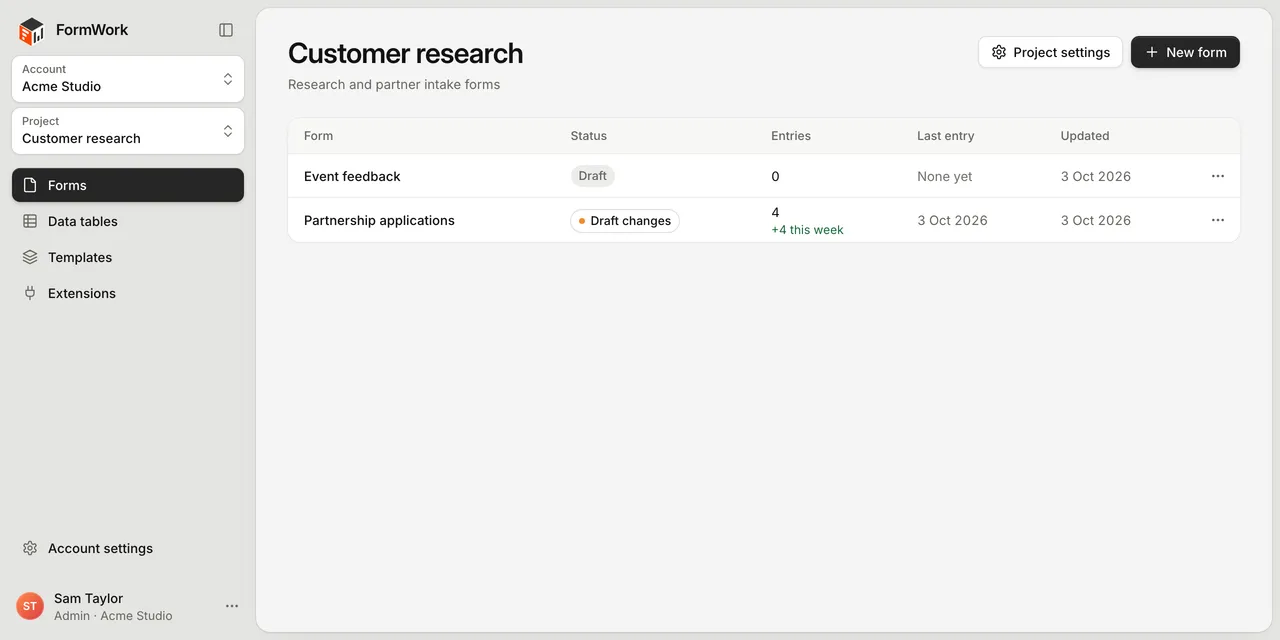
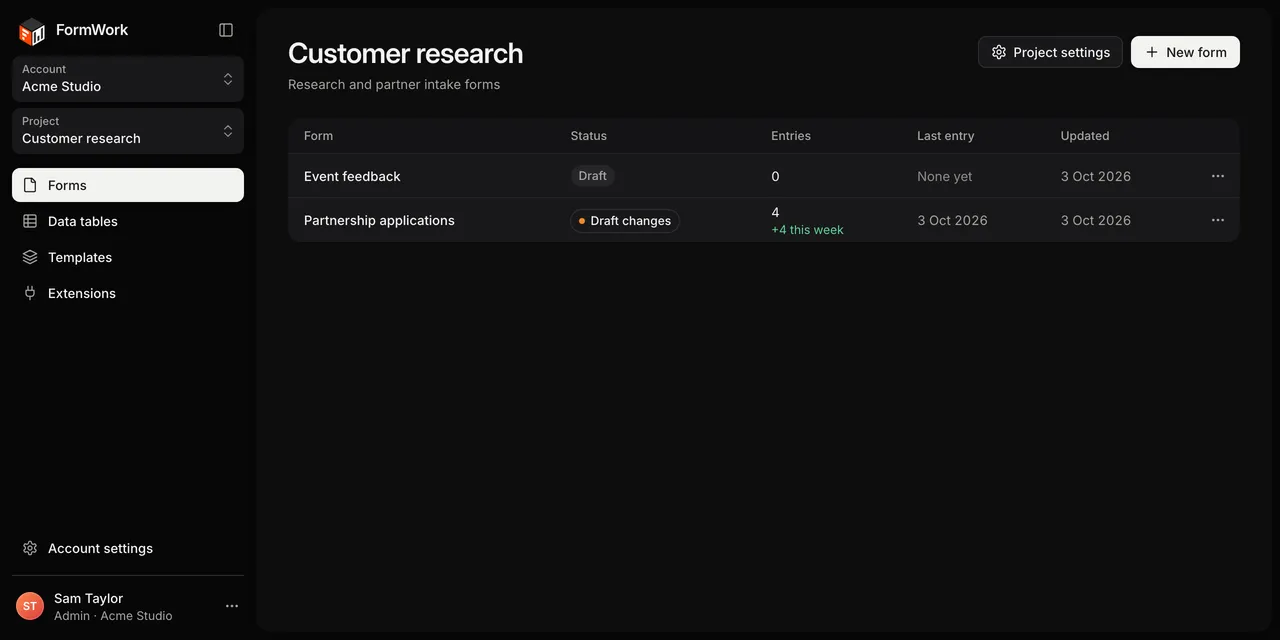
Account (team, billing, API keys)
└── Project
    ├── Forms
    │   ├── Draft and published versions: fields, team fields, process, automations, settings
│   ├── Notifications and saved views (not versioned)
    │   └── Entries: answers, team fields, stage, files, history
    ├── Data tables
    ├── Templates
    └── Extensions
Accounts and projects
Account. Your organisation in FormWork. It holds your team members, their roles, the plan and billing, and API keys. One login can belong to several accounts. See Accounts and projects.
Roles. Each person is an Admin or a Member. Members build forms and work with entries. Admins can also manage people, keys and billing, and override the process. See Team members and roles.
Project. A folder for related work inside an account, such as one client or one department. Everyone in the account can open every project.
Forms
Form. A set of questions that people fill in. Its pages and fields, settings, appearance, process and automations all belong to the form. See Pages, groups and repeaters.
Draft and published versions. You edit a draft. Respondents see the published version. Your changes go live together when you publish, and earlier published versions are kept as archived versions. See Drafts and publishing.
Fields. The questions and content on a form, such as text, email, dropdown, date, file upload, address and signature. Fields can be grouped and repeated, shown or hidden with conditional logic, and checked with validation. See Field types.
Share and embed. Every published form has a link and code to embed it on a website. See Share and embed.
Entries
Entry. One person’s response to a form. An entry is In progress while someone is filling it in and Submitted once they send it. Your team can view, edit, filter and export entries. See Entries and The entry page.
Team fields. Extra fields on each entry that only your team sees and fills in, such as a priority or an internal note. Respondents never see them. See Team fields.
Process and stages
Process. The stages a form’s entries move through after they arrive, such as New, Waiting for approval and Done. Entries can start in the process when they are submitted or as soon as they are started. You set it up on the form’s Process page. See Stages.
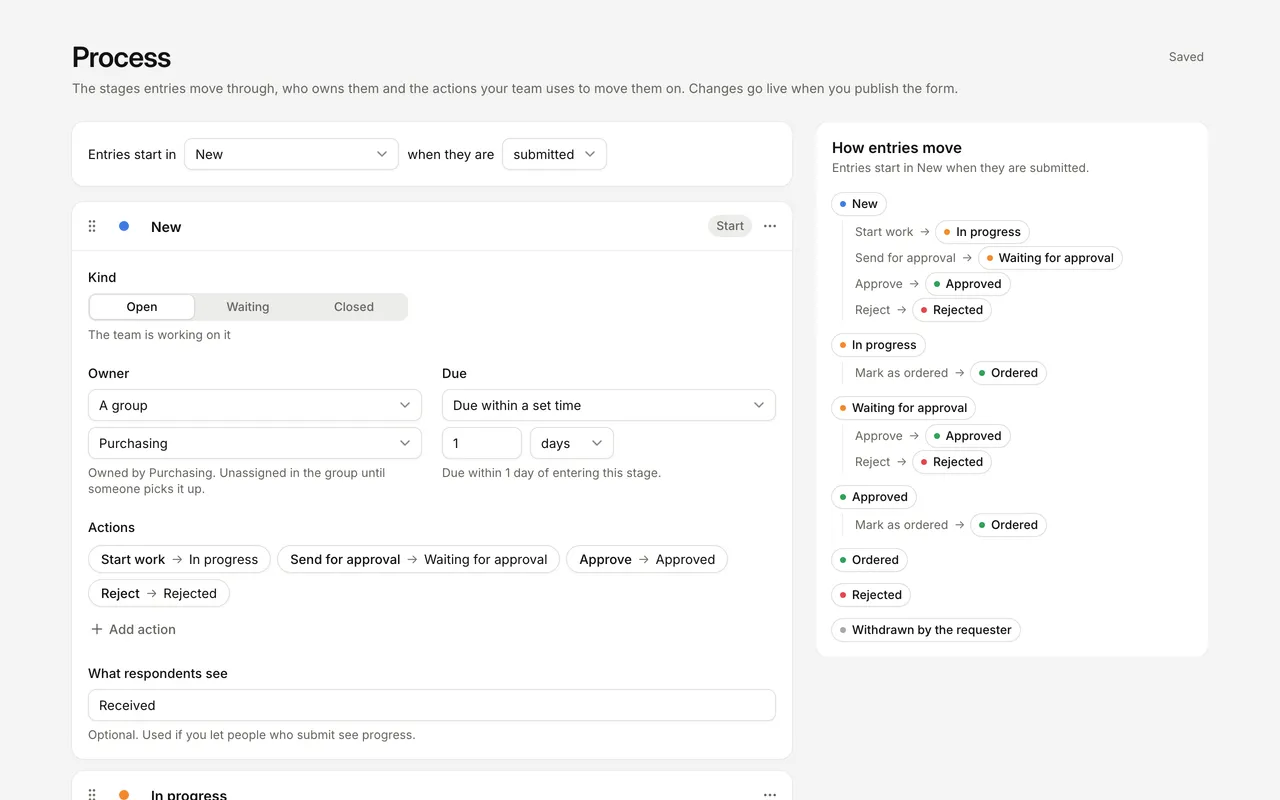
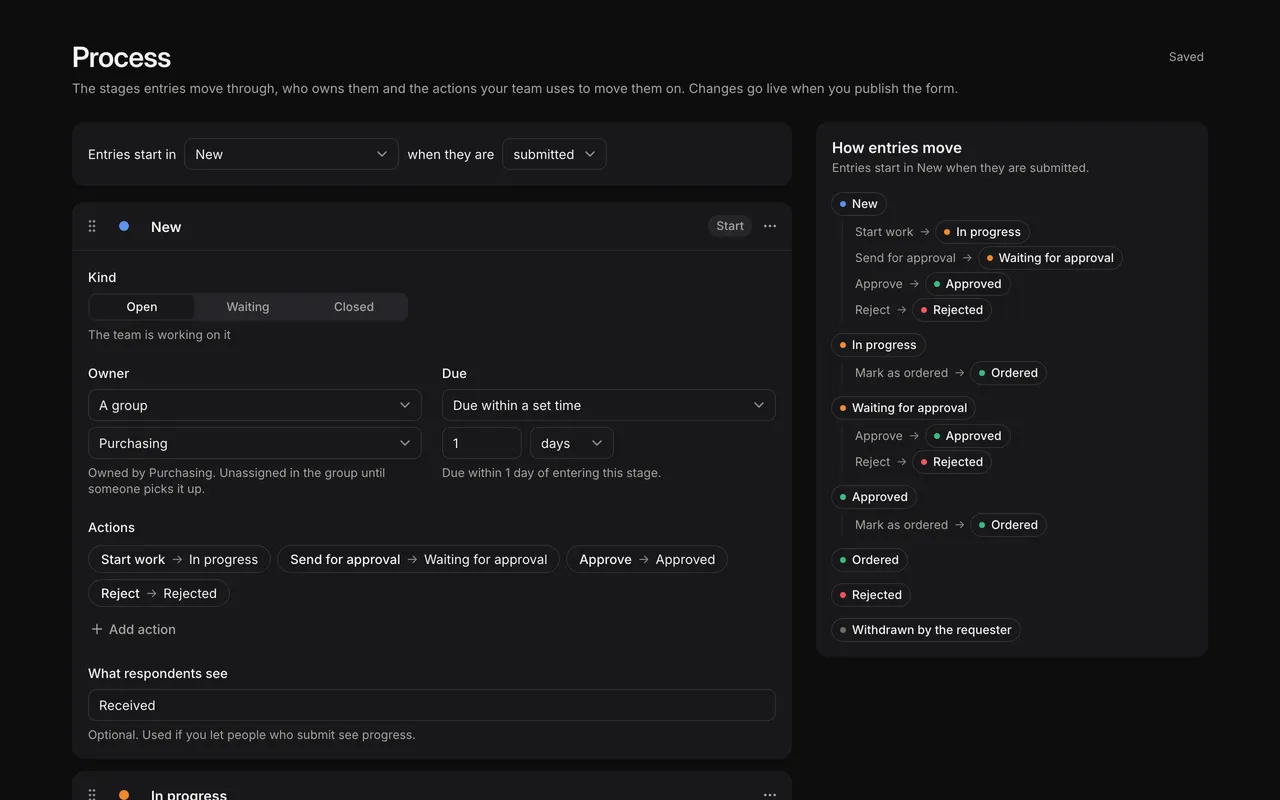
Stage. A step in the process. A stage can have an owner (a person or a group), a due time after which the entry is overdue, and actions: buttons such as “Approve” that move the entry to another stage. See Owners and due dates.
Approval. A stage can ask approvers to approve or reject an entry, including people outside FormWork who decide from a link. See Approvals.
My work. A list of the entries waiting for you or your groups, across every form. See My work.
Respondent status. If you turn it on, the person who submitted an entry can follow its progress from a status link. They see a label you choose for each stage, never your internal stage names or comments. See Respondent status.
Automations
Automation. Work FormWork does for you when something happens. Each automation starts with a trigger, shown as “When …”, such as when the form is submitted or when an entry moves to another stage. It then runs steps, such as sending an email, creating a PDF, waiting, or choosing a path with If and Otherwise. See Automations, Triggers and Steps.
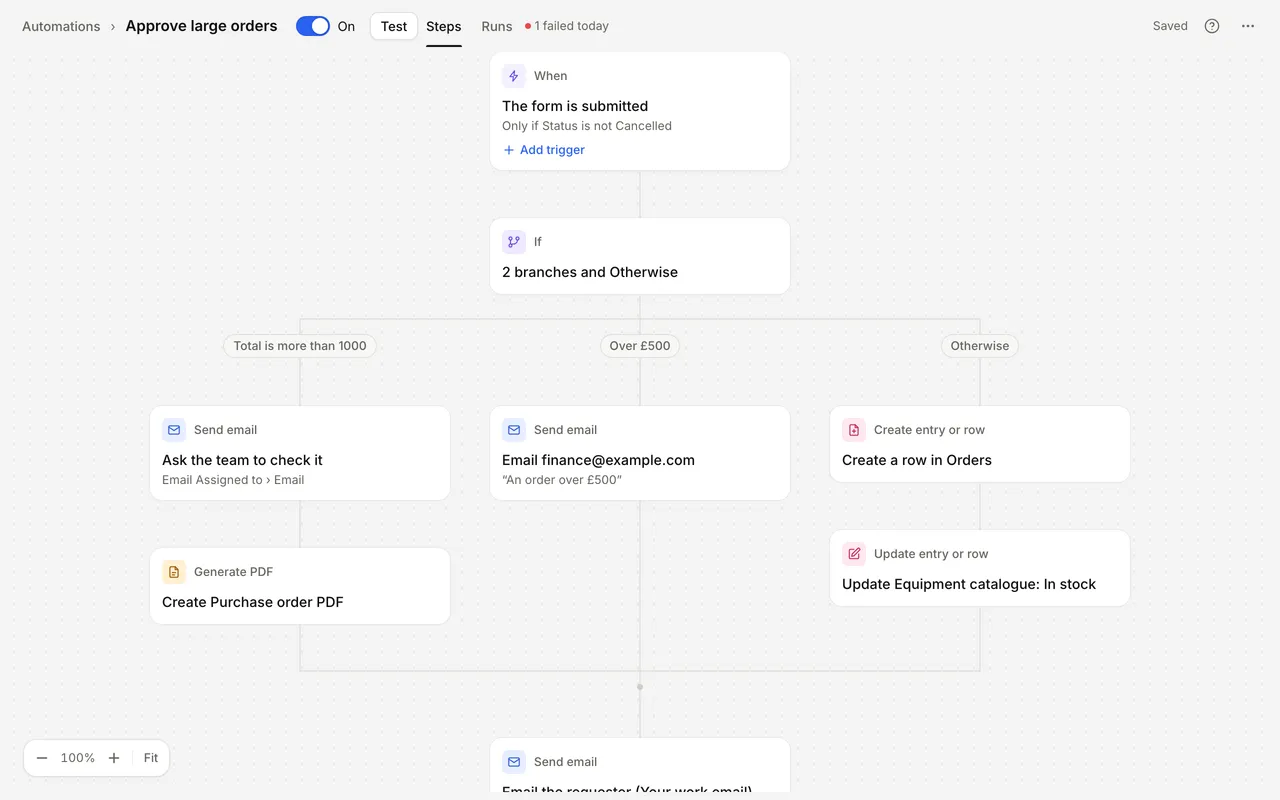
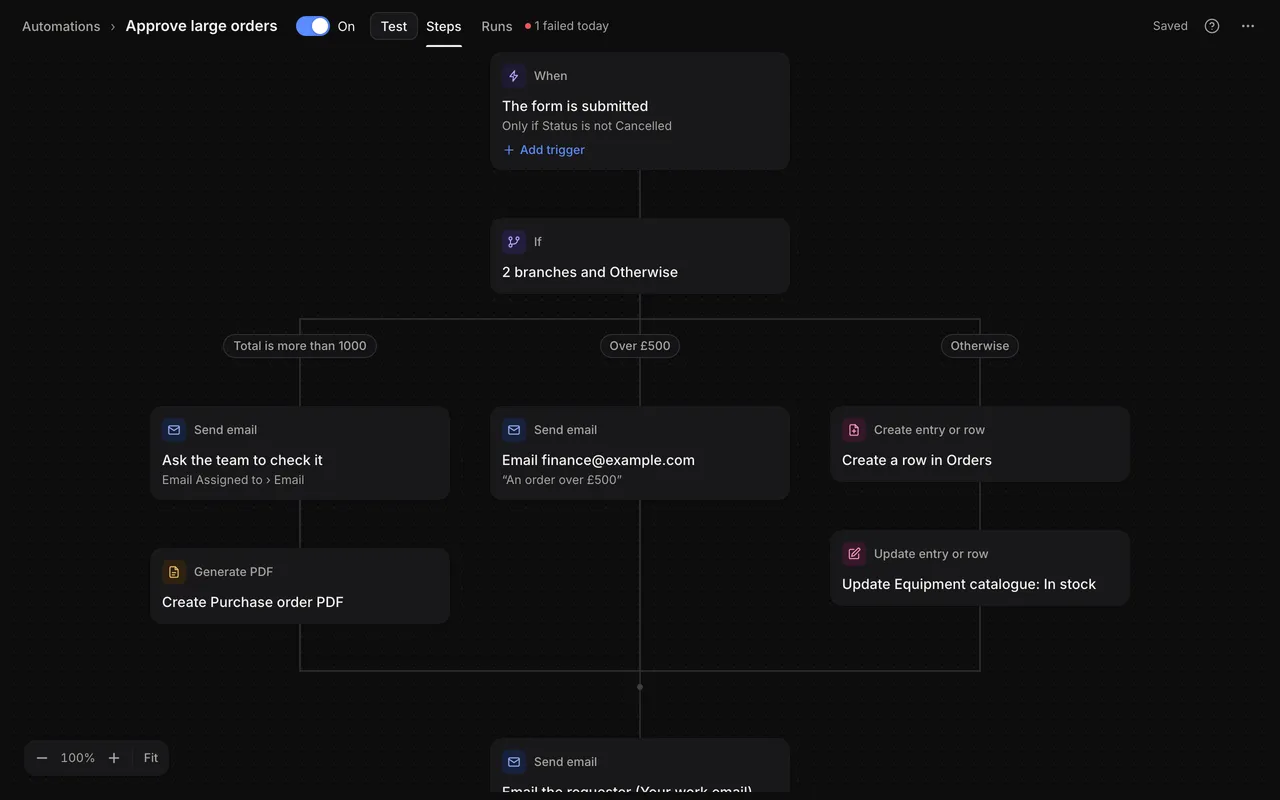
Runs. Each time an automation starts, FormWork records a run on the entry, step by step, so you can see what happened. See Runs and testing.
Inserting values. Emails, templates and steps can include answers and other values from the entry. See Inserting values.
Shared resources
Data tables. Lists of records your forms and automations can use, such as products, prices or locations. A dropdown can take its options from a data table. See Data tables.
Templates. Email messages, PDF documents and layouts you write once and reuse in automation steps. See Templates.
Extensions. Connections to other services, such as payment providers and external APIs, for use in your forms and automations. See Extensions.
API. Other systems can read and change your data through the REST API with an API key, limited to the permissions and projects you choose. See REST API.
AI assistants. Connect an MCP-compatible assistant to build drafts, ask about entries and work through your queue. The connection uses your role, chosen accounts and projects, granted permissions and the account’s AI setting. See FormWork with AI assistants.