
Data tables
Options from a data table
Fill a dropdown or choice question from a data table's rows, narrow the list by earlier answers and copy other columns from the chosen row.
A dropdown, single choice or multiple choice question can take its options from a data table instead of a list you type. When the table changes, the options change with it, without publishing the form again.
Connect a question to a table
- In the builder, select the question and open its Options tab.
- Select Data source. If the question already has options, confirm with Use data source; the typed options are removed.
- In Data source, open the picker, select Data tables, the table, then All rows.
- Check Option label field. FormWork picks a column to name each option. Change it to the column people should see, such as Name.
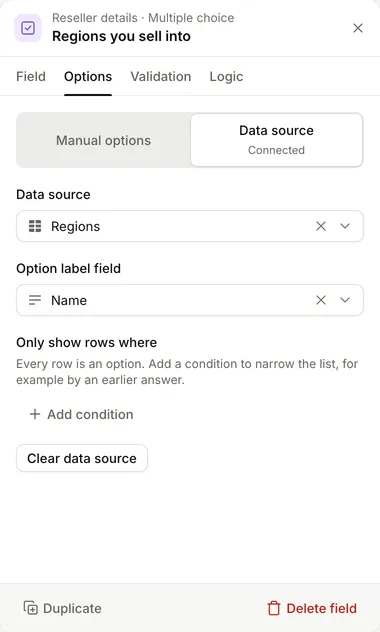
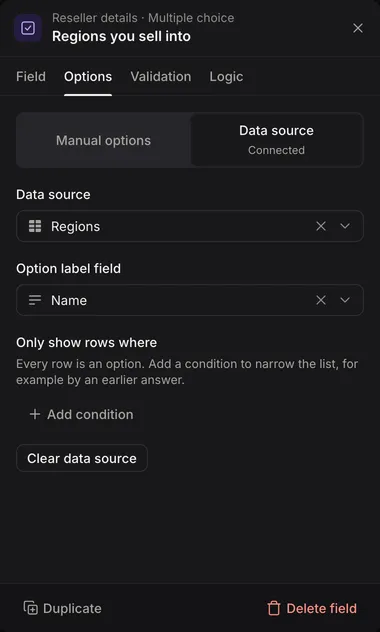
Changes to options are part of the form’s draft. Publish to use them on the live form. See Drafts and publishing.
To go back to a typed list, select Manual options and confirm with Enter manually, or select Clear data source.
The same steps work with another form: select Forms, the form, then All entries, and choose which answer names each option.
What gets saved
The option label is what people see. The answer saved in the entry is the row’s ID, not the label. So you can rename a product in the table and entries that chose it still point to the same row.
To show or use another column of the chosen row, see Use other columns of the chosen row.
Show only some rows
Under Only show rows where, select Add condition and set:
| Setting | What it does |
|---|---|
| Column | The table column to check. |
| Match | is, is not or contains. |
| Compare with | An earlier answer in the form, or A fixed value. |
| Answer or Value | The answer or value to compare with. A fixed value can’t contain &, [, ], { or }. |
All conditions must match. With no conditions, every row is an option.
For a yes or no column, such as “In stock”, compare with the fixed value true.
Choices that depend on an earlier answer
To offer regions that belong to the country someone chose:
- Connect a Country question to the Countries table.
- Connect a Region question to the Regions table. The Regions table needs a column that holds each region’s country, such as a Link to another table column pointing at Countries.
- On the Region question, add a condition: Column is that country column, Match is is, Compare with is An earlier answer, and Answer is Country.
An earlier answer lists only questions that come before this one. When the earlier answer changes, the list updates to match.
Use other columns of the chosen row
To fill a question with another column of the row someone picked, such as a unit price:
- Select the question to fill and open its Default value.
- Choose Look up from a dropdown.
- Choose the Dropdown and the Column to copy.


The value keeps updating until someone changes it. For more on default values, see Calculated values and defaults.
In automations and templates, open the question under Current entry in Choose a value to insert any column of the chosen row. The label reads “Selected row”. See Inserting values.
Long lists
Options from a table are sorted by their label, and rows with an empty label are left out. A dropdown with many options lets people type to search it. When a list has more than 1,000 options, the form loads them as people search.
Options from a list in the entry
Data source can also point to a list that is already in the entry, such as the answers to a question in a repeating group. Each value becomes an option, and there is no Option label field to choose.
Troubleshooting
- No options appear. Check that the table has rows with something in the label column, and that the conditions under Only show rows where can match. Remember to publish.
- The labels are wrong. Change Option label field.
- A condition never matches. A question connected to a table saves the row’s ID. To compare with it, use a link column that points at the same table, not a text column.
- The filter can’t be changed in the builder. The message “This data source has filters written by hand” means the source was written as a reference. Change it in Data source, or clear it and start again. The syntax is in Inserting values.
Good practice
- Use a column with a readable, unique value as the label.
- Instead of deleting rows that entries still point to, add an “Active” column and show only rows where it is
true. - Test dependent questions with the earlier answer empty, chosen and then changed.